

Close the PC, open the laptop, land in the same live terminals. Remote-SSH for VS Code and VSCodium, with tmux-backed terminals that outlive every connection.



A VS Code / VSCodium extension that connects to a remote dev machine over SSH — a fork of open-remote-ssh with the same connect flow — plus one under-the-hood upgrade: remote terminals are backed by tmux, so they persist and can be re-attached from any machine. Connecting is a little smarter too: it reuses an empty local window instead of leaving a blank one behind (see Connecting).
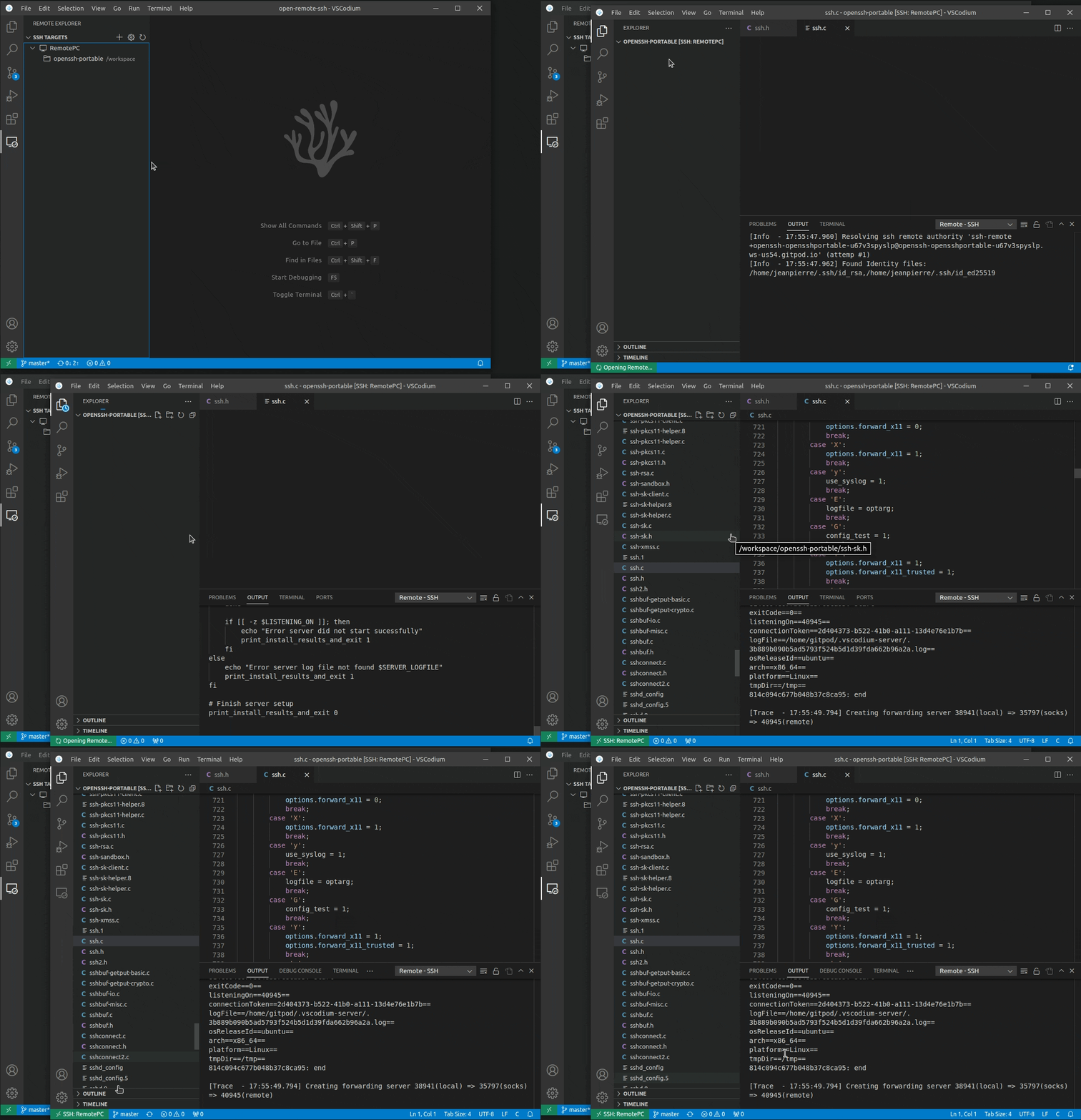
You work across a PC, a laptop, and a VPS that's the actual dev environment.
Close the PC, open the laptop, and land back in the same terminals — same
scrollback, same running processes (a long Claude Code task, a build, a
migration) — regardless of which client connected last or whether the network
dropped in between.
With stock open-remote-ssh, a remote terminal's lifetime is coupled to the client/session that opened it: closing the window, switching machines, or a vscode-server restart can take a running task down with it. This fork moves that lifetime into a tmux server on the remote — a process no client owns — so terminals and the work inside them outlive any one connection.
Scope is terminals only. Editing, file changes, saving, extensions, and
port forwarding already reconnect fine (the vscode-server persists) — this
fork doesn't touch that path. It's invisible: no tmux commands, no tmux UI,
same connect flow as open-remote-ssh. See
docs/idea/why.md for the full motivation and
docs/idea/persistence-model.md for the
honest technical picture; what it does not fix is under
Known limitations.
Releases ship as a .vsix on the
Releases page.
The extension is not currently published to Open VSX or the VS Code Marketplace.
- Download
open-remote-ssh-tmux-<version>.vsixfrom the latest release. - Optionally verify it against the published
.sha256:sha256sum -c open-remote-ssh-tmux-<version>.vsix.sha256 - In VS Code / VSCodium: Command Palette →
Extensions: Install from VSIX…→ pick the downloaded file. - VSCode-OSS also needs the extension enabled in
argv.json— see Activation below. - Fully close and reopen the remote window. This extension resolves the
remote authority, so a newly installed build only takes effect on a fresh
resolve —
Developer: Reload Windowalone is not always enough.
Building the .vsix yourself is covered in CONTRIBUTING.md.
The extension is a UI extension (extensionKind: ["ui"]): it runs on your
local machine, not the remote, so do not look for it in the remote's extension
list. Open a terminal in a remote folder: its tab is named after the folder, and
tmux ls on the remote shows a code-<hash>-0 session. If the terminal is a plain
shell instead, see Troubleshooting.
- Editor: VS Code or VSCodium 1.90 or newer (local machine).
- Remote host: a Unix-like remote (Linux, macOS, BSD) with tmux ≥ 2.6 on
the
PATHof a non-interactive SSH command. Checked on every connect: if tmux is missing or too old, terminals are plain (non-persistent) shells and the connection is otherwise unchanged. - Windows remotes: tmux is Unix-only. Windows remotes get stock, non-persistent terminals — same as upstream open-remote-ssh.
- Everything in SSH Host Requirements and Activation below.
- Remote-SSH: Connect to Host... (also in the remote indicator, bottom left)
opens a list: the hosts you connected to most recently first, then the rest of
your SSH config, each with the
user@hostname:portit resolves to. Type any[user@]hostname[:port]that is not listed to connect to it directly. Add New SSH Host... and Configure SSH Hosts... are at the bottom. - Which window. From an empty local window (no folder or workspace open) the
connection opens in that window; from any other window it opens a new one.
remote.SSH.openInWindowchanges this (current/new), and Connect Current Window to Host... always reuses the current window. - SSH Targets (Remote Explorer): clicking a host connects to it and clicking a
recent folder opens it, in the window
remote.SSH.openInWindowpicks; the arrow next to the host's name expands its recent folders. The inline buttons force the current window (→) or a new window. The host and folder this window is connected to are marked "connected"; hover a host for itsuser@hostname:port, a folder for its full path. With no hosts yet, the view offers Add New SSH Host and Open SSH Config File.
- New Terminal opens a "Persistent Shell" (the default profile, see
remote.SSH.tmux.setDefaultProfile). Its process runs on the remote, outside the VS Code server. - Closing or reloading the window, a dropped connection, or a VS Code server restart leaves the terminals running. Reconnecting puts them back in their tabs, with their scrollback.
- Closing a terminal tab ends that terminal and what runs in it, as in stock open-remote-ssh.
- Another machine. Each window marks the terminals it opens with an id
derived from a hash of its machine id (never the raw id). When a window's
connection ends — the window closed, or the network dropped — the remote marks
its terminals, and the next machine to open the workspace moves them over at
once if nobody has typed in them since. Otherwise (a laptop that went to sleep,
VS Code killed) they count as abandoned once nobody has typed in them for 2
minutes. Either way, with
remote.SSH.tmux.handOff: auto, they move without asking. Terminals in active use on another machine are never taken without a click: you get one notification, "This workspace's terminals are open on another machine." [Take over] [Not now]. Taking over closes the other window's tabs; nothing running stops. - Housekeeping. On connect, terminals of yours whose process has exited are
cleaned up, and so are detached ones nobody has used for
remote.SSH.tmux.orphanMaxAgeDaysdays (left behind by a folder that was renamed or never reopened). Terminals open in any window are never touched, and neither are tmux sessions the extension did not create.
| Setting | Default | Description |
|---|---|---|
remote.SSH.openInWindow |
auto |
Where Connect to Host... and a click in SSH Targets open the remote. auto: the current window when it is an empty local window, otherwise a new window. current: always the current window. new: always a new window. The explicit "…in Current Window" / "…in New Window" actions ignore it. |
remote.SSH.tmux.enabled |
auto |
auto: persistent terminals on Unix-like remotes, plain shells on Windows. on: show an error when the remote has no usable tmux (the connection still opens). off: plain shells only; turning it off while connected offers to close this workspace's terminals that are still running. |
remote.SSH.tmux.historyLimit |
50000 |
Scrollback lines kept per terminal, 0 to 1000000. |
remote.SSH.tmux.handOff |
auto |
What to do when this workspace's terminals are open on another machine. auto: move them here without asking if that machine has been idle for 2 minutes, otherwise offer. ask: always offer, never move them without a click. never: leave them on the other machine. |
remote.SSH.tmux.reapOnConnect |
true |
Clean up dead terminals, and those older than orphanMaxAgeDays, when connecting. |
remote.SSH.tmux.orphanMaxAgeDays |
14 |
Close a terminal no window has been attached to and that has had no activity for this many days. 0 keeps them forever. |
remote.SSH.tmux.setDefaultProfile |
true |
Make "Persistent Shell" the default profile so a plain New Terminal is persistent. Written as terminal.integrated.defaultProfile.<platform> at Workspace scope — into .vscode/settings.json inside your remote folder, a file your repository may track — and only when no default is set at any scope. Set to false to leave your settings alone and pick the profile from the terminal dropdown; that does not remove a value written earlier. |
Changes apply without a reload, except reapOnConnect and orphanMaxAgeDays,
which are read at the next connect. All other settings (remote.SSH.* for SSH
config, server install, agent forwarding, etc.) are unchanged from upstream
open-remote-ssh.
Press Ctrl+Alt+V (Cmd+Alt+V on macOS) with a terminal focused to paste a screenshot from your local clipboard into the remote terminal.
The problem it solves: your clipboard lives on your laptop, but the tool that needs the image — Claude Code, say, being asked to fix a visual bug in a webapp — runs on the server. Nothing bridges the two. So the image is written to the remote and its path is pasted, which is all a CLI tool needs.
- Images land in
~/.cache/open-remote-ssh-tmux/images/on the remote, created and verified0700before the first byte is written. Screenshots routinely contain tokens and session cookies, so they are kept inside the user's own home rather than anywhere under world-writable/tmp(which through 1.1.3 they were — see the 1.2.0 entry in CHANGELOG.md). - Transfer goes over the already-open remote connection
(
vscode.workspace.fs) — noscp, no second channel, no daemon. - The path is sent as a bracketed paste (
ESC[200~ … ESC[201~), so a TUI receives it as pasted text rather than keystrokes. Without this, Claude Code can trigger completion or submit early on the incoming path. - Progress appears in the status bar only if the upload takes longer than ~300 ms, so the common case stays silent.
- Images older than 48 hours are swept on each connect, scoped to that one
directory (
-maxdepth 1 -type f -name '*.png'). - If there is no image on the clipboard, the keybinding falls through to an ordinary text paste — it never swallows a normal paste.
No local setup is required. Readers are tried in order, fastest first:
| Local OS | Tried first (silent) | Fallback |
|---|---|---|
| Windows | PowerShell (built in) | editor panel |
| macOS | pngpaste (brew install pngpaste) |
editor panel |
| Linux | wl-paste (Wayland), then xclip (X11) |
editor panel |
If no native reader is installed — or the platform has none — the extension opens a small panel that reads the clipboard through the editor itself. That panel runs locally even though the workspace is remote, so it sees your real clipboard; it closes as soon as it has the image and hands focus back to the terminal. If the editor blocks reading the clipboard without a keypress, the panel asks you to press Ctrl+V once.
The panel only ever appears when the clipboard holds no text, so pasting an ordinary command never opens anything.
If the image can't be delivered you get an error — the feature does not fail
silently. The Remote - SSH output channel logs which readers ran.
tmux moves terminal lifetime off the client — it does not make the network
connection itself seamless. A dropped connection still needs a reconnect (fast,
but not invisible); that is the piece a transport like mosh would solve, and it
was deliberately left out — see
docs/idea/decision-mosh-vs-tmux.md and
docs/idea/persistence-model.md.
- Esc is held ~0.5 s on tmux 3.8. tmux 3.8 asks the terminal for its pixel size, VS Code's terminal never answers that query, and 3.8 delays every Esc while the query is pending (tmux #5777, fixed on tmux master, not yet released). tmux 2.6–3.7 are not affected. Keys still arrive exactly once; only Esc is late (noticeable in vim or Claude Code).
- No shell integration in persistent terminals. VS Code's shell integration (command decorations, run-recent-command, working-directory tracking) is not available in them: the program VS Code launches is tmux, not your login shell. Everything typed and printed works as usual, and your shell's own prompt and history are unchanged. If you rely on shell-integration features, pick a plain shell profile for that terminal.
- A remote reboot ends every terminal. tmux keeps terminals alive across disconnects, not across a restart of the machine; there is no resurrection.
- Hosts that end your processes at logout. With systemd-logind
KillUserProcesses=yes, every terminal dies when the connection closes. The extension warns once per host; see Terminals closed after disconnect. - A window you are only watching counts as idle. Idleness is measured on
typing, not output, so a window watching a long run (e.g. Claude Code) with no
keystrokes for 2 minutes is treated as abandoned: under
handOff: auto, another machine opening the workspace moves the terminals without asking. Nothing running stops, but the watching window's tabs close. The same holds right after a network drop: until this window reconnects, its terminals read as closed, and a machine that opens the workspace in that moment takes them at once. SethandOff: askto always get a click. - Windows remotes get plain, non-persistent terminals. The platform gate is verified, but no full end-to-end run against a real Windows SSH target has been done.
- Agent forwarding in a terminal that survived a reconnect. A shell that was
already running keeps the
SSH_AUTH_SOCKfrom before the reconnect; a new terminal gets the current one. - Session identity is the resolved
user@host:portplus the folder path. Reaching the same machine by IP address on one PC and by DNS name on another, or opening the same folder through a symlink, still counts as two workspaces. - Split layout comes back, but which terminal lands in which pane is not guaranteed when several terminals share a split.
- Use one window per workspace per machine. Two windows of the same machine on the same folder share one record of their terminals and can take them from each other.
open-remote-ssh-tmux is maintained by AI: by developerz.ai, the way a human maintainer looks after an open-source project. The agent works publicly as developerz-ai[bot] and marks every comment it posts as bot-made. Its policy is committed in .dz/maintainer/maintainer.yml, and CLAUDE.md binds it: no policy line relaxes a non-negotiable (terminals only, invisible tmux, no zombie sessions, SSH transport unchanged).
| What arrives | What happens |
|---|---|
| an issue | triaged into bug / feature / dupe / question / docs; asked for steps, expected, actual and version when missing; closed after 14 days without a reproduction |
| a pull request | reviewed (CodeRabbit and the developerz.ai reviewer), driven to green on check, the tmux rig and the package job; the agent merges its own on green, everyone else's waits for a member |
| Dependabot | driven to green, then waits for a member: runtime deps (ssh2, socks, simple-socks) always get a human review |
an outside change to CI or publish automation (.github/) |
declined: members maintain the pipeline that publishes the extension |
| a change that surfaces tmux to the user, rewrites the SSH transport, or persists more than terminals | declined with the non-goal quoted |
| a release | not the agent's: a member tags v* and publish.yml gates it (tag = version, build + test + lint) before publishing |
What keeps agent-written code honest is mechanical, not trust: unit TDD (~1300 tests), the real-tmux docker rig (test/rig/, tmux 2.6, 3.0a, 3.4, 3.5a, 3.8 on every pull request), the real-VSCodium end-to-end driver (test/rig/edh/, the full acceptance matrix with no manual steps), zero-warning typed lint, a coverage ratchet and Windows/macOS unit jobs. The why lives in docs/idea/; each body of work is a plan with results under docs/plans/.
Scheduled checkups, briefs in .dz/schedules/: weekly health catches the failures nothing announces, and monthly improve (first Monday) lands small, evidenced improvements.
- Local listeners bind
127.0.0.1only — the tunnel to the VS Code server, the dynamic-forwarding SOCKS proxy and port forwards are not reachable from other machines on your network. - What is logged. Logs go to the local "Remote - SSH" output channel only. Passwords, passphrases, key material and the server connection token are never written; ProxyCommand arguments are replaced by their count. Detailed lines (install command, identity files found, per-terminal decisions) appear only at the Trace log level. The channel still names hosts, users and remote paths — check it before pasting it into a public issue.
- The VS Code server download is verified by TLS only. The install script
fetches the server from
remote.SSH.serverDownloadUrlTemplateover HTTPS and checks no checksum or signature. - Remote commands are quoted. Workspace folder names, host names and settings never reach a remote shell or tmux unescaped; a folder name cannot run commands.
- Host keys are checked against
known_hosts(includingUserKnownHostsFile,GlobalKnownHostsFile,HostKeyAliasand@revokedentries).@cert-authoritylines and%-tokens in those options are not supported.
Report vulnerabilities privately — see SECURITY.md.
See CHANGELOG.md.
You can connect to a running SSH server on the following platforms.
Supported:
- x86_64 Debian 8+, Ubuntu 16.04+, CentOS / RHEL 7+ Linux
- ARMv7l (AArch32) Raspbian Stretch/9+ (32-bit)
- ARMv8l (AArch64) Ubuntu 18.04+ (64-bit)
- IBM Z (s390x) Debian 13, RHEL 8+, Ubuntu 22.04+, SLES 15+
- macOS 10.14+ (Mojave)
- Windows 10+
- FreeBSD 13+ (Requires custom serverDownloadUrlTemplate setting)
- DragonFlyBSD (Requires manual remote-extension-host installation)
Configuration
Your SSH server's configuration needs to have the following setting:
AllowTcpForwarding yes
Activation
NOTE: Not needed in VSCodium (every version this extension supports).
Enable the extension in your argv.json
{
    ...
    "enable-proposed-api": [
        ...,
        "developerz-ai.open-remote-ssh-tmux",
    ]
    ...
}
which you can open by running the Preferences: Configure Runtime Arguments command.
The file lives at:
| Platform | Path |
|---|---|
| Linux | ~/.vscode-oss/argv.json |
| macOS | ~/.vscode-oss/argv.json |
| Windows | %USERPROFILE%\.vscode-oss\argv.json (e.g. C:\Users\<you>\.vscode-oss\argv.json) |
The publisher id must match exactly — developerz-ai.open-remote-ssh-tmux.
A typo here fails silently: the extension installs and appears enabled, but
proposed APIs stay unavailable and remote resolution never starts.
Restart the editor (not just reload) after editing argv.json.
Alpine linux
When running on alpine linux, the packages libstdc++ and bash are necessary and can be installed via
running
sudo apk add bash libstdc++All diagnostics live in one place: Remote-SSH: Show Log (Command Palette), the
Remote - SSH output channel. docs/troubleshooting.md
explains its lines, the notifications the extension can show, how to list and
close terminals on the remote by hand, and where the log files are.
| Symptom | Fix |
|---|---|
Terminals are plain shells; tmux ls on the remote shows no code-* sessions |
Check Requirements and argv.json (Activation), then fully close and reopen the remote window. |
| "Persistent Shell" is in the dropdown but New Terminal opens a normal shell | Another default profile is set. Set terminal.integrated.defaultProfile.linux (.osx on a macOS remote) to Persistent Shell, or remove your default so the extension can set it. |
| Every terminal is gone after a disconnect | The host ends your processes at logout — see Terminals closed after disconnect. |
| Terminals moved to another machine you did not expect to take them | That window was idle for 2 minutes — see remote.SSH.tmux.handOff and Known limitations. |
OpenSSH supports using a configuration file to store all your different SSH connections.
To use an SSH config file, run the Remote-SSH: Open SSH Configuration File... command.
If you are using VSCode-OSS instead of VSCodium, you need some extra steps to make it work.
Modify the following entries in the plugin settings:
"remote.SSH.serverBinaryName": "codium-server",
"remote.SSH.serverDownloadUrlTemplate": "https://github.com/VSCodium/vscodium/releases/download/${version}${release}/vscodium-reh-${os}-${arch}-${version}${release}.tar.gz",
"remote.SSH.serverVersion": "latest",
"remote.SSH.serverValidation": "force",
VSCodium versions have an extra release part that do not have equivalent for VSCode-OSS.
So leaving serverVersion to the default "match" will fail.
The plugin will install the latest release of VSCodium if serverVersion is set to "latest".
If you need to match the VSCode-OSS version, set serverVersion to "closest", to
automatically fetch the last release of VSCodium for this version.
You can look for the release numbers associated with your VSCode version in the release page. For instance, for VSCode version "1.96.0", the (last) VSCodium release number is "24352".
You can also set serverVersion to a specic version (e.g. "1.116.0") or a specific
version-release (e.g. "1.116.02821").
If the local and remote VSCodium versions don't match, which will be the case on VSCode-OSS,
remote server validation needs to be bypassed. Setting serverValidation to "force" will
modify the commit of the remote server to make it match the local VSCode commit.
If serverValidation is set to "skip", the remote server will skip checking that the commits
match. This option is working only if the remote VSCodium version is >=1.120.
Starting with VSCodium version 1.99.0, the release number is not separated from the version by a dot . anymore.
Therefore serverDownloadUrlTemplate needs to be filled with the new scheme (as shown above).
Before 1.99.0, the old scheme needs to be used:
"remote.SSH.serverDownloadUrlTemplate": "https://github.com/VSCodium/vscodium/releases/download/${version}.${release}/vscodium-reh-${os}-${arch}-${version}.${release}.tar.gz",
This extension is a fork of
jeanp413/open-remote-ssh, which
does all the heavy lifting of resolving the ssh-remote authority, installing
the VS Code server, and running the remote session over SSH. This fork keeps
that entirely intact and adds tmux-backed persistent terminals on top. All
credit for the SSH/server-install foundation goes to the upstream project and
its contributors.