Repository navigation
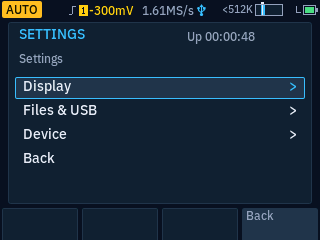
Settings Menu
Hold MENU for 1 s to open Settings. Choices apply when selected. Press MENU to keep a numeric edit or F4 to cancel it. Settings are saved when you switch the device off, restart it or enter Recovery. While changes wait to be saved, the status line shows Saved at power-off or explains a storage problem. Controls
The header shows Up HH:MM:SS from 0.21.10. It counts the time since the firmware started and updates every second while you read the menu. A restart starts the count again.
| Row | |
|---|---|
| Brightness | 10–100 % |
| Top bar counter | Off, FPS (default) or the sample rate in the status bar |
| Battery | Icon, estimated voltage (Volts) or estimated charge (Percent). See Battery display |
| Clock indicator | Off (default) or On: the letter of the running profile in the oscilloscope top bar, L 200/100, M 280/140, H 360/90 |
| Pan direction | What ←/→ move on the oscilloscope: Move view (default) or Move waveform |
| Left key in menus | Back (default) or Step |
| Swap CH1/CH2 | Swap how the two channels appear on the scope screen. Defaults to Off |
| Scope shortcuts | AUTO mapping and the panels or actions opened by holding F2 or F4 |
| Generator layout | Order of the generator screen's blocks |
| Tooltips | Choose which types of pop-up notices to show |
| Menu contrast | Theme (default) or High contrast |
| Appearance → Reload theme JSON | Re-read /openosc/UI/theme.json after editing it on a computer |
| Appearance → Use built-in theme | Back to the built-in look |
These choices work with either soft-key layout and are saved in the device settings.
| Row | Default | Other choices |
|---|---|---|
| AUTO key | Quick: tap for Auto Setup, hold 2 s for Zoom & Pan | Classic: tap to reset pan, hold 2 s for Auto Setup. A tap in either mode cancels a running Auto Setup |
| F2 hold | Home view: center both channels and reset zoom and pan | Reset zoom & pan: keep the channel zero positions |
| F4 hold | Cursor settings | Measurements, Acquisition, Record memory or Interleave CH1 where available |
Acquisition opens the timebase and sample rate controls. With Cursor settings, pressing Back returns to the oscilloscope with the first enabled cursor selected. Oscilloscope keys
Choose Settings → Display → Menu contrast → High contrast for black menus, white text and an outlined selection. Theme uses the theme colors. This option applies to instrument menus, choice lists and the screenshot browser.
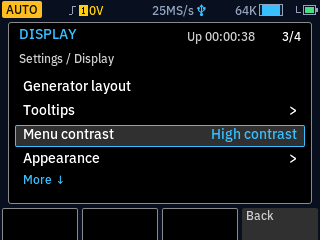
In Settings → Display → Tooltips, switch Usage tips, Action unavailable, Progress, Completions and Advisory warnings on or off individually. All five are on by default. Critical alerts are always on.
| Row | |
|---|---|
| Reload settings JSON | Re-read settings.json after editing it on a computer |
| Recovery / USB files | Restart into Recovery, which shows the storage as a USB drive |
| USB controller | Enabled (default), Disabled or Auto (0.22.0 pre-release). Data requires the 200/100 profile. USB and Remote Mode |
| USB Remote | Let a computer control the device (USB and Remote Mode) |
| Screenshots | Built-in screenshot viewer (Screenshots and Captures) |
| Clear screenshots | Delete all screenshots (asks first) |
| Row | |
|---|---|
| About | Firmware version, model, library versions |
| Storage | External Flash size, file system state, free space |
| Performance → Run mode | Performance Profiles: 200/100, 280/140, 360/90 |
| Performance → Interleave CH1 | Off, On or Auto. Doubles the CH1 sample rate when active. See Performance Profiles for the automatic rules on each model |
| Performance → Record memory | Budget in total points across the enabled channels. Actual captured length |
| Performance → Restart device | Restart |
| Power → Backlight timeout, Idle backlight | Dim the screen when idle |
| Power → Auto power off | Switch off after 15, 30 or 60 min of inactivity. An active USB host, generator output or recording keeps the device on. Charging from a supply without a data host allows the timer to run |
| Power → Wake on measurement | Off (default), DMM, Scope or Both (0.22.0 pre-release). Wake criteria |
| Power → Power-off hold | How long to hold REL/Power to switch off: 1 s, 1.5 s or 2 s (default) |
| Power → Generator at startup | Off, or restore the last output state |
| Power → Battery gain | Correct the slope of the displayed battery voltage by −10.0 to +10.0 %, in 0.1 % steps |
| Power → Battery offset | Add −250 to +250 mV to the displayed battery voltage, in 5 mV steps |
| Restore settings | Back to default settings (asks first) |
| Scope calibration | Calibration |
In the 0.22.0 pre-release, Settings → Device → Power → Wake on measurement can treat certain measurements as activity. A qualifying event restores the working backlight level and restarts the idle power-off timer while the instrument is on.
- DMM uses a confirmed, live reading that changes by at least 10% of the current range. A range change sets a new reference. The dedicated mV modes are excluded.
- Scope uses a genuine trigger that produces a new record in Auto, Normal or Single. An Auto timeout, a forced capture or Roll does not count.
- Both selects these rules for the instrument currently on screen.
Percent estimates charge from battery voltage, with 4.20 V mapped to 100 %. During charging, Icon shows + and the text modes normally show CHG. Percent shows 100% if the voltage estimate reaches that point. Charging FAQ
Use Settings → Device → Power → Battery gain and Battery offset to match the display to a reference voltage measurement. The correction changes Volts, Percent and the icon's bars. Automatic low-battery shutdown uses the factory scale.
Settings are stored in /openosc/SETTINGS/settings.json, with a copy in /openosc/SETCOPY/ (Files on the Device).