






A native Home Assistant integration for smart TVs and projectors running VIDAA OS (Hisense, Toshiba, Loewe, Philips, Sharp, JVC, TOPTRO, and partner brands).
Connects directly to the TV's internal MQTT broker (TLS port 36669) using client certificates, providing instant local push updates, media player controls, app launching, Wake-on-LAN, and virtual remote navigation without external bridges or cloud dependencies.
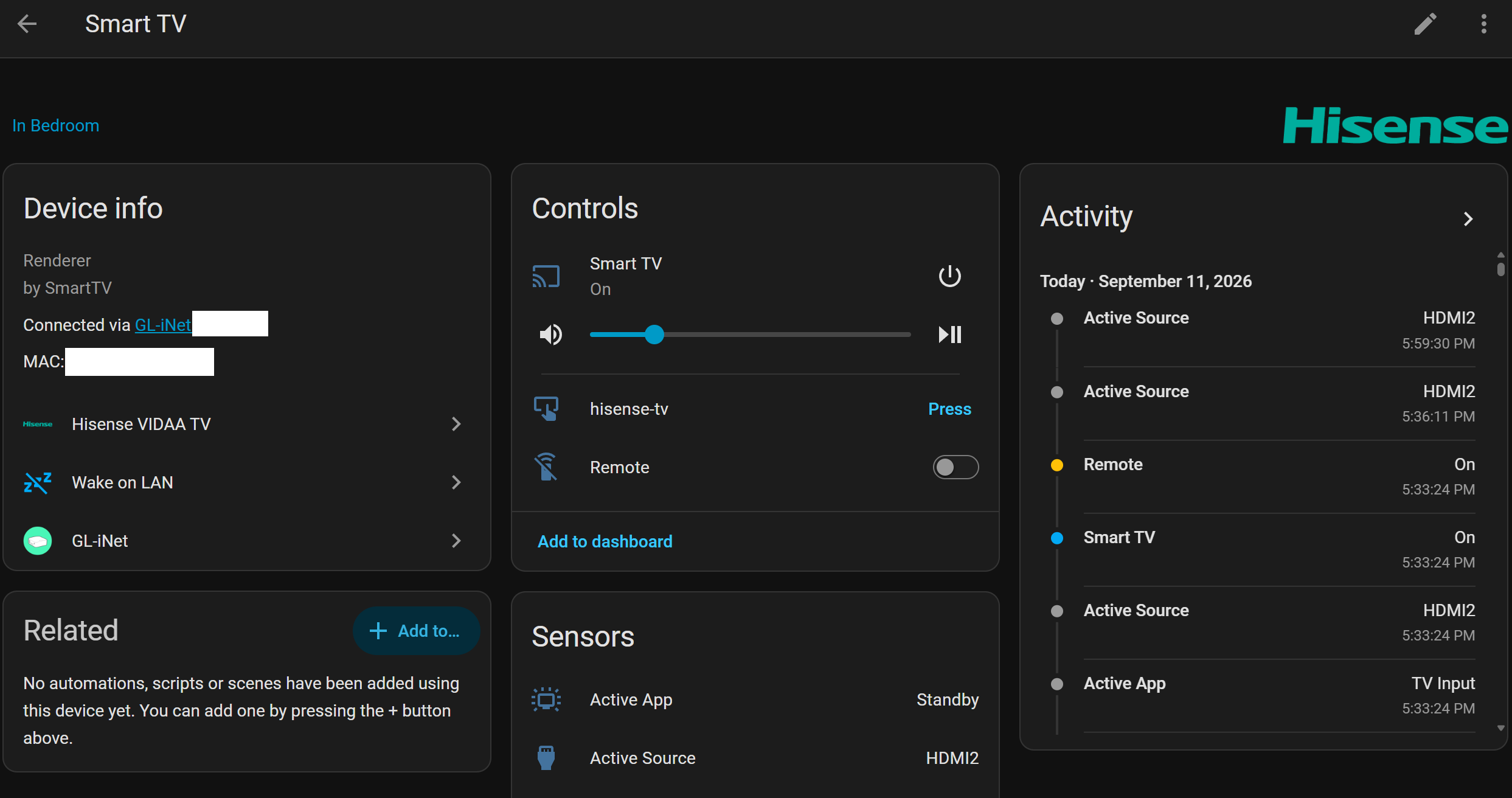
Setting up your TV takes less than 3 minutes across 3 simple steps:
Click the one-click button below (or search VIDAA Smart TV in HACS → Integrations → Download):
VIDAA TVs enforce mutual TLS on port 36669. Drop the universal client_mobile_android.p12 (or El.p12) file into your Home Assistant /config/ssl/ directory.
- Download the free public VIDAA Smart TV app APK on your PC/Mac browser, rename
.apkto.zip, and extractres/raw/client_mobile_android.p12(orres/El.p12if obfuscated). - No Android phone, tablet, or emulator is needed! An
.apkis simply a standard zip file.
Tip
Need a step-by-step walkthrough?
See the Beginner's Quick Start Guide for detailed instructions with screenshots and zero terminal commands. (For custom PEM keys and OpenSSL commands, see the Advanced SSL Guide).
- Restart Home Assistant (
Settings→System→Restart). - Go to Settings → Devices & Services → Add Integration and search for VIDAA Smart TV.
- Enter your TV's local IP address and click Submit.
- Type the 4-digit PIN displayed on your TV screen to complete setup!
Important
TV Prerequisite — Enable Smart / Connected Services:
The TV must have Smart / Connected Services enabled and the vendor terms of use accepted (Settings → Support / System → Terms & Conditions / Smart Services). If left disabled, the TV blocks the on-screen 4-digit PIN dialog from appearing during pairing.
(Privacy Tip: It is completely safe to block the TV from internet/WAN access at your router once paired; local control via Home Assistant operates 100% offline).
Tip
Diagnostic Baseline — Testing with the Official Mobile App:
If the 4-digit PIN never appears or pairing fails, test pairing with the official VIDAA companion app (iOS App Store or Google Play Store). If the official app also fails to connect or display a PIN, check that Smart Services are accepted on the TV. Remember to force-close the mobile app before pairing in Home Assistant to avoid session conflicts!
This integration officially supports any smart TV running VIDAA OS (pairing via 4-Digit Screen PIN):
- 📺 Hisense (U6, U7, U8, UX, A6, A7 series — U4 to U8, 2018 to 2026+ builds)
- 📺 Toshiba (C350, M550, Z670 VIDAA editions)
- 📺 Loewe (We. SEE, stellar VIDAA OS series)
- 📺 Philips / TPV (OLED, The One, PUS series running VIDAA OS)
- 📺 Sharp & JVC (Aquos & Smart TV VIDAA editions)
- 📽️ TOPTRO (FreeStyle & portable smart projectors running VIDAA OS)
- ...and other licensed VIDAA OS partner brands.
💡 Universal Architecture: All VIDAA OS devices share the same internal broker and certificate authority (
RemoteCA). The integration features zero-configuration auto-detection (querying UPnP<modelDescription>on port 38400 or certificate filename hints) to resolve your TV or projector brand, apply the correct security salt, and configure the proper manufacturer in Home Assistant's Device Registry. See the Complete OEM Brand Reference Matrix for the full table of all 22+ supported partner brands.
Note
VIDAA OS vs Android TV / Google TV: This integration is specifically for televisions powered by VIDAA OS (embedded Linux). If your TV or projector runs Android TV or Google TV (such as North American Hisense Android models, Sony, TCL, Chromecast, or NVIDIA Shield):
- Basic Remote Control: Use Home Assistant's core Android TV Remote integration for standard directional navigation and volume control.
- Advanced Control & Diagnostics: Check out ADB mDNS for direct OS shell access (
dumpsys,am), dynamic HDMI-CEC input discovery, real-time on-screen keyboard detection, hardware SoC health sensors (CPU/RAM/storage), and reboot-proof dynamic mDNS tracking.
- 100% Local LAN Control (
iot_class: local_push): Connects directly to the TV's hardware MQTT broker over your local network with zero cloud dependencies, zero external API calls, and full support for isolated IoT VLANs (WAN blocked). All cryptographic authentication logic is implemented in 100% native Python with zero compiled binary dependencies. - Local Push Updates: Instant feedback for power state, volume, mute, source input, and active app.
- Media Player Platform: Full power toggle, volume stepping, input source switcher, dynamic app artwork, deep linking, and configurable media transport controls. Exposes
MediaPlayerDeviceClass.TVfor native Apple HomeKit and iOS Control Center virtual remote integration. Includes context-aware track controls (steps channels on Live TV, skips tracks on apps/HDMI), channel name tuning viaplay_media, and user-customizable source list filtering (CONF_SOURCES). - Pluggable Turn-On Automations (
device_trigger): Interceptsmedia_player.turn_onvia standard Home AssistantPluggableActiontriggers, enabling custom power-on sequences (smart plugs, relays, IR blasters) with automatic fallback to native WoL and MQTT power keys. - Dedicated Remote Platform: Fast key command dispatching, key aliases (
home,menu,back,ok, etc.), configurable repeat counts, and inter-key delay options. - Picture & Display Adjustments (
number&select): Fine-tune Backlight, Brightness, and Contrast slider entities (0–100) and switch Picture Modes (Standard,Cinema Day,Cinema Night,Dynamic,Sports,Game,Filmmaker Mode) dynamically. - Sound Mode Selector (
select): Switch real-time TV sound equalizer modes (Standard,Theatre,Music,Speech,Late Night,Sports). Audio output routing (TV SpeakersvsARC / eARC) is exposed as theaudio_outputattribute on the media player. - Subnet Wake-on-LAN: Reliable, multi-burst WoL magic packet dispatching with configurable subnet broadcasting across dual-NIC and VLAN networks.
- Tabbed Options Flow: Beautiful, categorized options menu (General & Power, Sources & Media, Remote Key Timings, Security & Brand) for adjusting settings without re-pairing.
For deep technical details, configuration parameters, and dashboard templates, refer to the dedicated documentation library:
| Guide | Description |
|---|---|
| 🔰 Beginner's Quick Start Guide | 3-minute, zero-jargon setup guide for first-time users (extracting El.p12 and pairing). |
| ⚙️ Configuration & Options Parameters | Complete reference for all initial setup fields and Options Flow parameters across all tabs. |
| ⚡ TV Power, Standby & Network Settings | Model settings (VIDAA U4–U8, 2024+), two-tier standby architecture, and preventing token loss. |
| 📱 Lovelace Remote Cards & Dashboards | Australian EN2G30H 12-app remote, Classic FTA, Button Card, and Android TV Card templates. |
| 🛠️ Services & Automation Examples | Ready-to-use YAML automations for movie modes, picture/sound toggling, and keyboard input. |
| 🔒 Advanced SSL Certificate Setup | Mutual TLS file placement, filename matrix, custom PEM keypairs, and OpenSSL reference. |
| 🌐 Network & Wake-on-LAN Requirements | 100% local LAN architecture, UPnP LAN control, IoT VLAN rules, and reliable wired WoL setup. |
| 🧪 CLI Testing & Diagnostic Tools | Standalone scripts/test_client.py and scripts/debug_tv.py command-line tool reference. |
| 🔬 Protocol & Cryptographic Architecture | Reverse-engineered UPnP LAN control, XOR bitmasks, token lifecycles, and multi-brand ecosystem. |
| 🛠️ Advanced Installation & Lifecycle | Git cloning, submodules, air-gapped VLAN installs, and clean uninstallation. |
| 🩺 Troubleshooting & Error Reference | Diagnostic procedures, error recovery, pairing resets, and action error resolutions. |
| 🖼️ Screenshots & UI Gallery | Full visual tour of device controls, media player dialogs, source dropdowns, and option menus. |
The integration exposes dedicated Home Assistant actions for automations, scripts, and dashboard buttons:
- Remote Navigation & Playback:
send_key,send_key_sequence(multi-key sequences with delays), andchange_channel(direct numeric live TV channel tuning). - App Launching:
launch_app(by name, app ID, or video deep-link URL). - Picture & Sound Modes:
set_picture_settingandset_sound_setting(direct hardware mode changes). - Virtual Keyboard:
send_text_input(inject search queries into onscreen inputs).
For copy-paste YAML automation recipes, key tables, and service parameters, see the Services & Automations Guide.
Standalone CLI tools (scripts/test_client.py and scripts/debug_tv.py) are available to test network reachability, verify TLS certificates, probe TV capabilities, and generate pre-formatted report blocks for GitHub issues without running Home Assistant. See the CLI Testing & Diagnostic Tools Guide.
See TODO.md for active development items, planned enhancements, and feature requests.
- 📺 ADB mDNS - Android Debug Bridge: For smart TVs or streaming boxes running Android TV / Google TV. While Home Assistant's core integration covers basic remote keys, ADB mDNS unlocks advanced capabilities over native TLS 1.3 Wireless Debugging—including full shell execution, dynamic HDMI-CEC device discovery, keyboard active sensing, hardware telemetry, and reboot-proof dynamic mDNS tracking.
If this integration makes your smart home better or saved you hours of troubleshooting, consider supporting continued reverse-engineering, maintenance, and new features:

This integration is an independent implementation built upon foundational protocol reverse-engineering research and documentation by the open-source smart home community (including mqtt-hisensetv and community research into the Hisense RemoteNOW and VIDAA MQTT protocol).