


Drive the round LCD on your liquid cooler without the vendor software.
A full, open replacement for SmartMonitorX28 — the utility that ships with the 2.1" round 480 × 480 screen on coolers like the SuperFrame Isengard Magic 360 / 240 and the many rebadges of the same panel. Put any image, GIF or video on it, draw CPU and GPU readings on top, and lay it out however you want.
If any of these matches what you are dealing with, you are in the right place:
| The problem | What AIOScreen does about it |
|---|---|
| SmartMonitorX28 doesn't start with Windows | starts at logon through a scheduled task, elevated, no prompt |
| The vendor's fix tells you to disable UAC or enable the built-in Administrator account | never asks you to weaken Windows; setup asks for admin once and that is the end of it |
| The cooler screen stays on after you shut down the PC | turns the backlight off for real, not just a black frame |
| The screen is frozen on one frame and the GIF won't animate | correct theme container, verified byte-for-byte against real captures |
| The app keeps asking for administrator every single launch | reopens itself elevated through the scheduled task, silently |
| SmartMonitorX28 is abandoned — no updates, rigid editor, no source | open source, drag-and-drop editor, and the protocol is documented |
| You want to keep the themes you already use | 13 come with it, most of them SmartMonitorX28's own artwork, plus an importer for the rest |
| You want to know what the vendor software is actually sending | docs/protocol.md — the whole wire format |
Not on the list? Open an issue with your cooler model.
Unofficial project. Not affiliated with SuperFrame, or with any cooler or panel manufacturer. The serial protocol was obtained by reverse engineering — it is not publicly documented anywhere else. Use at your own risk.
Português · Protocol · Compatibility · What it touches
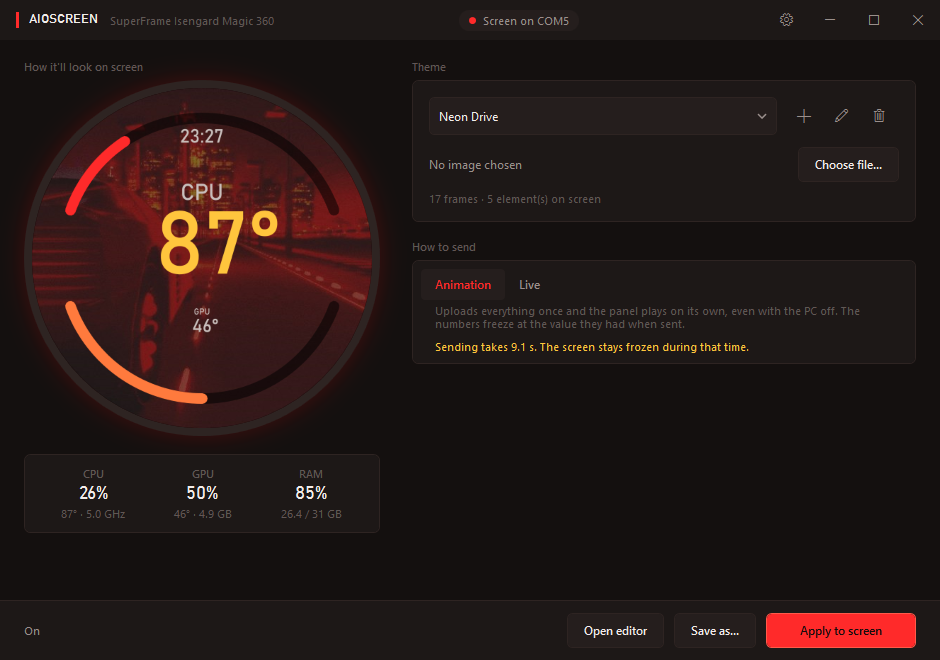
Pick a theme, see it exactly as the panel will render it, send it. Live CPU, GPU, RAM and temperature readings sit under the preview.
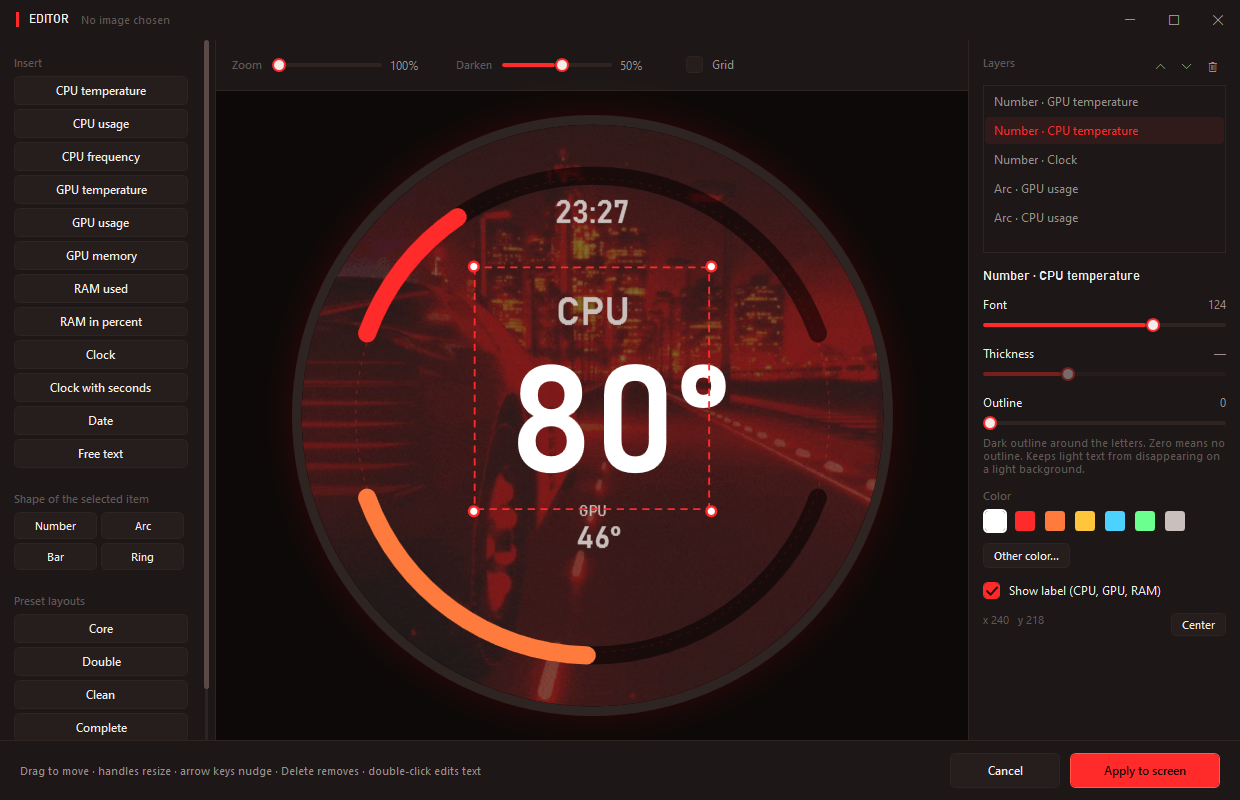
The editor: drag elements around, grab the handles to resize, double-click text to edit it in place, reorder as layers. The canvas is the real 480 × 480 panel, circular mask and all — what you see is what gets sent.
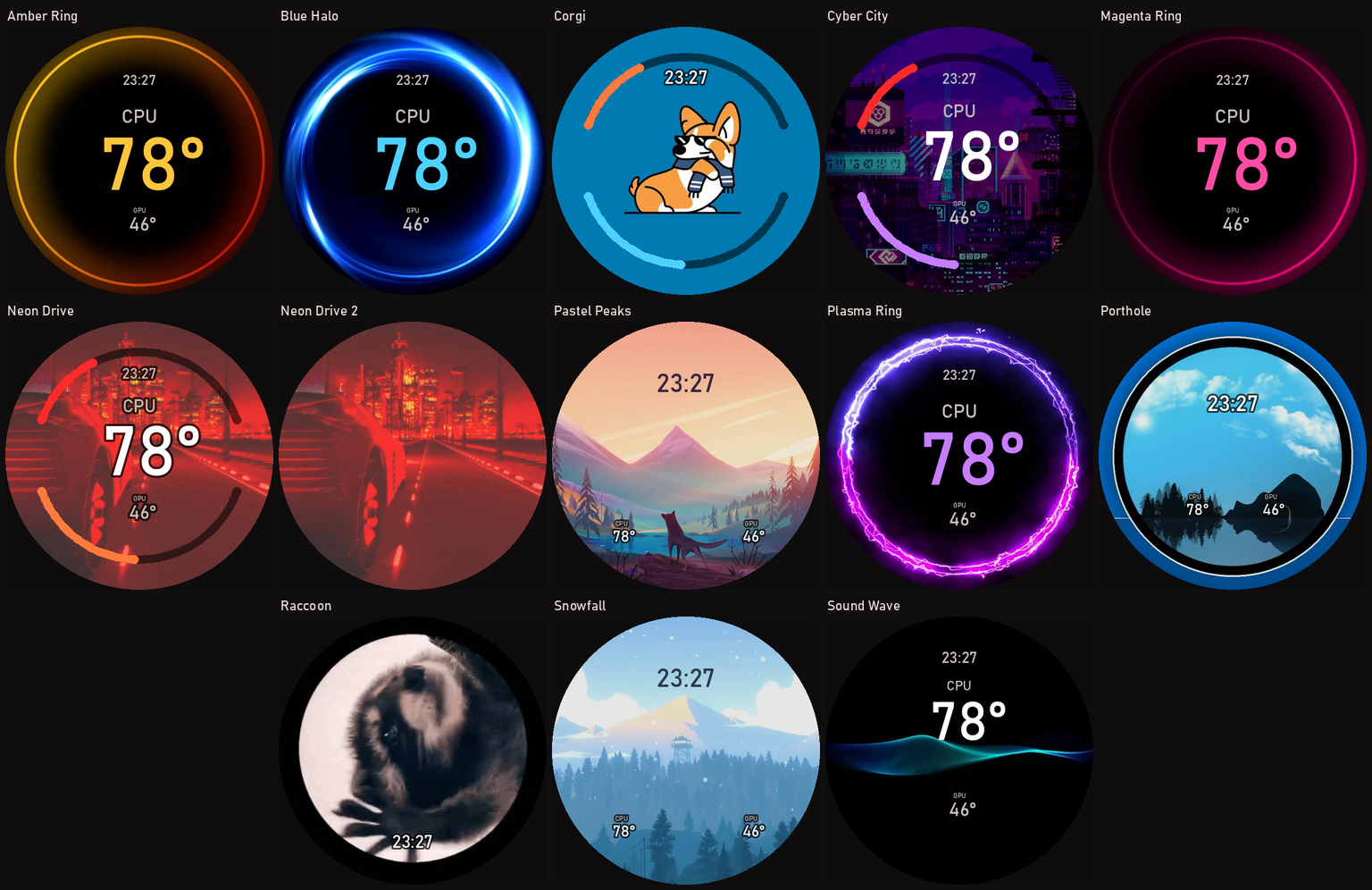
They are installed on first run and appear in the dropdown straight away — no import step, nothing to download. Every one of them is a normal theme: open it in the editor and move, recolour or delete anything.
Most of the artwork comes from SmartMonitorX28's own theme pack — the same animations the vendor software ships with, so that switching to AIOScreen does not mean losing the screen you already had. The layouts are not: each one was rebuilt around its own image instead of dropping the same gauge cluster on top of everything.
That distinction is the point. The stock arrangement puts a big number dead centre with two arcs around it, which suits busy artwork and ruins the rest — it lands on the dog's face, draws an arc over art that already is a ring, and dims a landscape that only needed a clock. So:
- Ring artwork (Amber Ring, Blue Halo, Magenta Ring, Plasma Ring) has no arcs at all. The art is the gauge; the empty middle takes the number
- Artwork with a subject (Corgi, Raccoon) keeps its middle clear
- Landscapes (Pastel Peaks, Snowfall) read the clock in dark ink against the sky instead of white-on-pale, and are not dimmed
- Only Cyber City gets the full arrangement, because it is the only one busy enough to carry it
If you already imported these from SmartMonitorX28, they are not installed twice — matching by name, the copy you already have wins.
The bundled artwork belongs to its original authors and is included for compatibility with the panel it was made for. If you hold rights to any of it and want it removed, open an issue and it comes out.
Two problems with the stock software, both hit every single day.
SmartMonitorX28 does not start with Windows. And the vendor's own fix — a
read me.txt shipped inside the install folder — tells you to enable the
built-in Administrator account and turn UAC off system-wide. Tearing down
Windows security so a 2-inch screen can autostart is not a fair trade, and it is
the kind of advice that should never appear in a read me.
The cooler screen stays on after you shut down the PC. The motherboard keeps +5 V standby power on USB, the panel keeps displaying whatever it last received, and it glows all night. There is no setting for it in the vendor UI.
On top of that the editor is rigid, the software has not been updated, and there is no source to read.
AIOScreen fixes both, and the reverse engineering behind it is written down so the next person does not have to start over.
- Any image, GIF or video on the panel. Video is converted through ffmpeg
- A real editor — insert CPU/GPU temperature, load, clock speed, memory, RAM, a clock, a date or free text. Drag to move, grab the handles to resize, edit text in place, reorder as layers, snap to a grid
- Four shapes per element: number, arc, bar and ring
- 13 themes included, installed on first run — most of the artwork is SmartMonitorX28's own, so nothing is lost by switching
- Saved themes with thumbnails — pick one and send it
- The preview is live — same renderer as the panel, same pixels, updating every second. What you see is what gets sent
- Never asks for administrator. Setup asks once; after that the app reopens itself elevated through the scheduled task, silently. Elevation is what makes CPU temperature readable at all
- Lives in the tray at 21 MB of RAM and 0% CPU. With the window open it sits around 77 MB — that is the live preview being rendered, and it stops the moment you minimise or send it to the tray
- Actually turns the screen off when you quit or shut down — backlight dead, not just a black frame. That is the default, because a panel glowing all night on USB standby power is what started this project. Both are settings: leave the animation playing instead, if you prefer
- 24 languages, switchable on the fly — no restart
The panel receives data at 100 KB/s. That single number shapes everything:
| Mode | What happens | Cost |
|---|---|---|
| Animation | uploads every frame once; the panel loops it on its own, even with the PC off. Values freeze at send time | ~6 s for a 17-frame GIF |
| Live | re-sends periodically so the numbers track your hardware | ~0.4 s per still frame |
Screen size and resolution do not determine compatibility — the controller does. Several vendors ship 2.1" 480 × 480 panels with completely different firmware and protocols.
The reliable marker is the USB hardware ID. Run this in PowerShell:
Get-CimInstance Win32_PnPEntity -Filter "PNPClass='Ports'" |
  Where-Object DeviceID -like '*VID_1A86&PID_8040*' |
  Select-Object Name, DeviceID
If that returns something, there is a good chance AIOScreen works. Another strong
sign: the software that came with your cooler is called SmartMonitor — you
may know it as SmartMonitorX28, SmartMonitor X28, or a numbered variant, and
it is a Qt application that talks to the panel over a CH340 USB serial port
at 1 Mbaud.
Panels of this family turn up under a lot of names — AIO cooler LCD, 2.1 inch round IPS screen, 480x480 pump-head display, S021H480480 in the firmware file — and several of them are the same hardware with a different sticker.
| Status | Model |
|---|---|
| Tested | SuperFrame Isengard Magic 360 — the protocol was captured on this unit |
| Very likely | SuperFrame Isengard Magic 240, Isengard Smart (SF-W360B-S and siblings) — same vendor software |
| Maybe | rebadged 2.1" 480 × 480 upgrade kits sold under many names, if they expose VID_1A86&PID_8040 |
| No | Corsair, NZXT, Lian Li, Thermaltake, Thermalright, ID-COOLING — closed ecosystems, different hardware |
| No | Waveshare 2.1" panels — different protocol, documented by their own vendor |
Got one working, or one that failed? Open an issue with the model and the output of the command above. That is how this table stops being guesswork.
- Windows 10 or 11 (x64)
- .NET 8 Desktop Runtime — the installer checks and points you to it
- A compatible panel (see above)
- ffmpeg only for video — images and GIFs need nothing extra
Download AIOScreen-Setup-x.y.z.exe from Releases and run it.
Setup asks for administrator once. That is what lets it create the scheduled task that starts AIOScreen elevated at logon without ever prompting again — and elevation is what makes CPU temperature readable at all.
Tick "Start with Windows" during setup unless you have a reason not to.
git clone https://github.com/rodopoulos1/AIOScreen
cd AIOScreen
dotnet publish -c Release -o published
To produce the installer as well (needs Inno Setup 6):
pwsh -File tools/gerar-instalador.ps1Symptoms people actually run into with these panels, and what is going on.
The screen is stuck on one frame — the GIF or video won't animate.
The theme container concatenates JPEG frames, each preceded by its length as a
32-bit big-endian prefix, inside a 4096-byte metadata block. Drop the prefixes
and the firmware reads exactly one frame and loops it forever, with no error.
docs/protocol.md has the layout.
The screen stays lit after shutting down the PC. USB standby power keeps the panel alive. There is no "off" command — what exists is a backlight idle timer packed into the telemetry packet, and the host has to set it and then stop talking. AIOScreen does that on exit and on shutdown.
CPU temperature shows --.
Reading it needs a kernel driver, and the driver needs elevation. Launch the app
from its shortcut without elevation and it will show usage and clock but no
temperature. AIOScreen reopens itself elevated through the scheduled task, so
you should not see this — if you do, the task is missing.
Applying a theme takes several seconds. The bus runs at 1 Mbaud, about 100 KB/s. A 17-frame GIF is roughly 900 KB, so about 9 seconds. That is the wire, not the software.
The panel disappears from Device Manager after each upload. Normal. It re-enumerates USB when it restarts to show the new theme. Anything that caches the port handle across that will end up writing into a dead one.
The screen lights up late when the PC boots. It only comes on once Windows has enumerated USB. Peripherals with their own controllers light up in POST, long before. Nothing host-side can change that.
The executable is not code-signed — nobody paid for a certificate. SmartScreen will say "unknown publisher" on first run. That is not evidence of a problem.
What you can do instead of trusting a stranger:
- Read the source. Everything that talks to hardware is in
src/Core/ - Read what it touches — short version: no network
access anywhere in the project, nothing in the registry, nothing outside
%LOCALAPPDATA%\AIOScreen - Build it yourself with the commands above
- Scan the release on VirusTotal
docs/protocol.md is the most valuable part of this
repository for anyone writing code. As far as I could find, nothing about this
panel was publicly documented before it.
It covers the wiring, baud rate, framing, CRC, both telemetry opcodes and the theme container format — enough to write a client in any language, Linux included.
One piece is still undeciphered: the firmware's own widget block. AIOScreen works around it by drawing everything into the JPEG itself. Contributions welcome.
Portuguese (Brazil) is the source language. The interface also ships in Danish, Dutch, Czech, English, French, German, Greek, Hungarian, Indonesian, Italian, Japanese, Korean, Polish, Portuguese (Portugal), Romanian, Russian, Simplified Chinese, Spanish, Swedish, Traditional Chinese, Turkish, Ukrainian and Vietnamese.
That is 24 including the source, and the language can be changed while the app is running — every open window retranslates on the spot.
Language files are plain JSON in languages/, keyed by the Portuguese source
string. Fixing a bad translation is editing one line — pull requests very
welcome, especially from native speakers.
Two scripts keep them honest, and CI runs both:
python tools/textos.py auditar   # any UI string bypassing the translator
python tools/conferir.py         # placeholders, wildcards and acronyms
Right-to-left languages are deliberately absent: the layout does not mirror yet, and shipping them would mean shipping something broken.
PolyForm Noncommercial 1.0.0 — read it, use it, modify it and redistribute it freely for any noncommercial purpose. Selling it or bundling it into a paid product is not allowed.