A CSS/JS theme library that applies iOS26 design system to Ionic applications.
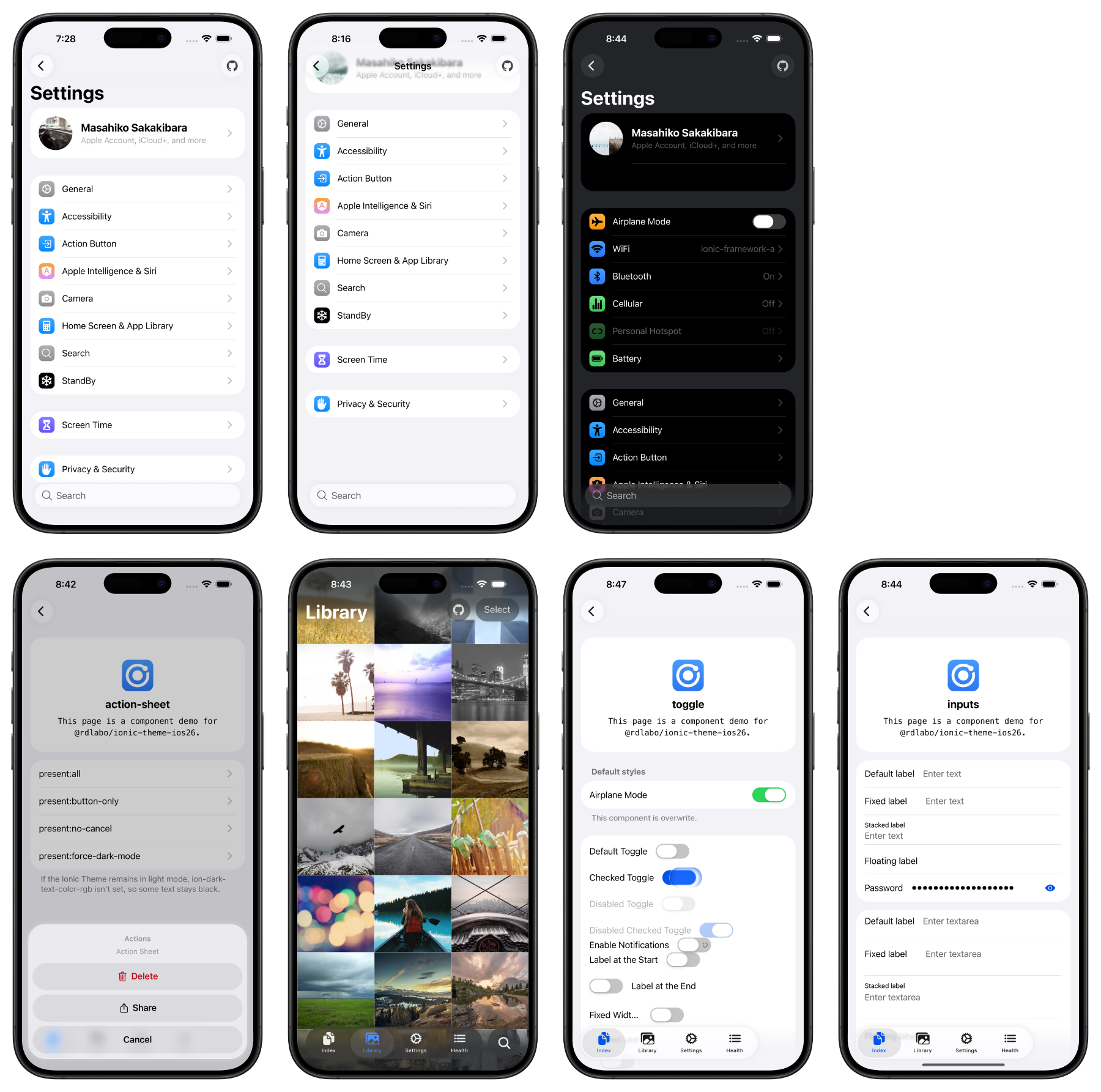
DEMO is here: https://ionic-theme-ios26.rdlabo.dev/
This library provides CSS/JS files that bring the iOS26 design system to Ionic applications. It updates the look and feel of Ionic components to match the latest iOS26 design guidelines.
I'm also working on the Android Design (Material Design 3) theme. Be sure to catch up!
After Installation, import the theme CSS. Details are in Installation below.
This is a CSS theme for extending your Ionic project. It does not work on its own, so use it together with the Ionic Framework.
npm install @rdlabo/ionic-theme-ios26Note: If you use @ionic/core@ < 8.8.1, use @rdlabo/ionic-theme-ios26@2.2.1.
And import the theme in your project's main CSS file (e.g., src/styles.scss).
@import '@rdlabo/ionic-theme-ios26/dist/css/default-variables.css';
@import '@rdlabo/ionic-theme-ios26/dist/css/ionic-theme-ios26.css';

/**
 * This file is to eliminate the impact of class name changes for iOS26.
 * For example, `ion-buttons ion-button[fill=default]` is not normally implemented, but may be required for iOS26.
 * This file is to eliminate such effects.
 * Note: This stylesheet is not included in `@rdlabo/ionic-theme-md3`.
 */
@import '@rdlabo/ionic-theme-ios26/dist/css/md-remove-ios-class-effect.css';

/**
 * If you will use the design of ion-item-group with ion-list on Android as well, import it.
 * More info: ./docs/using-ion-item-group.md
 * Note: This stylesheet is included in `@rdlabo/ionic-theme-md3`.
 * @import '@rdlabo/ionic-theme-ios26/dist/css/md-ion-list-inset.css';
 */

/*
 * Support Dark Mode
 * We support Ionic Dark Mode. More information is here: https://ionicframework.com/docs/theming/dark-mode
 * use Always:    @import '@rdlabo/ionic-theme-ios26/dist/css/ionic-theme-ios26-dark-always.css'
 * use System:    @import '@rdlabo/ionic-theme-ios26/dist/css/ionic-theme-ios26-dark-system.css'
 * use CSS Class: @import '@rdlabo/ionic-theme-ios26/dist/css/ionic-theme-ios26-dark-class.css'
*/Install the MD3 theme to style both Ionic modes from the same application.
The current releases of both themes require @ionic/core 8.8.1 or later.
npm install @rdlabo/ionic-theme-md3When your global stylesheet uses Sass, initialize the themes in this order:
@use '@rdlabo/ionic-theme-ios26/src/styles/default-variables.scss' as ios26-vars;
@use '@rdlabo/ionic-theme-ios26/src/styles/ionic-theme-ios26.scss';
@use '@rdlabo/ionic-theme-ios26/src/styles/ionic-theme-ios26-dark-class.scss';
@use '@rdlabo/ionic-theme-ios26/src/styles/md-remove-ios-class-effect.scss';
@use '@rdlabo/ionic-theme-md3/dist/css/default-variables.css' as md3-vars;
@use '@rdlabo/ionic-theme-md3/dist/css/ionic-theme-md3.css';
The example uses Ionic's class-based dark mode. Your global stylesheet must also load Ionic's matching dark palette, such as @ionic/angular/css/palettes/dark.class.css for Angular. When using dark-system or dark-always, select the same variant for both Ionic's palette and the iOS 26 theme. See Ionic's Dark Mode documentation. The explicit ios26-vars and md3-vars namespaces prevent the two variable modules from using the same default namespace.
Configure both transition implementations when both themes are installed:
import { isPlatform } from '@ionic/core'; // or @ionic/angular (Ionic 9), @ionic/angular/standalone (Ionic 8), @ionic/react, @ionic/vue
import { iosTransitionAnimation, popoverEnterAnimation, popoverLeaveAnimation } from '@rdlabo/ionic-theme-ios26';
import { mdTransitionAnimation } from '@rdlabo/ionic-theme-md3';

// Angular
provideIonicAngular({
    ...
    navAnimation: isPlatform('ios') ? iosTransitionAnimation : mdTransitionAnimation,
    popoverEnter: isPlatform('ios') ? popoverEnterAnimation : undefined,
    popoverLeave: isPlatform('ios') ? popoverLeaveAnimation : undefined,
});

// React
setupIonicReact({
    ...
    navAnimation: isPlatform('ios') ? iosTransitionAnimation : mdTransitionAnimation,
    popoverEnter: isPlatform('ios') ? popoverEnterAnimation : undefined,
    popoverLeave: isPlatform('ios') ? popoverLeaveAnimation : undefined,
});

// Vue
createApp(App)
    .use(IonicVue, {
        ...
        navAnimation: isPlatform('ios') ? iosTransitionAnimation : mdTransitionAnimation,
        popoverEnter: isPlatform('ios') ? popoverEnterAnimation : undefined,
        popoverLeave: isPlatform('ios') ? popoverLeaveAnimation : undefined,
    });
If you installed only the iOS 26 theme, configure its animations as follows.
import { isPlatform } from '@ionic/core'; // or @ionic/angular (Ionic 9), @ionic/angular/standalone (Ionic 8), @ionic/react, @ionic/vue
import { iosTransitionAnimation, popoverEnterAnimation, popoverLeaveAnimation } from '@rdlabo/ionic-theme-ios26';

// Angular
provideIonicAngular({
    ...
    navAnimation: isPlatform('ios') ? iosTransitionAnimation: undefined,
    popoverEnter: isPlatform('ios') ? popoverEnterAnimation: undefined,
    popoverLeave: isPlatform('ios') ? popoverLeaveAnimation: undefined,
});

// React
setupIonicReact({
    ...
    navAnimation: isPlatform('ios') ? iosTransitionAnimation: undefined,
    popoverEnter: isPlatform('ios') ? popoverEnterAnimation: undefined,
    popoverLeave: isPlatform('ios') ? popoverLeaveAnimation: undefined,
});

// Vue
createApp(App)
    .use(IonicVue, {
        ...
        navAnimation: isPlatform('ios') ? iosTransitionAnimation: undefined,
        popoverEnter: isPlatform('ios') ? popoverEnterAnimation: undefined,
        popoverLeave: isPlatform('ios') ? popoverLeaveAnimation: undefined,
})Start with Installation, then Using ion-item-group when you use inset lists.
- Using ion-item-group — required markup for inset lists.
- Special markup and classes — opt-in markup and utility classes used by the theme.
- Features — CSS variables, Liquid Glass, selective imports, and dark mode.
- Experimental Animation — tab bar and searchable effects.
- iOS 18 — load the theme only on iOS 26.
- Migration — required changes when upgrading major versions.
Full documentation: https://docs.rdlabo.dev/projects/ionic-theme-ios26
The same demo is deployed against both supported Ionic versions:
- Ionic 9 demo — canonical
- Ionic 8 demo — compatibility
The demo/ directory contains the Angular application used by both deployments. To run it locally:
cd demo
npm install
npm startWe use Playwright for visual regression testing to ensure consistent styling across all components. The test suite automatically captures screenshots of all routes in both light and dark modes.
cd demo

# Run all E2E tests
npm run test:e2e

# Run tests in UI mode (interactive)
npm run test:e2e:ui

# Debug tests
npm run test:e2e:debug

# Update baseline screenshots (when intentionally changing UI)
npm run test:e2e:updateAn open, non-draft pull request can be published to the npm beta dist-tag after its Lint, E2E Screenshot Tests Pull Request, and Package Candidate workflows pass. A repository owner or maintainer must add a comment whose entire body is:
/beta
The request authorizes only the pull request head SHA that existed when the comment was added. The workflow revalidates the owner or maintainer permission and head SHA immediately before publishing. Any new commit invalidates the request, regardless of its author; the new SHA must pass CI and receive a fresh owner or maintainer /beta comment. Fork pull requests are supported. Pull requests that change a release-gating workflow cannot be beta-published until those workflow changes land on main.
Beta versions use <base>-beta.pr<PR number>.sha<12-character SHA>. The pull request receives a comment containing the immutable version and exact npm install command.
When a pull request is merged into main, it is automatically published to the npm beta dist-tag only after Lint, E2E Screenshot Tests, and Package Candidate all succeed for that exact merge commit. Direct pushes to main do not publish a candidate. Merge candidates use <base>-beta.pr<PR number>.sha<12-character SHA> and the merged pull request receives the exact install command.
Candidate code is built in a read-only workflow without npm publishing credentials. The privileged release workflow never checks out or executes pull request code; it revalidates the source workflow and package identity, then publishes only the immutable packed artifact with lifecycle scripts disabled. The install-command comment is a separate best-effort notification and cannot invalidate a successful npm publish.
Only npm run release can create a release tag. Stable vX.Y.Z tags (major, minor, or patch releases) publish to npm latest; revision/prerelease tags publish to next. Neither beta nor next publishing changes the npm latest dist-tag.