
Preview, navigate, and organize PrairieLearn questions without leaving your editor.




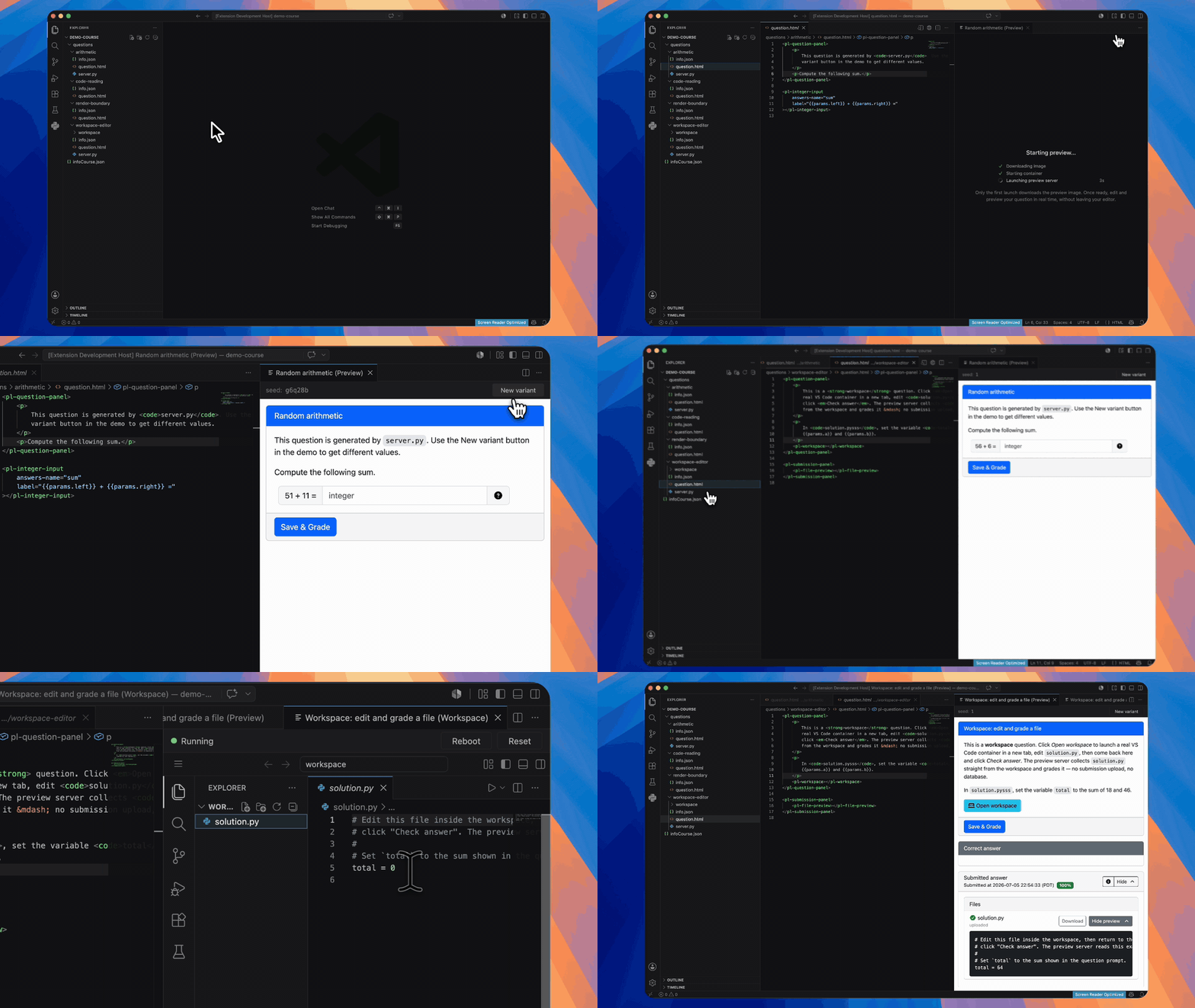
Quesal brings a faster PrairieLearn authoring loop into VS Code: browse a course, open a question beside its source, save an edit, and see the rendered result refresh immediately. A native course-map view also lets course staff build and maintain TreeTag hierarchies manually or with an optional AI provider.
Quesal is an independent authoring tool and is not an official PrairieLearn extension.
Interested in Quesal for VS Code? Join the Quesal Slack workspace to discuss the extension, ask questions, and share feedback.
- Preview all six PrairieLearn Source Question Types:
v3,Calculation,MultipleChoice,Checkbox,File, andMultipleTrueFalse. - Follow the active editor and refresh the rendered question automatically after a save.
- Keep a stable variant seed across refreshes, or reroll with New variant.
- Run through Docker Desktop, Podman, Colima, Rancher Desktop, or OrbStack.
- Browse every question and build or edit a course-level TreeTag hierarchy in the native Quesal Course Map Explorer view.
- VS Code 1.101.0 or newer
- A running Docker Engine API-compatible container runtime
- One or more PrairieLearn course folders containing
infoCourse.json
Install Quesal from the Visual Studio Marketplace:
- Visual Studio Marketplace
(
quesal.quesal-vscode)
Quesal activates when the workspace contains a PrairieLearn infoCourse.json.
- Open a PrairieLearn course folder.
- Open a file inside a question directory, such as
questions/my-question/question.html. - Click the preview button in the editor title bar.
- Save source edits to refresh the preview.
- Open Quesal Course Map in Explorer to navigate or organize the course.
The first preview may take a few minutes while the container runtime downloads the pinned preview image. Later previews reuse both the image and a warm server.
Use Quesal Course Map to find questions quickly and keep your course organized. Browse your courses, open question files, and group related questions with TreeTags.
Choose Create Hierarchy Manually to add and arrange tags, then assign your questions. In a multi-course workspace, use Focus Courses… to choose which courses appear.
Want help getting started? Choose Generate Course Map with AI, select what question information to share, and review the suggested hierarchy before saving. AI can also organize unassigned questions or suggest updates later. Suggestions are applied only when you accept them.
Quesal resolves the active question by walking up to its nearest info.json and
course infoCourse.json. On first use it starts a hardened local container from
a digest-pinned image built from the
PrairieLearn fork. Every discovered
course is mounted independently and read-only; unrelated workspace files are not
mounted.
The extension authenticates the Standalone Preview Server control plane, creates or deliberately reuses a course-scoped Local Preview Session, and points a VS Code webview at a loopback-only proxy. One warm server can host multiple isolated course sessions. The bearer token and Local Preview Session IDs are never exposed as browser authorization decisions.
flowchart LR
  subgraph vscode["VS Code"]
    map["Quesal Course Map"]
    editor["Question source"]
    panel["Preview panel"]
  end
  extension["Quesal extension"]
  runtime["Docker-compatible runtime"]
  server["PrairieLearn Standalone Preview Server"]

  map --> editor
  editor -->|"active question + saved edits"| extension
  extension -->|"start or reuse"| runtime
  runtime --> server
  extension -->|"authenticated session"| server
  server -->|"loopback rendered preview"| panel
All commands appear under the Quesal category in the Command Palette.
| Command | What it does |
|---|---|
| Quesal: Open Preview | Opens the side-by-side preview for the active question. |
| Quesal: Refresh preview | Re-renders the current preview. |
| Quesal: New variant | Rerolls the current variant seed. |
| Quesal: Show logs | Opens the Quesal Output channel. |
| Quesal: Stop preview server | Stops the shared local server. |
| Quesal: Delete old preview images | Removes superseded images after confirmation. |
| Quesal: Create Hierarchy Manually | Starts a private TreeTag draft. |
| Quesal: Focus Courses… | Chooses the courses visible in the map. |
| Quesal: Manage AI Providers… | Configures or removes encrypted BYOK providers. |
| Quesal: Select AI Model… | Chooses the default configured model. |
| Quesal: Generate Course Map with AI | Creates a reviewable TreeTag draft. |
| Quesal: Organize Unassigned Questions with AI | Suggests tags for unassigned questions. |
| Quesal: Reorganize Changed Questions with AI… | Suggests replacements for changed questions. |
| Quesal: Reorganize All Questions with AI… | Proposes replacements for the whole course. |
| Quesal: Refresh Course Map | Rediscovers questions and reloads the sidecar. |
| Setting | Behavior |
|---|---|
quesal.containerRuntime |
auto (default), docker, podman, or custom. |
quesal.containerHost |
Explicit Docker-compatible endpoint. Required for custom; overrides detection with auto. |
quesal.enableWorkspaces |
Enables workspace-question previews in trusted workspaces; defaults to true. |
With auto, Quesal prefers Docker when both Docker and Podman are reachable.
Set quesal.containerRuntime to podman to force Podman. On macOS or Windows,
set CONTAINER_HOST or quesal.containerHost when the Podman machine socket is
not discoverable.
Interactive workspace questions require the preview server to launch another
container, so Quesal mounts the selected runtime socket into the preview
container. This grants previewed course code container-runtime access, which can
be root-equivalent with a rootful daemon. Workspace previews therefore require a
trusted workspace and a local socket-based runtime. Set
quesal.enableWorkspaces: false to disable them completely. Rootless Podman is
preferred where available.
The preview button is missing. Ensure the active file is below
questions/ and the workspace contains the course's infoCourse.json.
No runtime is available. Install and start Docker Desktop, Podman, or another
Docker-compatible runtime, then open the preview again. For a Podman machine,
configure CONTAINER_HOST or quesal.containerHost.
The server contract is incompatible. Delete superseded preview images,
ensure PL_PREVIEW_IMAGE is not pointing at an old proof-of-concept build, and
reopen the preview.
A preview failed. Run Quesal: Show logs and inspect the Quesal Output channel for the full render or container error.
pnpm install
pnpm run typecheck
pnpm run test
pnpm run build
Press F5 and choose Run Extension to launch an Extension
Development Host. PL_PREVIEW_IMAGE can point development builds at a locally
built preview image.
The environment-gated server contract requires an immutable image reference:
PL_PREVIEW_CONTRACT_IMAGE='ghcr.io/quesal-com/prairielearn:<tag>@sha256:<digest>' \
  pnpm run test:contract
Also set PL_PREVIEW_CONTRACT_SOCKET to exercise Preview Workspace launch
capability through a local Docker-compatible socket.
- Move release notes out of Unreleased and use the intended release date.
- Run the appropriate
pnpm run release:*command when preparing a later bump. - Push the release commit and matching
v<version>tag. - The publish workflow packages
quesal-vscode-<version>.vsixand publishes it to thequesalpublisher on the Visual Studio Marketplace. The repository secretVSCE_PATmust be authorized for that publisher.