High-performance markdown parser and renderer for React Native. Built with Nitro Modules and the battle-tested md4c C parser for blazing-fast parsing with complete markdown support.



- Fast Parsing: Native C++ parser (md4c) via Nitro Modules for 100x faster parsing than JS implementations
- Complete Markdown: All CommonMark elements plus GitHub Flavored Markdown extensions
- Task Lists: Built-in support for checkboxes and task list items
- Tables: Full GFM table support with cell alignment control
- Code Highlighting Ready: Language-aware code blocks with built-in language detection
- Math Support: LaTeX math expressions (inline and blocks)
- Wiki Links: Extended markdown with wiki-style link notation
- Fully Themeable: Complete light/dark theme system with deep customization
- Custom Renderers: Override any markdown element renderer for maximum flexibility
- Accessible: Full accessibility support (roles, labels, semantic elements)
- Type-Safe: Complete TypeScript definitions and strict types
- Live Preview: Debounced parsing hook for real-time editors
- Cross-Platform: iOS and Android with zero code differences
| Basic Rendering | Theming |
|---|---|
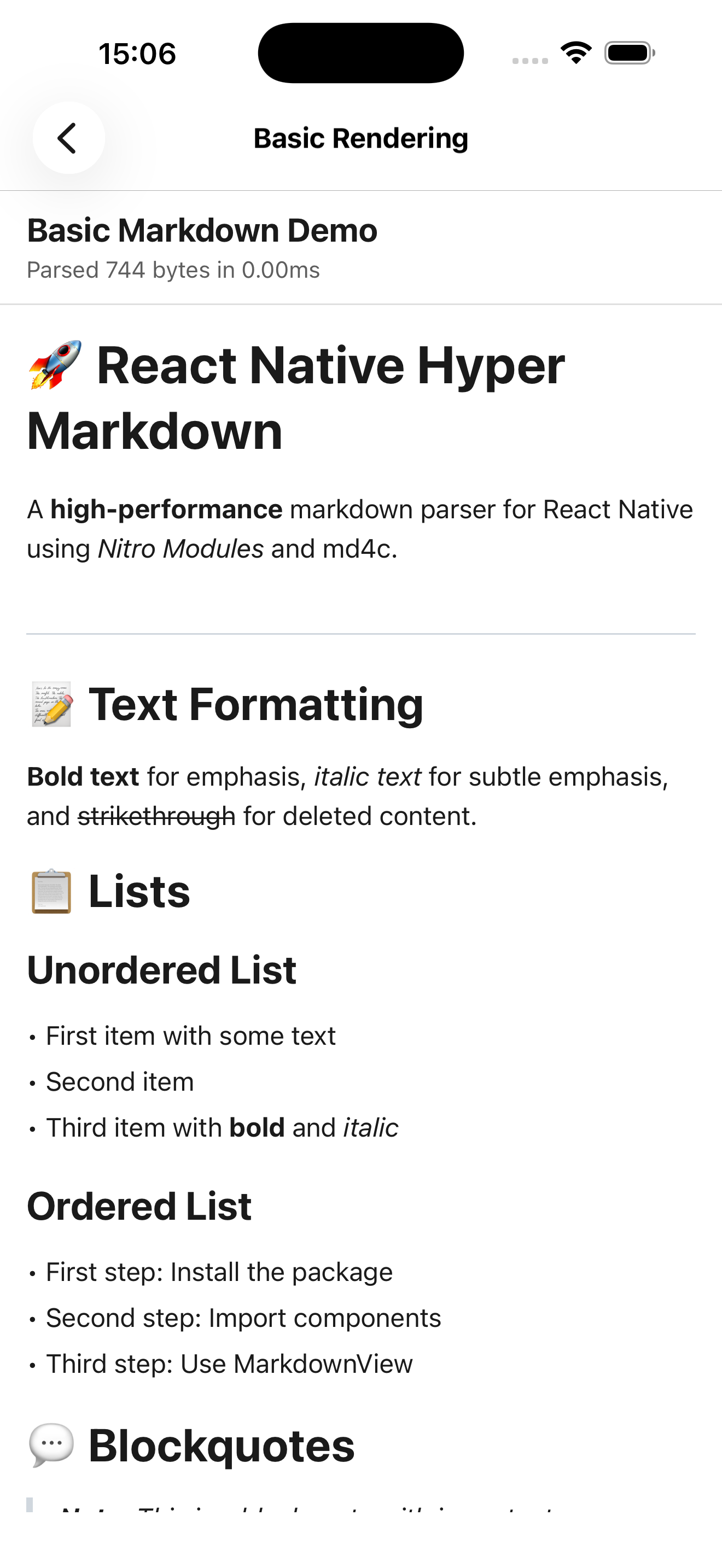 |
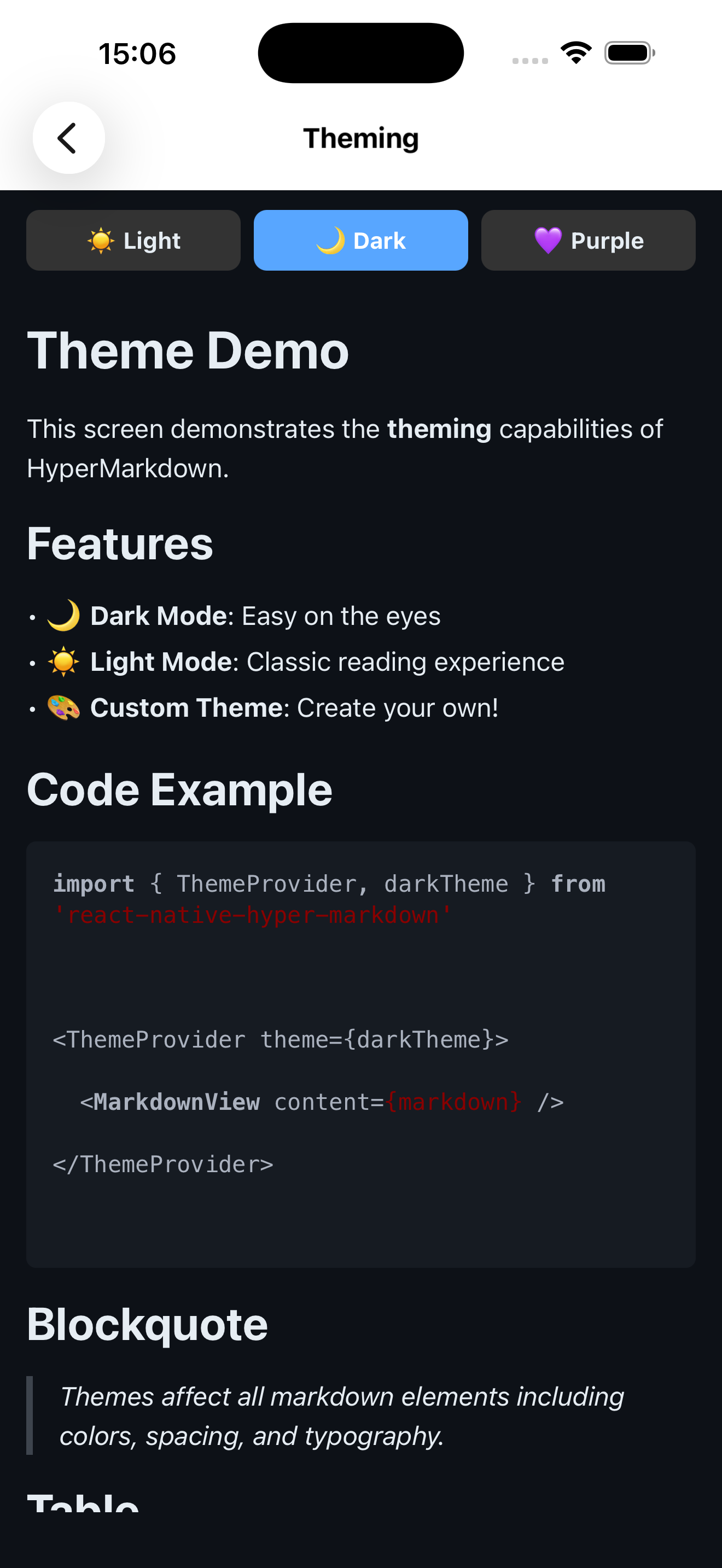 |
| Code Blocks | Live Preview |
|---|---|
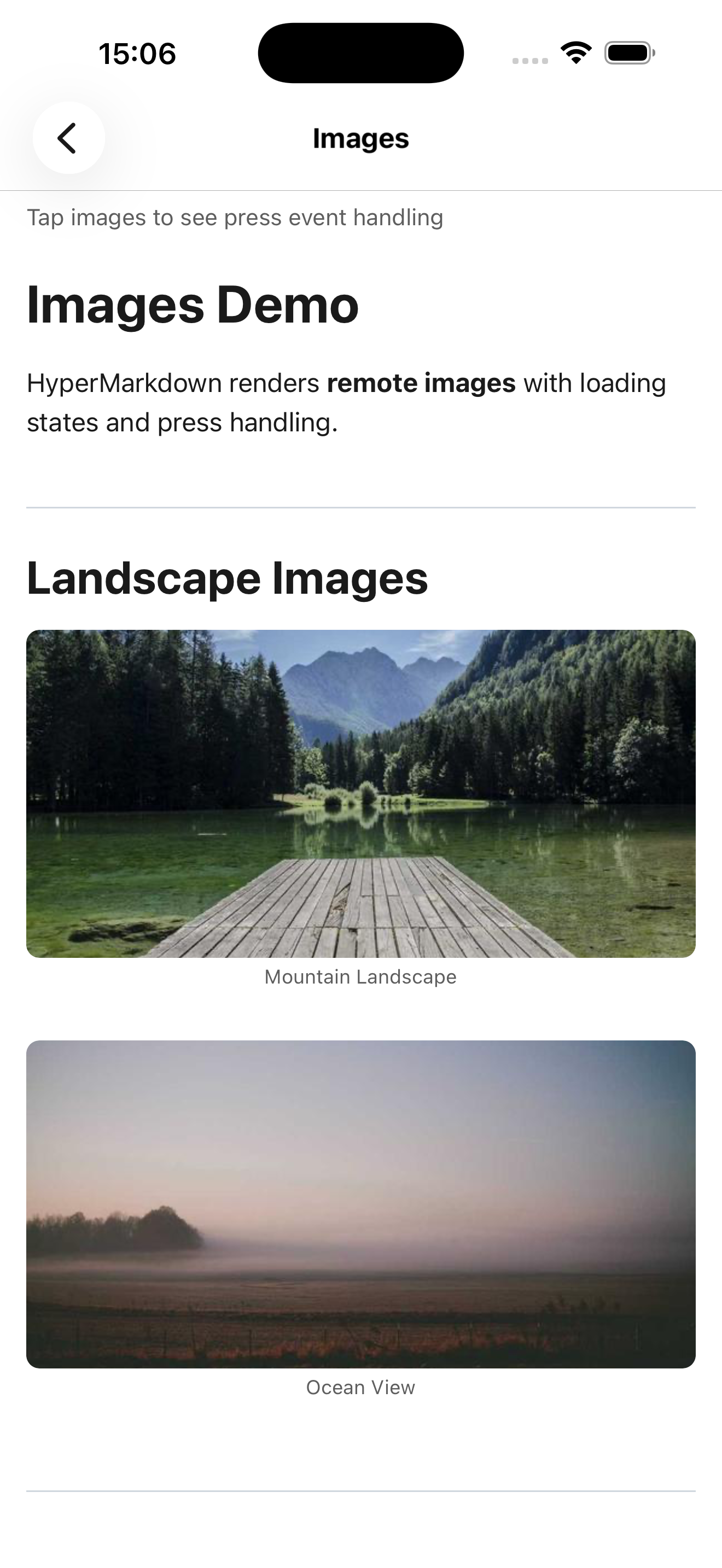 |
 |
- React Native: 0.76.0+ (0.78.0+ for Nitro Views support)
- Node.js: 18.0.0+
- React: 19.2.0+
- React Native Nitro Modules: 0.32.0+
Important
For Nitro Views support, upgrade to React Native 0.78.0 or higher.
npm install react-native-hyper-markdown react-native-nitro-modulesFor syntax highlighted code blocks, install the peer dependency:
npm install react-syntax-highlighter
npm install --save-dev @types/react-syntax-highlighter
See Syntax Highlighting section for theme setup.
| Package Version | React Native | React | Nitro Modules |
|---|---|---|---|
| 0.1.x | 0.76.0+ | 19.2.0+ | 0.32.0+ |
Nitro Views Support: Requires React Native 0.78.0 or higher
import { MarkdownView } from 'react-native-hyper-markdown'

export function MyScreen() {
  const markdown = `# Hello World

This is a **markdown** document with *formatting*.

- Item 1
- Item 2
  - Nested item`

  return <MarkdownView content={markdown} />
}import { ThemeProvider, MarkdownView, darkTheme } from 'react-native-hyper-markdown'
export function App() {
return (
<ThemeProvider theme={darkTheme}>
<MarkdownView content={markdown} />
</ThemeProvider>
)
}<MarkdownView
content={markdown}
onLinkPress={(url) => {
Linking.openURL(url)
}}
onImagePress={(src) => {
console.log('Image pressed:', src)
}}
onCheckboxToggle={(checked, index) => {
console.log('Task toggled:', checked, index)
}}
/>import { useDebouncedParsing, MarkdownView } from 'react-native-hyper-markdown'
export function Editor() {
const [content, setContent] = useState('')
const parseResult = useDebouncedParsing(content, {}, 300)
return (
<View style={{ flex: 1, flexDirection: 'row' }}>
<TextInput
value={content}
onChangeText={setContent}
multiline
style={{ flex: 1 }}
/>
{parseResult.success && (
<MarkdownView ast={parseResult.nodes} style={{ flex: 1 }} />
)}
</View>
)
}Perfect for displaying blog posts, articles, or documentation with navigation support:
import { MarkdownView } from 'react-native-hyper-markdown'
import { Linking } from 'react-native'

export function ArticleViewer({ articleContent }) {
  return (
    <MarkdownView
      content={articleContent}
      onLinkPress={(url) => {
        if (url.startsWith('/')) {
          // Internal navigation
          navigation.navigate(url.replace('/', ''))
        } else {
          // External links
          Linking.openURL(url)
        }
      }}
      parserOptions={{ gfm: true, enableTables: true }}
    />
  )
}Real-time preview with debounced parsing for markdown editors:
import { useState } from 'react'
import { View, TextInput } from 'react-native'
import { useDebouncedParsing } from 'react-native-hyper-markdown'

export function MarkdownEditor() {
  const [content, setContent] = useState('# Start writing...')
  const parseResult = useDebouncedParsing(content, {}, 300)

  return (
    <View style={{ flex: 1, flexDirection: 'row' }}>
      <TextInput
        value={content}
        onChangeText={setContent}
        multiline
        style={{ flex: 1, padding: 16, fontFamily: 'monospace' }}
      />
      {parseResult.success && (
        <MarkdownView
          ast={parseResult.nodes}
          style={{ flex: 1, padding: 16 }}
        />
      )}
    </View>
  )
}In-app help system with topic navigation:
import { MarkdownView } from 'react-native-hyper-markdown'

export function HelpScreen({ navigation }) {
  const helpContent = `
# Help & Documentation

Click on topics below to learn more:

- [Getting Started](/getting-started)
- [Features Overview](/features)
- [Troubleshooting](/troubleshooting)
  `

  return (
    <MarkdownView
      content={helpContent}
      parserOptions={{ gfm: true, enableTables: true }}
      onLinkPress={(url) => {
        navigation.navigate('HelpTopic', { id: url.replace('/', '') })
      }}
    />
  )
}<MarkdownView
content={markdown}
onLinkPress={(url, title) => {
console.log('Link pressed:', url, title)
if (url.startsWith('http')) {
Linking.openURL(url)
} else {
navigation.navigate(url)
}
}}
/><MarkdownView
content={markdown}
onImagePress={(src, alt, title) => {
// Open image viewer modal
navigation.navigate('ImageViewer', {
uri: src,
caption: alt,
title: title,
})
}}
/>const [tasks, setTasks] = useState([
{ text: 'Complete documentation', checked: false },
{ text: 'Write tests', checked: true },
])
const markdown = tasks
.map((t) => `- [${t.checked ? 'x' : ' '}] ${t.text}`)
.join('\n')
<MarkdownView
content={markdown}
onCheckboxToggle={(checked, node) => {
const taskText = node.children?.[0]?.content
setTasks((prev) =>
prev.map((t) => (t.text === taskText ? { ...t, checked } : t))
)
}}
/><MarkdownView
content={markdown}
parserOptions={{
gfm: true,
enableTables: true,
enableTaskLists: true,
enableStrikethrough: true,
enableAutolink: true,
}}
/>const mathMarkdown = `
Inline math: $E=mc^2$
Block math:
$$
\\int_0^\\infty e^{-x^2} dx = \\frac{\\sqrt{\\pi}}{2}
$$
`
<MarkdownView content={mathMarkdown} parserOptions={{ math: true }} />const wikiContent = `
See also: [[Related Topic]] or [[Custom Label|topic-slug]]
`
<MarkdownView content={wikiContent} parserOptions={{ wiki: true }} />import { useMemo } from 'react'
import { parseMarkdown } from 'react-native-hyper-markdown'
const ast = useMemo(
() => parseMarkdown(content, options),
[content, options]
)
return <MarkdownView ast={ast.nodes} />import { FlatList } from 'react-native'
import { parseMarkdown } from 'react-native-hyper-markdown'
const sections = useMemo(() => parseMarkdown(longDocument).nodes, [longDocument])
<FlatList
data={sections}
renderItem={({ item }) => <MarkdownView ast={[item]} />}
keyExtractor={(_, i) => `section-${i}`}
initialNumToRender={3}
/>// Parsing happens 300ms after last keystroke
const result = useDebouncedParsing(content, {}, 300)
// Reduces parsing frequency from every keystroke to ~3x per second<MarkdownView
content={markdown}
accessible={true}
accessibilityLabel="Article content"
accessibilityRole="text"
/>const customRenderers = {
heading: (node, key, ctx) => (
<Text
key={key}
accessible={true}
accessibilityRole="header"
accessibilityLevel={node.level}
style={ctx.theme.textStyles[`heading${node.level}`]}
>
{node.children?.map((child, i) => ctx.renderNode(child, i))}
</Text>
),
}Main component for rendering markdown content.
Props:
| Prop | Type | Default | Description |
|---|---|---|---|
content |
string |
Required | Markdown string to render |
ast |
MarkdownNode[] |
undefined |
Pre-parsed AST (skips parsing if provided) |
parserOptions |
ParserOptions |
{} |
Parser configuration options |
theme |
MarkdownTheme |
Context theme | Theme override (uses ThemeProvider theme if not specified) |
customRenderers |
CustomRenderers |
undefined |
Override default element renderers |
style |
ViewStyle |
undefined |
Container view style |
onLinkPress |
(url: string, title?: string) => void |
undefined |
Link press handler |
onImagePress |
(src: string, alt?: string, title?: string) => void |
undefined |
Image press handler |
onCheckboxToggle |
(checked: boolean, node: MarkdownNode) => void |
undefined |
Task list checkbox toggle handler |
showErrors |
boolean |
false |
Display parse errors in development |
Example - All Props:
<MarkdownView
  content="# Hello World"
  parserOptions={{ gfm: true, math: true }}
  theme={darkTheme}
  customRenderers={{ heading: CustomHeading }}
  style={{ padding: 16, backgroundColor: '#fff' }}
  onLinkPress={(url) => Linking.openURL(url)}
  onImagePress={(src) => console.log('Image:', src)}
  onCheckboxToggle={(checked, node) => console.log('Checked:', checked)}
  showErrors={__DEV__}
/>Provides theme context to all child MarkdownView components.
Props:
| Prop | Type | Default | Description |
|---|---|---|---|
theme |
MarkdownTheme |
Required | Theme object (lightTheme or darkTheme or custom) |
children |
ReactNode |
Required | Child components |
Example:
import { ThemeProvider, darkTheme } from 'react-native-hyper-markdown'

<ThemeProvider theme={darkTheme}>
  <MarkdownView content={markdown1} />
  <MarkdownView content={markdown2} />
</ThemeProvider>Parse markdown and return memoized result.
Parameters:
content: string- Markdown string to parseoptions?: ParserOptions- Parser configuration
Returns: ParseResult
success: boolean- Parse success statusnodes: MarkdownNode[]- Parsed AST nodeserror?: ParseError- Error details (if parsing failed)
Example:
import { useMarkdown } from 'react-native-hyper-markdown'

const result = useMarkdown(content, { gfm: true })
if (result.success) {
  return <MarkdownView ast={result.nodes} />
} else {
  return <ErrorView error={result.error} />
}Parse markdown with debounce for live editors.
Parameters:
content: string- Markdown string to parseoptions?: ParserOptions- Parser configurationdelay?: number- Debounce delay in milliseconds (default: 300)
Returns: ParseResult
Example:
import { useDebouncedParsing } from 'react-native-hyper-markdown'

const [input, setInput] = useState('')
const result = useDebouncedParsing(input, {}, 200)

return (
  <>
    <TextInput value={input} onChangeText={setInput} />
    {result.success && <MarkdownView ast={result.nodes} />}
  </>
)Get parsed AST nodes only (returns empty array on error).
Parameters:
content: string- Markdown string to parseoptions?: ParserOptions- Parser configuration
Returns: MarkdownNode[] - AST nodes (empty on error)
Example:
import { useMarkdownAST } from 'react-native-hyper-markdown'

const nodes = useMarkdownAST(content)
const headings = nodes.filter(n => n.type === 'heading')
console.log('Found', headings.length, 'headings')Get current theme from ThemeProvider context.
Returns: MarkdownTheme - Current theme object
Example:
import { useMarkdownTheme } from 'react-native-hyper-markdown'

function MyComponent() {
  const theme = useMarkdownTheme()
  return <Text style={{ color: theme.colors.text }}>Custom text</Text>
}Directly parse markdown to AST (synchronous, non-hook version).
Parameters:
content: string- Markdown stringoptions?: ParserOptions- Parser configuration
Returns: ParseResult
Example:
import { parseMarkdown } from 'react-native-hyper-markdown'

const result = parseMarkdown('# Hello World', { gfm: true })
console.log(result.nodes)Access the native Nitro module directly for advanced use cases.
Returns: HyperMarkdownSpec - Native module instance
Example:
import { getNativeModule } from 'react-native-hyper-markdown'

const module = getNativeModule()
const result = module.parse('# Test', {})Complete ParserOptions configuration:
| Option | Type | Default | Description |
|---|---|---|---|
gfm |
boolean |
true |
Enable GitHub Flavored Markdown |
enableTables |
boolean |
true |
Enable GFM tables support |
enableTaskLists |
boolean |
true |
Enable task list checkboxes |
enableStrikethrough |
boolean |
true |
Enable |
enableAutolink |
boolean |
true |
Auto-link URLs without markup |
math |
boolean |
false |
Enable LaTeX math expressions ( |
wiki |
boolean |
false |
Enable Wiki-style [[links]] |
maxInputSize |
number |
10485760 |
Maximum input size in bytes (10MB default) |
timeout |
number |
5000 |
Parse timeout in milliseconds |
Examples:
// Strict CommonMark only (disable all GFM features)
parserOptions={{ gfm: false }}

// Enable math and wiki links
parserOptions={{ math: true, wiki: true }}

// Large document handling
parserOptions={{
  maxInputSize: 50 * 1024 * 1024, // 50MB
  timeout: 10000, // 10 seconds
}}

// Minimal features for performance
parserOptions={{
  gfm: true,
  enableTables: false,
  enableTaskLists: false,
  enableStrikethrough: false,
}}- Headings (h1-h6)
- Paragraphs
- Text formatting: bold, italic,
strikethrough, underline - Line breaks (soft and hard)
- Unordered lists
- Ordered lists
- Task lists with checkboxes
- Nested lists
- Inline code:
`code` - Code blocks with language specification
- Syntax highlight ready (theme provides hooks)
GitHub Flavored Markdown tables with alignment:
| Left | Center | Right |
|------|:------:|------:|
| A | B | C |- Block quotes, links, images, HTML, LaTeX math, wiki links
lightTheme:
- Light background (
#ffffff) - Dark text (
#1f2937) - Blue links (
#3b82f6) - Gray code blocks (
#f3f4f6)
darkTheme:
- Dark background (
#1f2937) - Light text (
#f9fafb) - Sky blue links (
#60a5fa) - Darker code blocks (
#111827)
Usage:
import { ThemeProvider, lightTheme, darkTheme } from 'react-native-hyper-markdown'

<ThemeProvider theme={darkTheme}>
  <MarkdownView content={markdown} />
</ThemeProvider>Complete theme interface with all available properties:
interface MarkdownTheme {
  // Colors
  colors: {
    text: string                    // Primary text color
    background: string              // Background color
    link: string                    // Link color
    codeBackground: string          // Code background
    blockquoteBorder: string        // Blockquote border
    tableBorder: string             // Table borders
    hr: string                      // Horizontal rule
  }

  // Text Styles
  textStyles: {
    text?: TextStyle                // Default text
    heading1?: TextStyle            // H1 heading
    heading2?: TextStyle            // H2 heading
    heading3?: TextStyle            // H3 heading
    heading4?: TextStyle            // H4 heading
    heading5?: TextStyle            // H5 heading
    heading6?: TextStyle            // H6 heading
    strong?: TextStyle              // Bold text
    emphasis?: TextStyle            // Italic text
    strikethrough?: TextStyle       // Strikethrough
    link?: TextStyle                // Link text
    codeInline?: TextStyle          // Inline code
    codeBlock?: TextStyle           // Code block text
    blockquote?: TextStyle          // Blockquote text
    listItem?: TextStyle            // List item text
    tableCell?: TextStyle           // Table cell
    tableHeader?: TextStyle         // Table header
  }

  // Container Styles
  containerStyles: {
    document?: ViewStyle            // Root container
    paragraph?: ViewStyle           // Paragraph container
    blockquoteContainer?: ViewStyle // Blockquote container
    codeBlockContainer?: ViewStyle  // Code block container
    list?: ViewStyle                // List container
    listItemContainer?: ViewStyle   // List item container
    table?: ViewStyle               // Table container
    tableRow?: ViewStyle            // Table row
    tableCellContainer?: ViewStyle  // Table cell container
    imageContainer?: ViewStyle      // Image wrapper
    thematicBreak?: ViewStyle       // Horizontal rule
    checkbox?: ViewStyle            // Unchecked checkbox
    checkboxChecked?: ViewStyle     // Checked checkbox
  }

  // Image Styles
  imageStyles: {
    image?: ImageStyle              // Image style
  }

  // Spacing
  spacing: {
    paragraph: number               // Paragraph margin
    listIndent: number              // List indentation
    codeBlockPadding: number        // Code block padding
    blockquotePadding: number       // Blockquote padding
    tableCellPadding: number        // Table cell padding
  }

  // Syntax Highlighting (optional)
  syntaxHighlighting?: {
    enabled?: boolean               // Enable highlighting
    theme?: object                  // react-syntax-highlighter theme
    highlighter?: 'hljs' | 'prism' // Highlighter type
    fontSize?: number               // Code font size
    fontFamily?: string             // Code font family
  }
}Create a custom theme by extending built-in themes:
import { lightTheme, type MarkdownTheme } from 'react-native-hyper-markdown'

const customTheme: MarkdownTheme = {
  ...lightTheme,
  colors: {
    ...lightTheme.colors,
    link: '#ff6b6b',
    text: '#2d3748',
  },
  textStyles: {
    ...lightTheme.textStyles,
    heading1: {
      fontSize: 36,
      fontWeight: 'bold',
      color: '#1a202c',
      marginBottom: 16,
    },
    heading2: {
      fontSize: 30,
      fontWeight: '600',
      color: '#2d3748',
      marginBottom: 12,
    },
    codeInline: {
      fontFamily: 'Menlo',
      fontSize: 14,
      backgroundColor: '#f7fafc',
      paddingHorizontal: 4,
      borderRadius: 3,
    },
  },
  spacing: {
    ...lightTheme.spacing,
    paragraph: 16,
    listIndent: 20,
  },
}

<ThemeProvider theme={customTheme}>
  <MarkdownView content={markdown} />
</ThemeProvider>Override specific properties without specifying the entire theme:
const themeOverrides = {
  textStyles: {
    heading1: { fontSize: 32, color: '#ff0000' },
  },
  colors: {
    link: '#0000ff',
  },
}

// Merge with lightTheme
const mergedTheme = { ...lightTheme, ...themeOverrides }Override rendering for any of the 25+ markdown element types with custom React components.
type CustomRenderer<T extends MarkdownNode = MarkdownNode> = (
  node: T,           // The AST node to render
  key: string | number,  // React key for the element
  ctx: RenderContext     // Context with theme, handlers, and renderNode function
) => ReactNode

interface RenderContext {
  theme: MarkdownTheme                        // Current theme
  onLinkPress?: (url: string, title?: string) => void
  onImagePress?: (src: string, alt?: string, title?: string) => void
  onCheckboxToggle?: (checked: boolean, node: MarkdownNode) => void
  renderNode: (node: MarkdownNode, key: string | number) => ReactNode
}You can customize any of these 25 node types:
- Document & Structure:
document,paragraph,heading - Text Formatting:
text,strong,emphasis,strikethrough,underline - Links & Media:
link,image - Code:
code_block,code_inline - Quotes:
blockquote - Lists:
list,list_item,task_list_item - Tables:
table,table_row,table_cell - Math:
math_inline,math_block - Breaks:
thematic_break,softbreak,hardbreak - Extended:
wiki_link,html_block
const customRenderers = {
  heading: (node, key, ctx) => {
    const level = node.level || 1
    const fontSize = 32 - level * 4

    return (
      <View
        key={key}
        style={{
          marginVertical: 16,
          paddingBottom: 8,
          borderBottomWidth: level <= 2 ? 2 : 0,
          borderBottomColor: ctx.theme.colors.hr,
        }}
      >
        <Text
          style={{
            fontSize,
            fontWeight: 'bold',
            color: ctx.theme.colors.text,
          }}
        >
          {node.children?.map((child, i) =>
            ctx.renderNode(child, `${key}-${i}`)
          )}
        </Text>
      </View>
    )
  },
}import Icon from 'react-native-vector-icons/Feather'
const customRenderers = {
link: (node, key, ctx) => (
<Pressable
key={key}
onPress={() => ctx.onLinkPress?.(node.href, node.title)}
style={{ flexDirection: 'row', alignItems: 'center', gap: 4 }}
>
<Icon name="link" size={14} color={ctx.theme.colors.link} />
<Text style={{ color: ctx.theme.colors.link, textDecorationLine: 'underline' }}>
{node.children?.map((child, i) =>
ctx.renderNode(child, `${key}-${i}`)
)}
</Text>
</Pressable>
),
}import { SyntaxHighlighter } from 'react-native-hyper-markdown'
import { atomOneDark } from 'react-syntax-highlighter/styles/hljs'
const customRenderers = {
code_block: (node, key, ctx) => (
<View
key={key}
style={{
marginVertical: 8,
borderRadius: 8,
overflow: 'hidden',
}}
>
{node.language && (
<View style={{ backgroundColor: '#2d3748', padding: 8 }}>
<Text style={{ color: '#a0aec0', fontSize: 12 }}>
{node.language}
</Text>
</View>
)}
<SyntaxHighlighter
language={node.language || 'text'}
style={atomOneDark}
fontSize={14}
>
{node.content || ''}
</SyntaxHighlighter>
</View>
),
}const customRenderers = {
task_list_item: (node, key, ctx) => (
<Pressable
key={key}
onPress={() => ctx.onCheckboxToggle?.(!node.checked, node)}
style={{
flexDirection: 'row',
alignItems: 'center',
paddingVertical: 4,
minHeight: 44, // Accessibility touch target
}}
>
<View
style={{
width: 20,
height: 20,
borderWidth: 2,
borderColor: ctx.theme.colors.link,
borderRadius: 4,
marginRight: 12,
justifyContent: 'center',
alignItems: 'center',
backgroundColor: node.checked ? ctx.theme.colors.link : 'transparent',
}}
>
{node.checked && (
<Icon name="check" size={14} color="#fff" />
)}
</View>
<Text style={{ flex: 1, color: ctx.theme.colors.text }}>
{node.children?.map((child, i) =>
ctx.renderNode(child, `${key}-${i}`)
)}
</Text>
</Pressable>
),
}- Access Theme: Use
ctx.themefor consistent styling - Render Children: Use
ctx.renderNode(child, key)for recursive rendering - Handle Events: Use
ctx.onLinkPress?.(...),ctx.onImagePress?.(...), etc. - Preserve Keys: Always pass
keyprop to root element - Node Properties: Access node-specific data like
node.level,node.href,node.checked, etc.
<MarkdownView
  content={markdown}
  customRenderers={customRenderers}
/>
See example/screens/CustomRenderersScreen.tsx for more complete examples.
Code syntax highlighting requires the react-syntax-highlighter peer dependency.
npm install react-syntax-highlighter
npm install --save-dev @types/react-syntax-highlighterimport { MarkdownView, darkTheme } from 'react-native-hyper-markdown'
import { atomOneDark } from 'react-syntax-highlighter/styles/hljs'
<MarkdownView
content={markdown}
theme={{
...darkTheme,
syntaxHighlighting: {
enabled: true,
theme: atomOneDark,
highlighter: 'hljs',
fontSize: 14,
fontFamily: 'Menlo',
},
}}
/>HLJS Themes:
atomOneDark,atomOneLight- Modern Atom themesgithub,githubGist- GitHub-style themesmonokai,monokaiSublime- Monokai variantsvs,vs2015- Visual Studio themesxcode- Xcode theme
Prism Themes:
prism,dark,funky,okaidia,twilight,coy
Import from:
import { atomOneDark } from 'react-syntax-highlighter/styles/hljs'
import { prism } from 'react-syntax-highlighter/styles/prism'import { prism } from 'react-syntax-highlighter/styles/prism'
theme={{
syntaxHighlighting: {
enabled: true,
theme: prism,
highlighter: 'prism', // Use Prism instead of hljs
},
}}import { SyntaxHighlighter } from 'react-native-hyper-markdown'
import { atomOneDark } from 'react-syntax-highlighter/styles/hljs'
const customRenderers = {
code_block: (node, key, ctx) => (
<View key={key} style={{ marginVertical: 12 }}>
{/* Language label */}
{node.language && (
<View style={{ backgroundColor: '#2d3748', padding: 8 }}>
<Text style={{ color: '#cbd5e0', fontSize: 12, fontWeight: '600' }}>
{node.language}
</Text>
</View>
)}
{/* Syntax highlighted code */}
<SyntaxHighlighter
language={node.language || 'text'}
style={atomOneDark}
fontSize={14}
fontFamily="Menlo"
>
{node.content || ''}
</SyntaxHighlighter>
</View>
),
}import { useMemo } from 'react'
import { parseMarkdown } from 'react-native-hyper-markdown'
// Parse once, reuse AST
const ast = useMemo(
() => parseMarkdown(content, options),
[content, options]
)
// Avoid re-parsing on every render
return <MarkdownView ast={ast.nodes} />// Memoize custom renderers to prevent re-creation
const customRenderers = useMemo(() => ({
heading: (node, key, ctx) => { /* ... */ },
link: (node, key, ctx) => { /* ... */ },
}), []) // Empty deps - renderers don't changeimport { useState } from 'react'
import { useDebouncedParsing } from 'react-native-hyper-markdown'
const [input, setInput] = useState('')
const result = useDebouncedParsing(input, {}, 300)
// Parsing happens 300ms after last keystroke
// Reduces parsing from every keystroke to ~3x per second1. Pagination:
const pages = useMemo(() => {
  const nodes = parseMarkdown(content).nodes
  const pageSize = 10
  return Array.from(
    { length: Math.ceil(nodes.length / pageSize) },
    (_, i) => nodes.slice(i * pageSize, (i + 1) * pageSize)
  )
}, [content])

return <MarkdownView ast={pages[currentPage]} />
2. Virtualization with FlatList:
import { FlatList } from 'react-native'

const sections = useMemo(() => parseMarkdown(longDocument).nodes, [longDocument])

<FlatList
  data={sections}
  renderItem={({ item }) => <MarkdownView ast={[item]} />}
  keyExtractor={(_, i) => `section-${i}`}
  initialNumToRender={5}
  maxToRenderPerBatch={5}
  windowSize={10}
/>
3. Lazy Loading:
import { Suspense, lazy } from 'react'

const LazyMarkdown = lazy(() => import('./MarkdownSection'))

<Suspense fallback={<ActivityIndicator />}>
  <LazyMarkdown content={section} />
</Suspense>import { parseMarkdown } from 'react-native-hyper-markdown'
const result = parseMarkdown(content)
if (!result.success) {
console.error('Parse failed:', result.error)
return (
<View style={{ padding: 16, backgroundColor: '#fee' }}>
<Text style={{ color: '#c00' }}>
Parse Error: {result.error?.message}
</Text>
{result.error?.line && (
<Text style={{ color: '#666', fontSize: 12 }}>
Line {result.error.line}, Column {result.error.column}
</Text>
)}
</View>
)
}
return <MarkdownView ast={result.nodes} />class MarkdownErrorBoundary extends React.Component {
state = { hasError: false, error: null }
static getDerivedStateFromError(error) {
return { hasError: true, error }
}
componentDidCatch(error, errorInfo) {
console.error('Markdown render error:', error, errorInfo)
}
render() {
if (this.state.hasError) {
return (
<View style={{ padding: 16 }}>
<Text style={{ color: '#c00' }}>
Failed to render markdown
</Text>
</View>
)
}
return this.props.children
}
}
// Usage
<MarkdownErrorBoundary>
<MarkdownView content={untrustedContent} />
</MarkdownErrorBoundary><MarkdownView
content={potentiallyLargeContent}
parserOptions={{
timeout: 3000, // 3 seconds max
maxInputSize: 1024 * 1024, // 1MB max
}}
showErrors={__DEV__} // Show errors in development
/>const accessibleRenderers = {
heading: (node, key, ctx) => (
<Text
key={key}
accessible={true}
accessibilityRole="header"
accessibilityLevel={node.level}
style={ctx.theme.textStyles[`heading${node.level}`]}
>
{node.children?.map((child, i) =>
ctx.renderNode(child, `${key}-${i}`)
)}
</Text>
),
link: (node, key, ctx) => (
<Text
key={key}
accessible={true}
accessibilityRole="link"
accessibilityHint="Double tap to open link"
accessibilityLabel={node.title || node.href}
onPress={() => ctx.onLinkPress?.(node.href, node.title)}
style={ctx.theme.textStyles.link}
>
{node.children?.map((child, i) =>
ctx.renderNode(child, `${key}-${i}`)
)}
</Text>
),
image: (node, key, ctx) => (
<Image
key={key}
source={{ uri: node.src }}
accessible={true}
accessibilityLabel={node.alt || 'Image'}
accessibilityRole="image"
style={ctx.theme.imageStyles.image}
/>
),
task_list_item: (node, key, ctx) => (
<Pressable
key={key}
accessible={true}
accessibilityRole="checkbox"
accessibilityState={{ checked: node.checked }}
accessibilityLabel={node.children?.[0]?.content}
onPress={() => ctx.onCheckboxToggle?.(!node.checked, node)}
style={{ minHeight: 44, minWidth: 44 }} // Touch target
>
{/* Checkbox UI */}
</Pressable>
),
}iOS Human Interface Guidelines and Material Design recommend minimum 44x44pt touch targets:
const MIN_TOUCH_SIZE = 44

const customRenderers = {
  task_list_item: (node, key, ctx) => (
    <Pressable
      key={key}
      style={{
        minHeight: MIN_TOUCH_SIZE,
        minWidth: MIN_TOUCH_SIZE,
        flexDirection: 'row',
        alignItems: 'center',
      }}
      onPress={() => ctx.onCheckboxToggle?.(!node.checked, node)}
    >
      {/* Content */}
    </Pressable>
  ),

  link: (node, key, ctx) => (
    <Pressable
      key={key}
      style={{ minHeight: MIN_TOUCH_SIZE }}
      onPress={() => ctx.onLinkPress?.(node.href)}
    >
      <Text style={ctx.theme.textStyles.link}>
        {node.children?.map((child, i) =>
          ctx.renderNode(child, `${key}-${i}`)
        )}
      </Text>
    </Pressable>
  ),
}<MarkdownView
content={markdown}
accessible={true}
accessibilityLabel="Article content"
accessibilityRole="text"
accessibilityHint="Swipe to read article"
/>Font Rendering:
- Uses system fonts by default (San Francisco)
- Code blocks use Menlo (monospace) font
- Supports custom fonts via
fontFamilyin theme
Safe Areas:
import { SafeAreaView } from 'react-native'

<SafeAreaView style={{ flex: 1 }}>
  <MarkdownView content={markdown} />
</SafeAreaView>
Dark Mode:
import { useColorScheme } from 'react-native'
import { lightTheme, darkTheme } from 'react-native-hyper-markdown'

const colorScheme = useColorScheme()
const theme = colorScheme === 'dark' ? darkTheme : lightTheme

<MarkdownView content={markdown} theme={theme} />| Document Size | Parse Time | Rendering Time |
|---|---|---|
| 10 KB | 1-5ms | 50-100ms |
| 100 KB | 10-50ms | 200-500ms |
| 1 MB | 100-500ms | 1-3s |
- All parsing happens on native thread (non-blocking UI) via Nitro's threadpool
- Rendering happens on main thread
- Use virtualization for documents >100KB
Before:
import Markdown from 'react-native-markdown-display'

<Markdown style={styles}>
  {content}
</Markdown>
After:
import { MarkdownView } from 'react-native-hyper-markdown'

<MarkdownView
  content={content}
  theme={{ containerStyles: styles }}
/>
Key Differences:
-
Theme Structure:
react-native-markdown-displayuses flat style objectreact-native-hyper-markdownuses structured theme withtextStyles,containerStyles,colors,spacing
-
Custom Renderers:
// Before (markdown-display)
const rules = {
  heading1: (node, children) => <Text>{children}</Text>
}

// After (hyper-markdown)
const customRenderers = {
  heading: (node, key, ctx) => (
    <Text key={key}>{ctx.renderNode(node.children)}</Text>
  )
}
-
Performance:
- 100x faster parsing (native C++ vs JavaScript)
- AST can be pre-parsed and reused
- Better performance on large documents
-
API Differences:
styleprop →theme.containerStylesrulesprop →customRenderers- Children content →
contentprop
Q: "Unknown parse error" or parsing fails silently
- Check markdown syntax, especially unclosed code blocks or malformed tables
- Enable error display:
showErrors={__DEV__} - Check console for detailed error messages
Q: Timeout errors on large documents
parserOptions={{
  timeout: 10000,  // Increase to 10 seconds
  maxInputSize: 50 * 1024 * 1024,  // Increase to 50MB
}}
Q: Math expressions not rendering
- Enable math parser:
parserOptions={{ math: true }} - Check LaTeX syntax is valid
- Math rendering is basic - consider mathjs library for advanced features
Q: Styles not applying
- Ensure
ThemeProviderwrapsMarkdownView, or passthemeprop directly - Check theme structure matches
MarkdownThemeinterface - Verify style properties are valid React Native styles
Q: Images not showing
- Verify image URLs are accessible
- Check
onImagePresshandler if custom image rendering - Ensure network permissions in AndroidManifest.xml
Q: Code blocks render as plain text (no syntax highlighting)
- Install peer dependency:
npm install react-syntax-highlighter - Enable in theme:
syntaxHighlighting: { enabled: true } - Check
isSyntaxHighlightingAvailable()returns true
Q: Custom renderers not working
- Ensure renderer returns React element with
keyprop - Use
ctx.renderNode()for children, not direct mapping - Check node type matches (e.g.,
headingnotheading1)
Q: Slow rendering on large documents
- Use virtualization with
FlatList(see Performance section) - Implement pagination
- Pre-parse AST and memoize result
- Consider splitting document into sections
Q: Re-parsing on every render
// Bad - re-parses every render
<MarkdownView content={content} />

// Good - memoize AST
const ast = useMemo(() => parseMarkdown(content), [content])
return <MarkdownView ast={ast.nodes} />
Q: Memory issues with many MarkdownView components
- Share parsed AST across components
- Use
astprop instead ofcontentto avoid duplicate parsing - Implement component pooling or recycling
Q: iOS build fails with pod install errors
cd ios
rm -rf Pods Podfile.lock
pod install
cd ..
Q: Android NDK errors
- Check NDK version in
android/gradle.properties - Update to compatible NDK version (r21-r26)
- Clear Gradle cache:
cd android && ./gradlew clean
Q: Metro bundler crashes or "Nitro Module Not Found"
npm start -- --reset-cache
# or
watchman watch-del-all
rm -rf node_modules
npm install
Q: TypeScript errors with custom renderers
- Import types:
import type { CustomRenderers } from 'react-native-hyper-markdown' - Use
as constfor renderer objects - Ensure node types match
MarkdownNodeinterface
-
HTML Sanitization: Raw HTML rendered as-is (no XSS protection built-in)
- Sanitize untrusted content before rendering
- Consider using DOMPurify or similar for HTML sanitization
-
Complex Tables: Very wide tables may require horizontal scrolling
- Implement custom table renderer with
ScrollView - Consider responsive table layouts
- Implement custom table renderer with
-
Math Rendering: LaTeX display is basic
- For advanced math, integrate mathjs or react-native-mathjax
- Custom math renderers recommended for production
-
Image Sizing: No automatic image resizing
- Handle in custom image renderer
- Use
resizeModeinimageStyles.image
-
RTL Languages: Limited right-to-left language support
- May require custom renderers for proper RTL rendering
- Contributions welcome
-
Inline HTML: Limited inline HTML support
- Most HTML passes through but may not render correctly
- Use custom renderers for specific HTML elements
| Feature | hyper-markdown | markdown-display | markdown-renderer |
|---|---|---|---|
| Parse Speed | 100x faster (C++) | JavaScript | JavaScript |
| Bundle Size | ~500KB (with native) | ~200KB | ~150KB |
| TypeScript | Full support | Partial | Partial |
| Custom Renderers | 25+ node types | Limited | Custom rules |
| Theme System | Deep customization | Style props | Limited |
| GFM Support | Full (tables, tasks, strikethrough) | Partial | Partial |
| Math Support | Built-in ( |
Plugin | No |
| Wiki Links | Built-in | No | No |
| Performance | Excellent (native) | Good | Good |
| Maintenance | Active | Active | Archived |
| React Native | 0.76+ | 0.60+ | 0.60+ |
Choose hyper-markdown if:
- You need maximum performance (large documents, frequent updates)
- You want complete GFM support out of the box
- You need advanced features (math, wiki links, syntax highlighting)
- You want full TypeScript support
- You're building a production app with React Native 0.76+
Choose alternatives if:
- You need React Native <0.76 support
- Bundle size is critical concern
- You don't need native performance
Clone the repository and run the example app:
cd example
npm install
npm run ios    # Run on iOS
npm run android # Run on Android- Parse 10KB document: ~1-5ms
- Parse 100KB document: ~10-50ms
- Parse 1MB document: ~100-500ms
- Live preview with debounce: 300ms default
All parsing happens on a native thread (non-blocking) via Nitro's threadpool.
MIT - See LICENSE
Built with Nitro Modules and the md4c parser.