Quick Menu
The Quick Menu is how you drive SteamShell from the couch. It is controller-first — no keyboard, no pointer needed — and it is the same menu in both products.
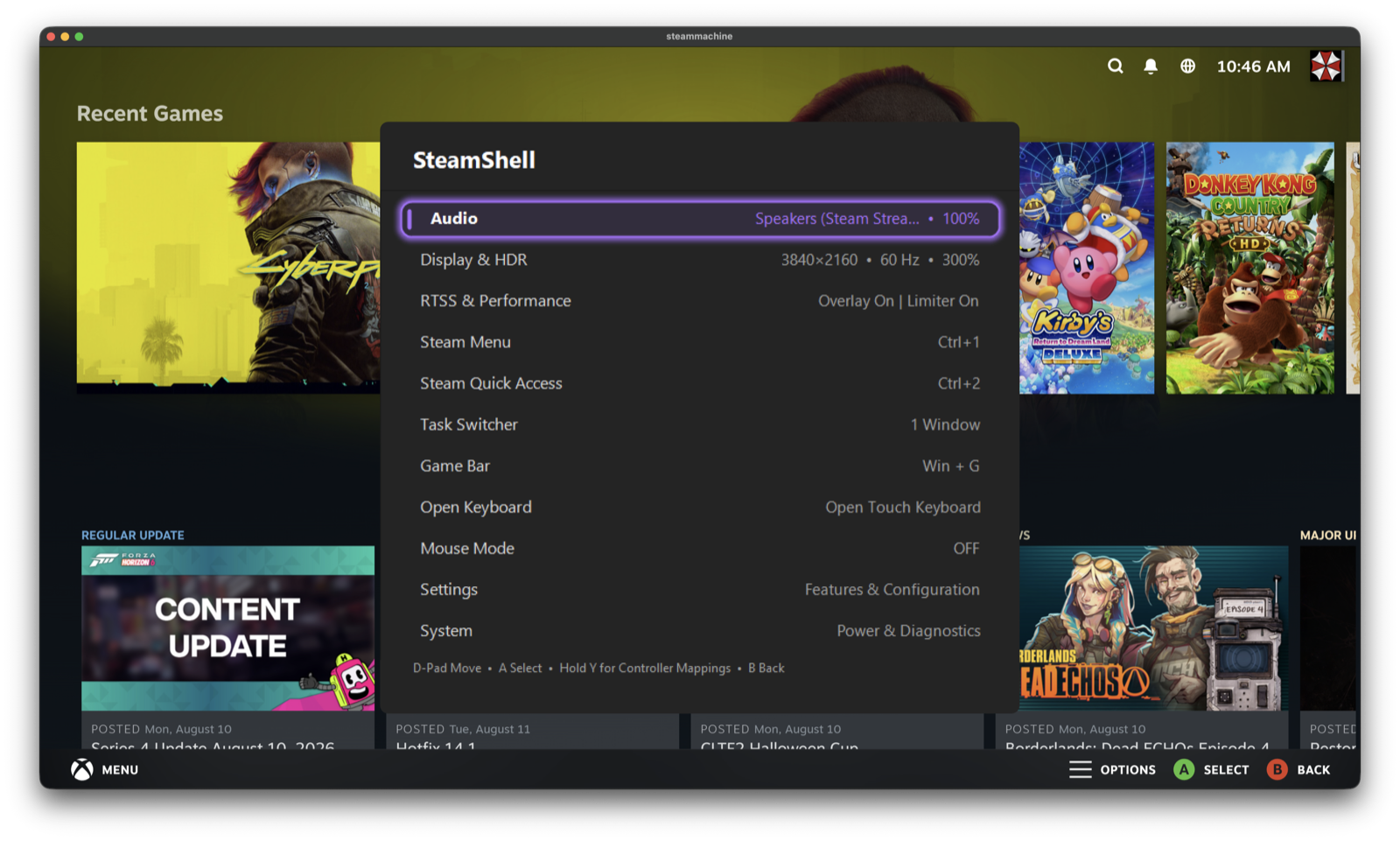
Every row carries its live value on the right, so the menu reads as a status panel as much as a control one — the active audio device, the resolution, refresh rate and scale, and whether the RTSS overlay and limiter are on, all without selecting anything.
- Hold L3 + R3 for about half a second, or
-
Ctrl+Alt+Shift+Q, or - the notification-area icon
Hold the sticks again, or press B, to close.
The hold is deliberate. Firing on the press edge meant a stray grip during a game could throw the menu over what you were playing.
| Input | Does |
|---|---|
| D-pad up/down | Move between rows |
| D-pad left/right | Change the selected row's value |
| A | Activate the row |
| B | Back, or close from the main page |
| X | Close the selected window (Tasks page) |
| Right stick | Pointer, when you want one |
Rows that only display something are inert — they skip rather than sitting there doing nothing when you press A.
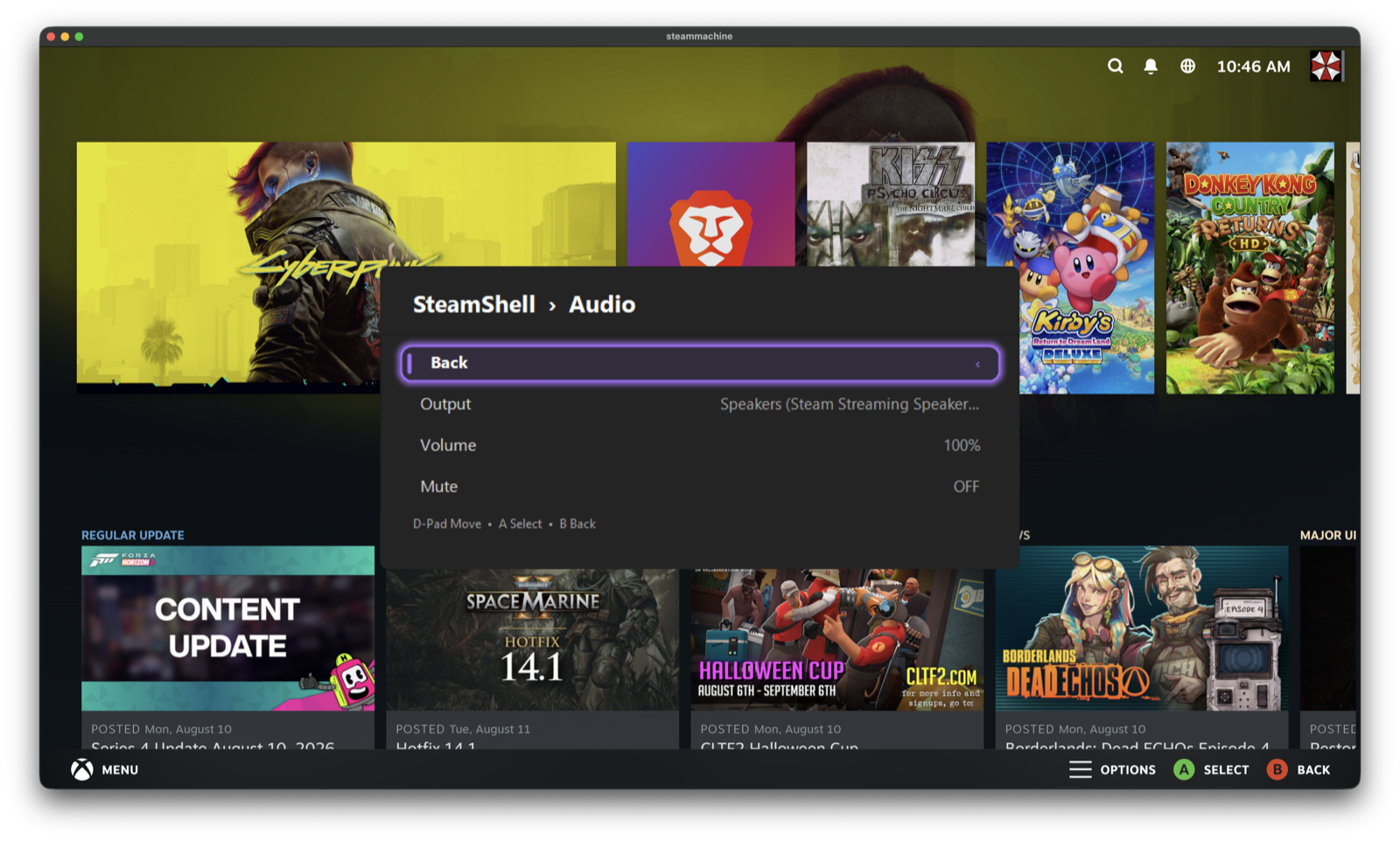
Output device, volume and mute. Left/Right cycles the output device in place.
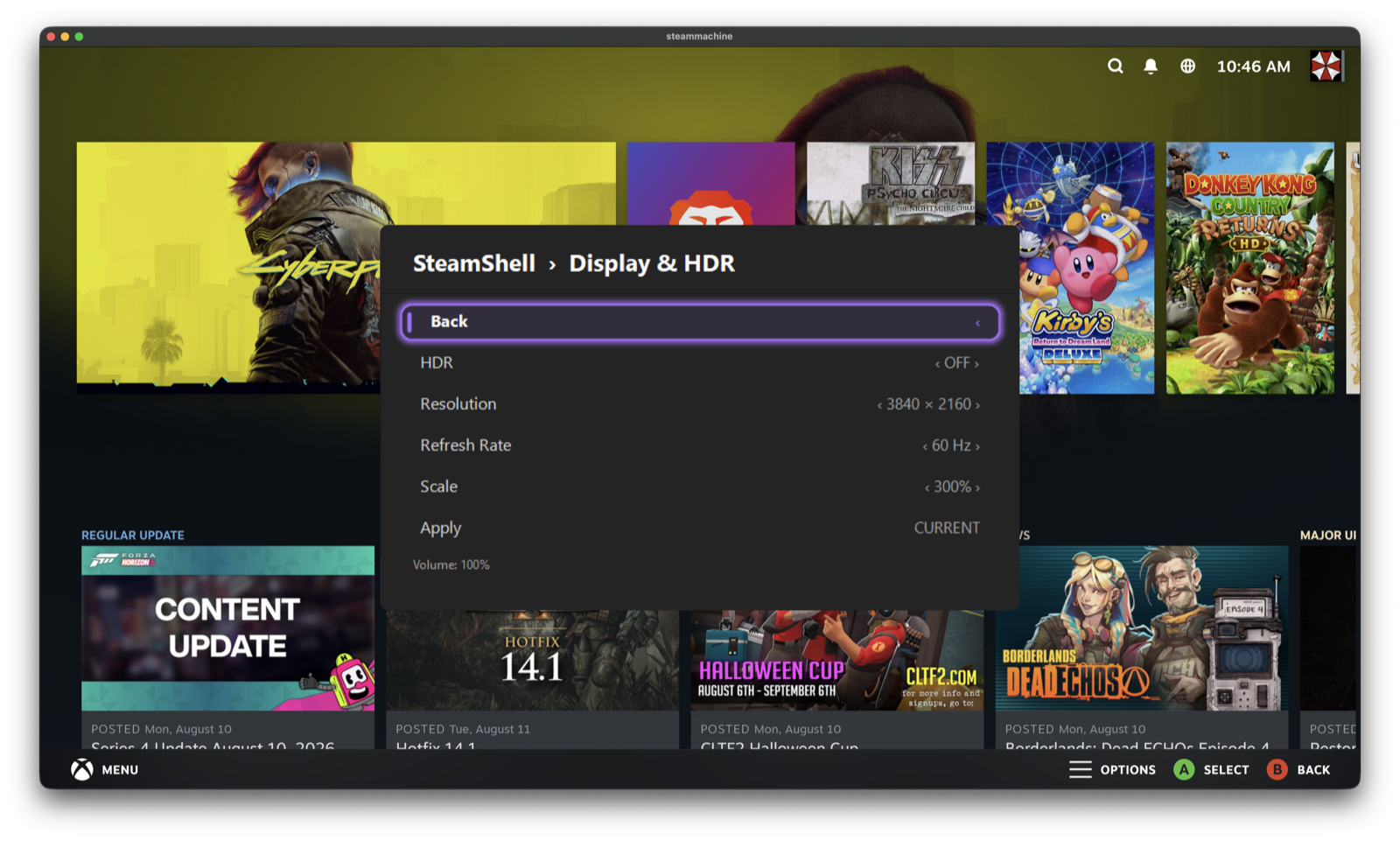
HDR, resolution, refresh rate and scale, read live from Windows rather than remembered.
Apply commits the selection, and reads CURRENT when what is on screen already
matches — so you can tell a pending change from an applied one.
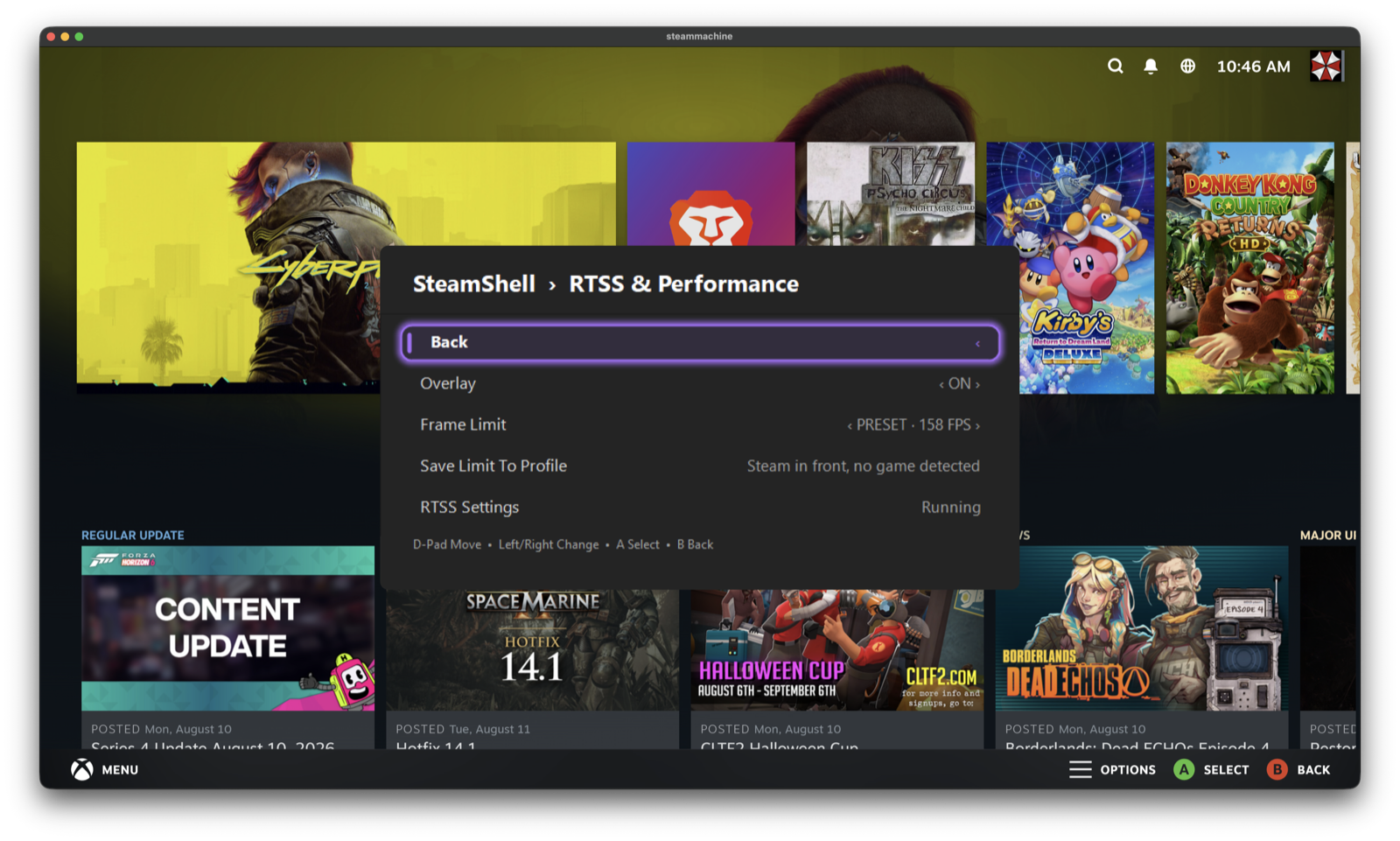
Overlay and frame limit, through RivaTuner Statistics Server. Save Limit To Profile writes the cap into the foreground game's own RTSS profile; the row tells you what it would target right now, so you are never guessing. See RTSS frame cap.
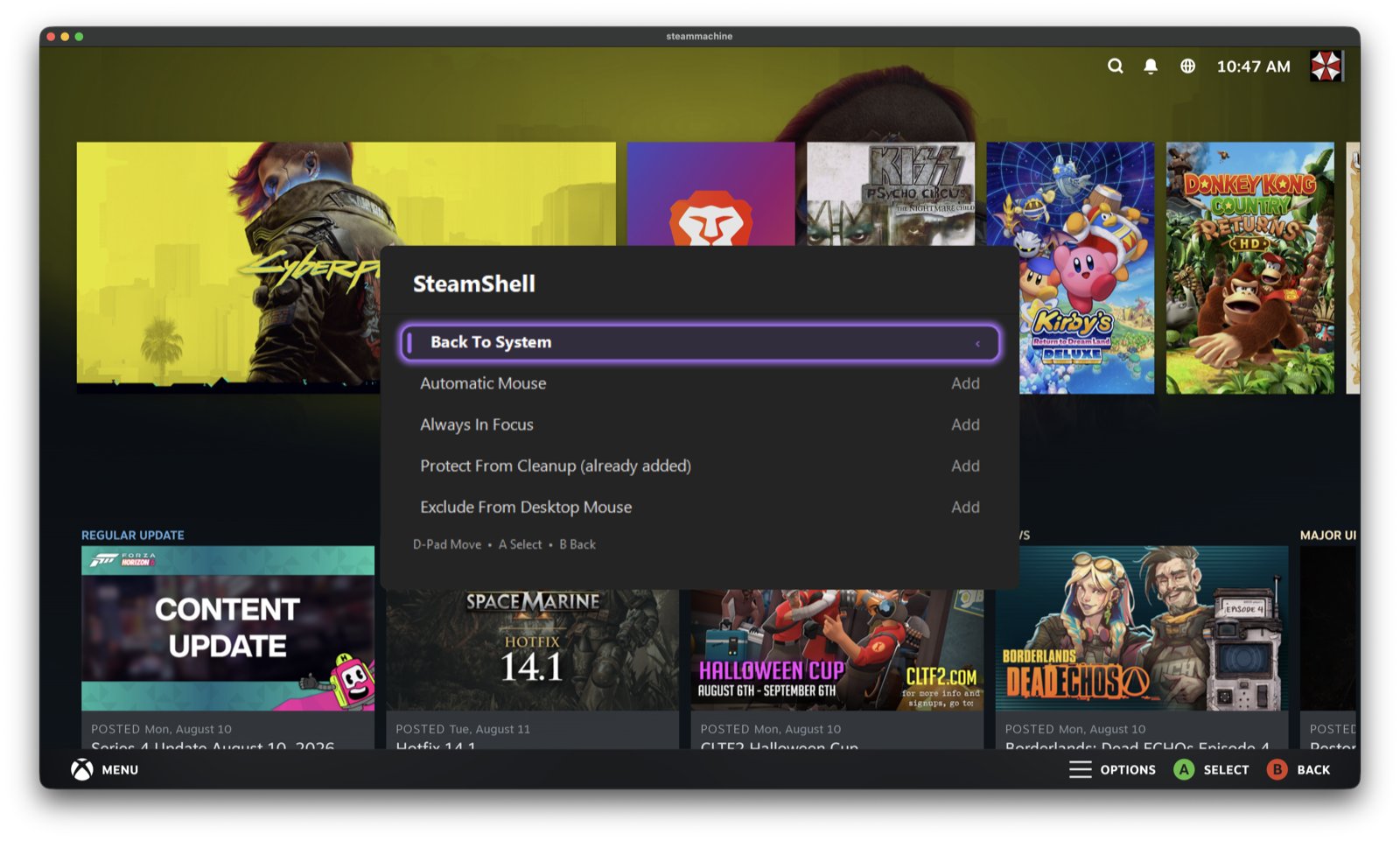
Per-application actions for whatever was in front when the menu opened — add it to
automatic mouse mode, keep it always in focus, protect it from
Launcher Cleanup, or exclude it from desktop mouse mode. Rows say
already added when the app is on a list, so the menu never offers a no-op.
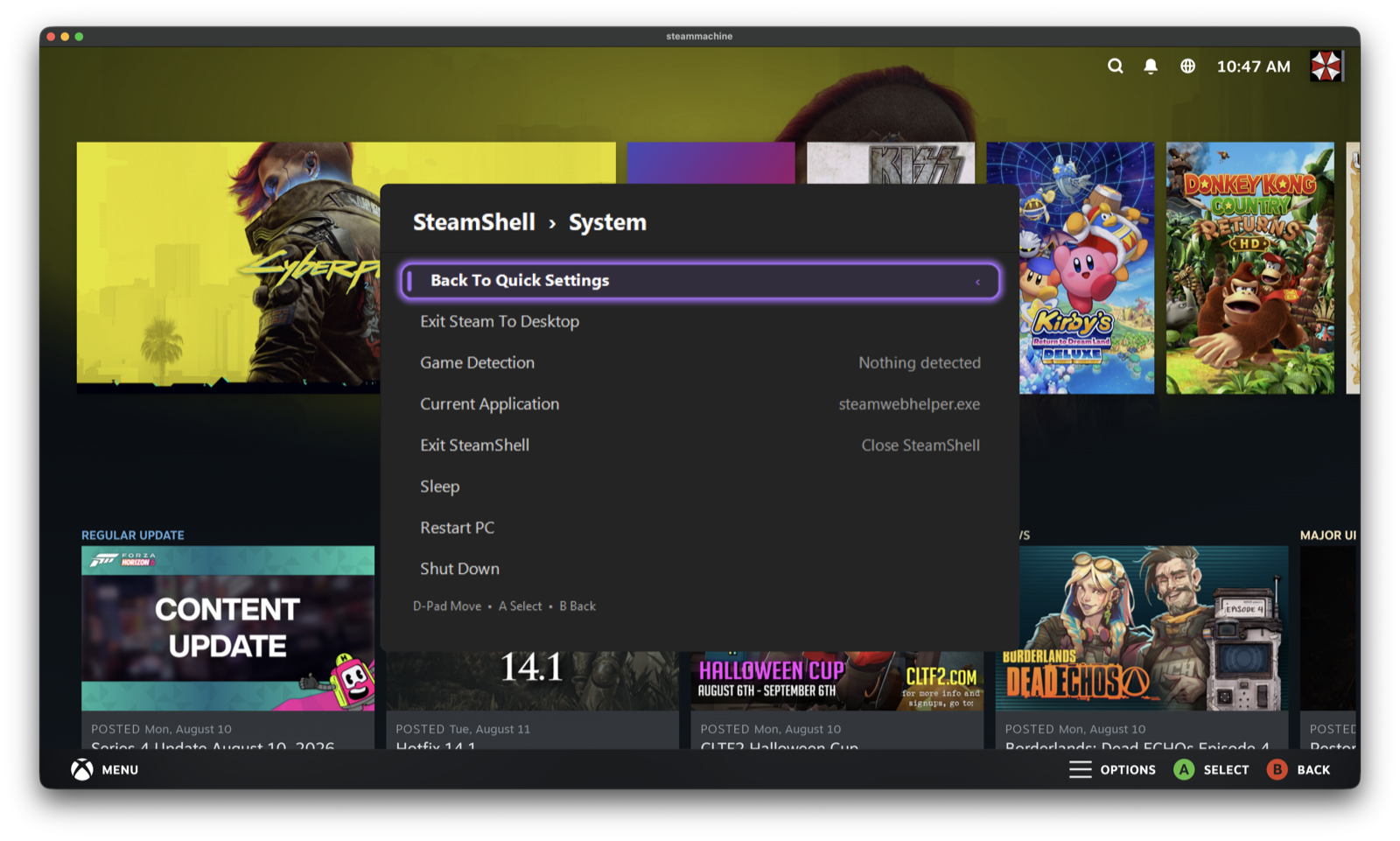
Exit Steam to the desktop, close SteamShell, or sleep, restart and shut down the machine. Game Detection shows what the focus scorer currently thinks is running and why — useful when it picks the wrong window; see Focus & scoring.
Every open window, paginated. Select one to switch to it, X to close it, or hold X to force-close something that has stopped responding.
The settings worth changing from the sofa, without opening the full editor. Grouped the same way the desktop editor is, and Open Full Settings Editor hands off to it when you need a key that is not here.
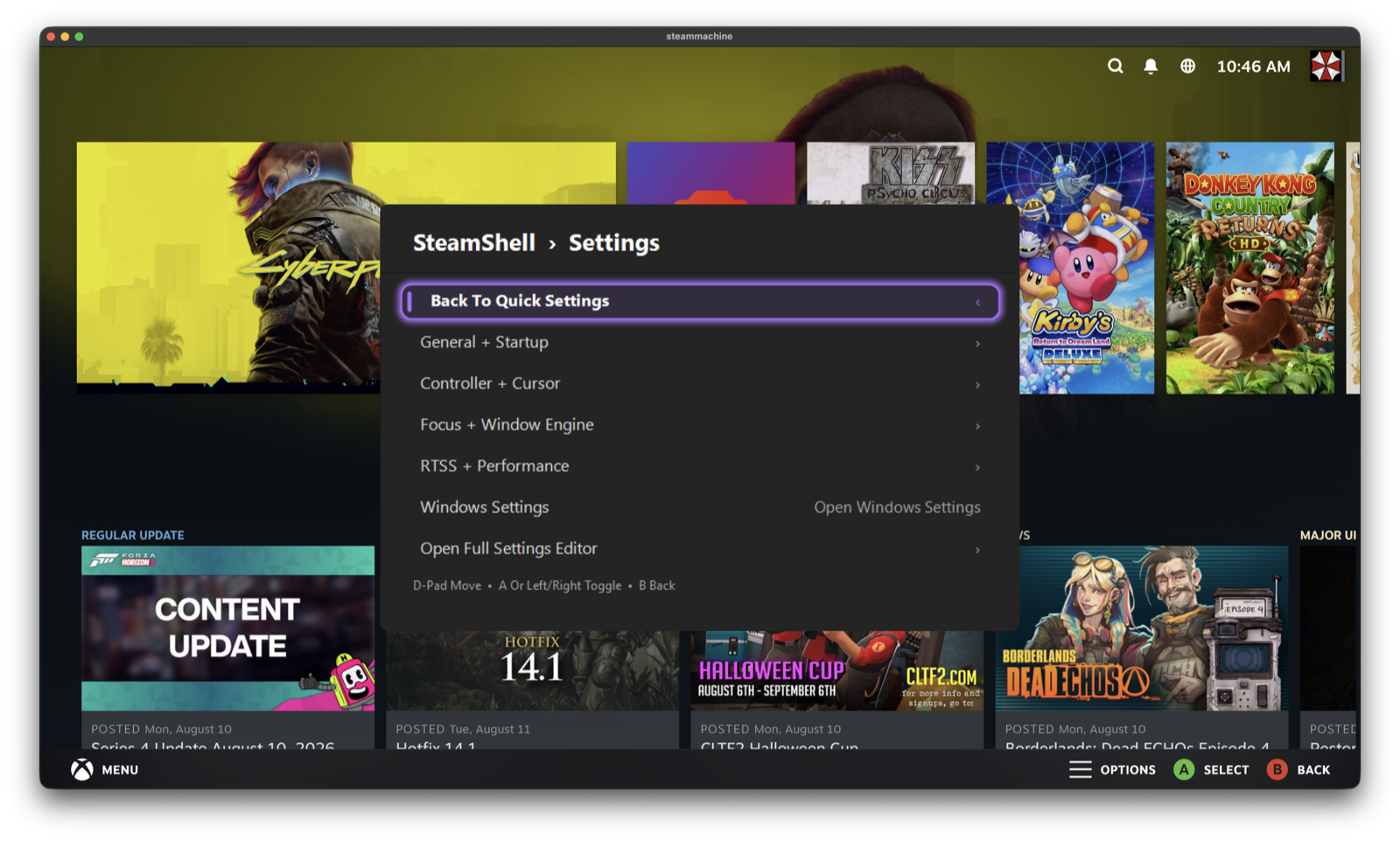
The four Settings sub-pages
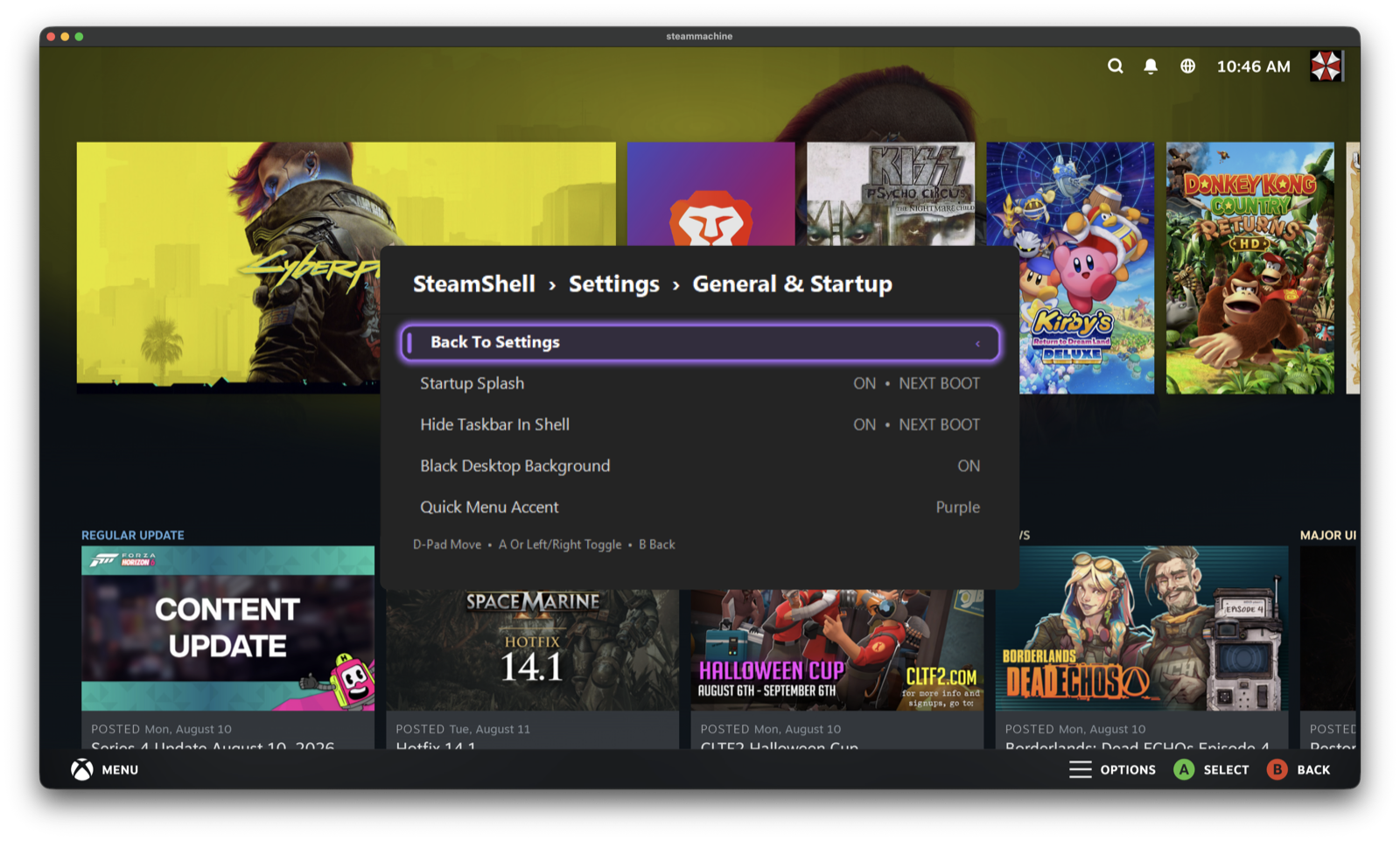
General & Startup — startup splash, taskbar hiding, black desktop background and the
accent colour. Rows that only take effect on the next boot say NEXT BOOT rather than
pretending to apply now.
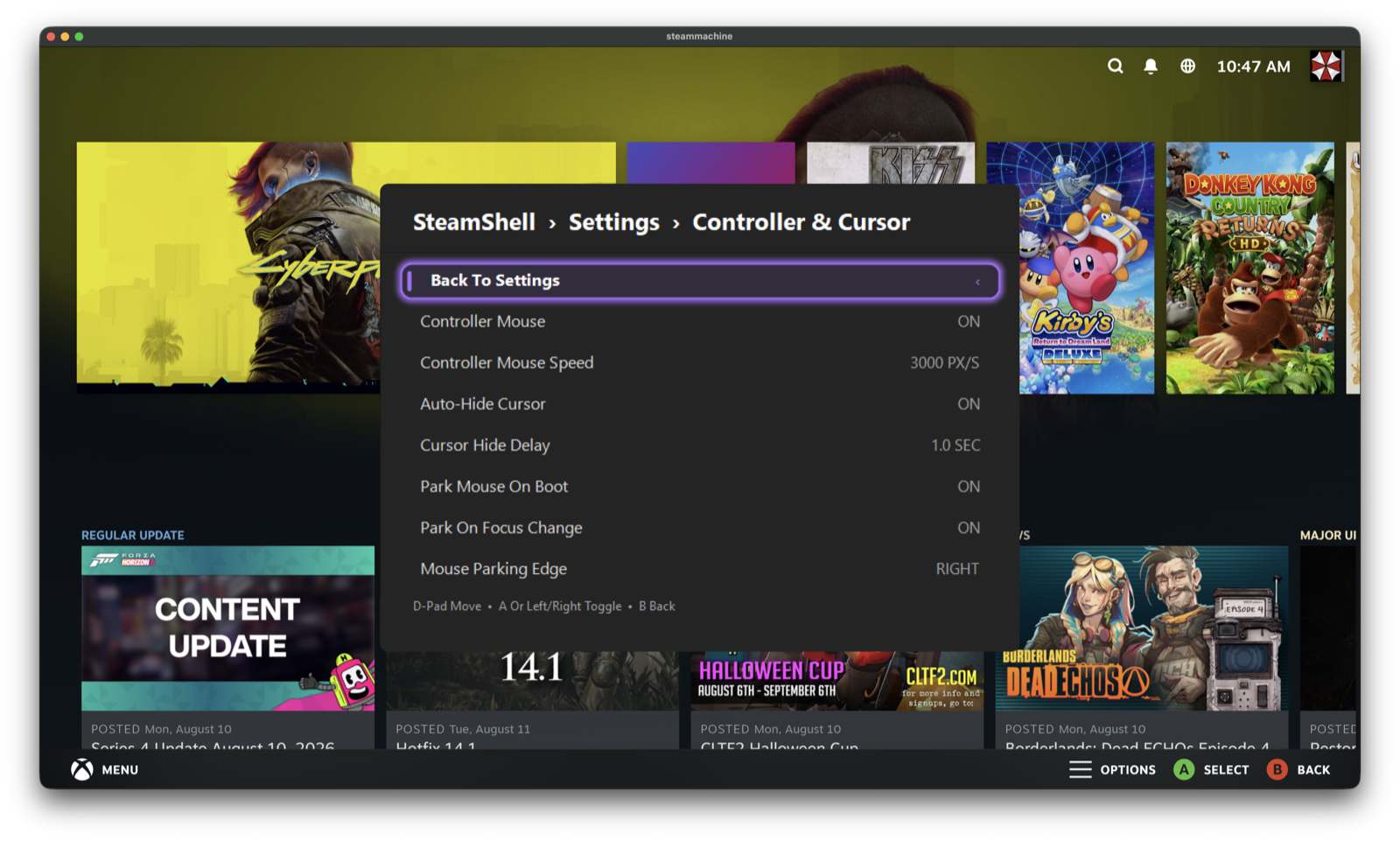
Controller & Cursor — controller mouse and its speed, cursor auto-hide and delay, and where the pointer parks when it gets out of the way.
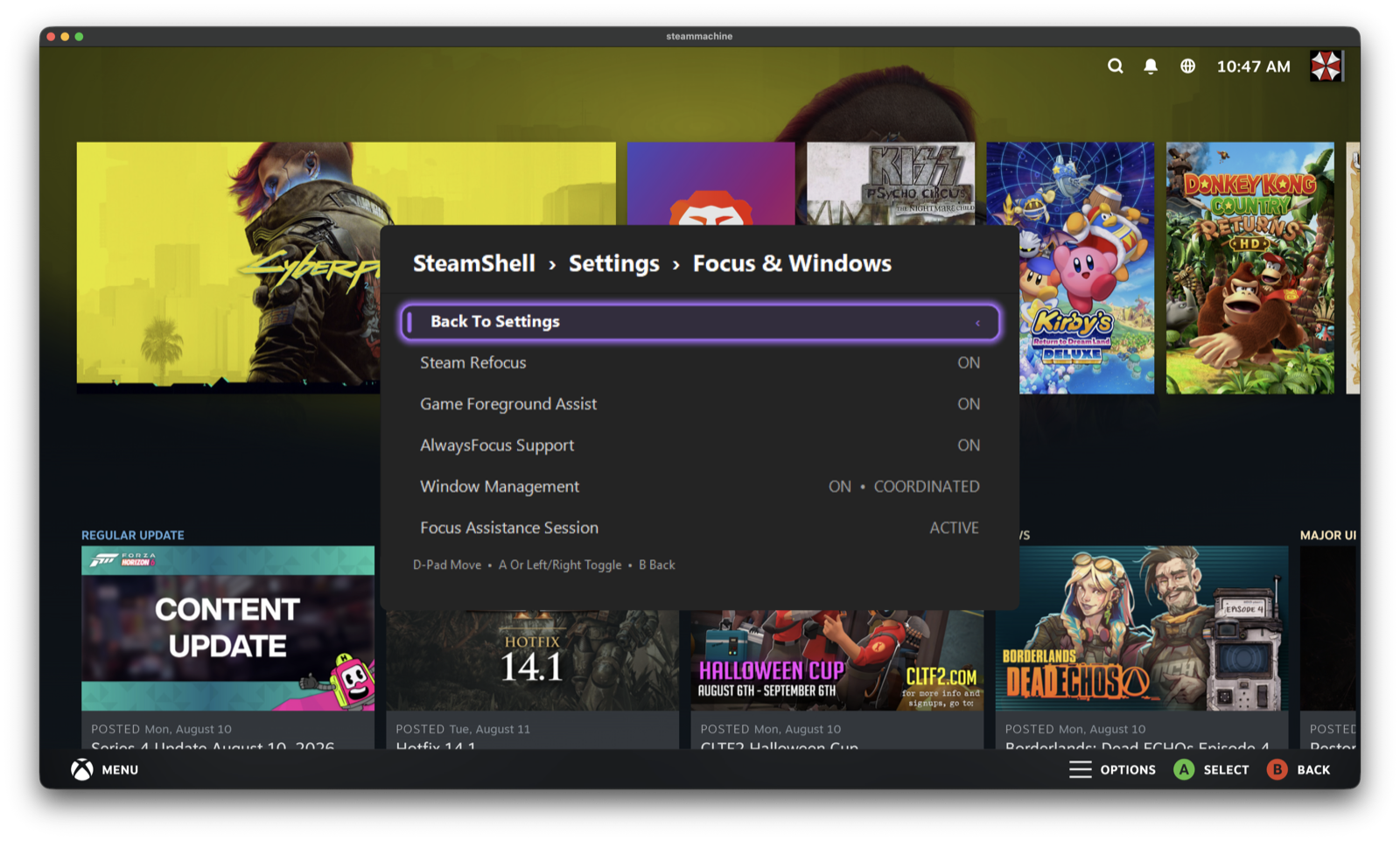
Focus & Windows — the shell half: Steam refocus, Game Foreground Assist, AlwaysFocus and the coordinated window engine, plus whether a focus-assistance session is active.
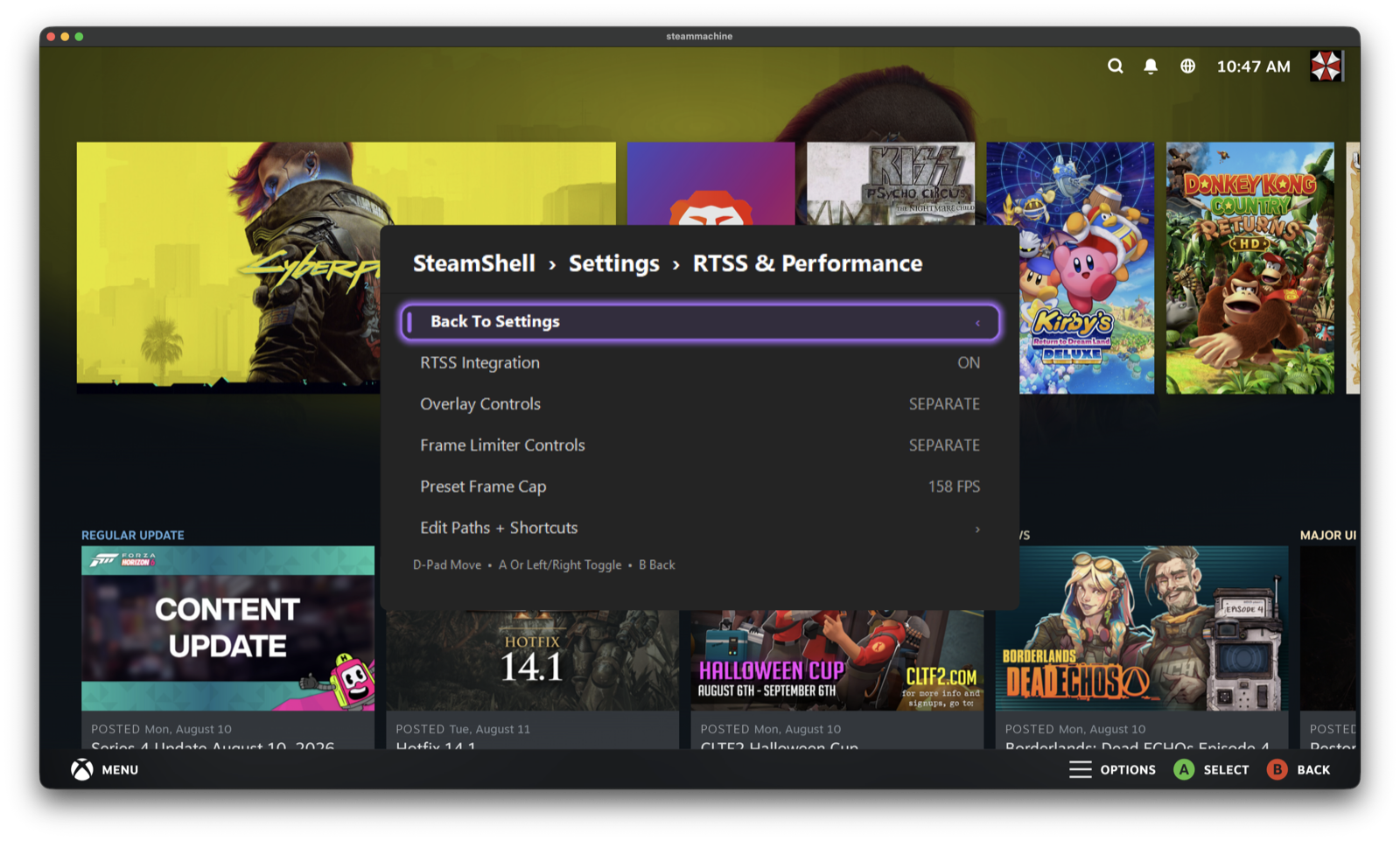
RTSS & Performance — whether RTSS integration is on, how the overlay and limiter controls are bound, and the preset cap the main page offers.
Settings → Quick Menu → Layout Manager lets you reorder the main page and hide rows you never use. Move rows with the D-pad, toggle them on and off, and there is a restore button if you want the defaults back.
- The menu cannot make controller APIs exclusive. A game or background app can still read the same input while the menu is open.
- On a very large or high-DPI display the menu measures the real window rather than trusting logical sizes, which is why it may take a frame to settle when it first opens.
- The status line at the bottom is the momentary message surface. The log is the permanent one.