
Keyboard-driven DJ tools for the Linux terminal:
- odj-player, a DJ player inspired by Pioneer CDJ decks.
- odj-sampler, which plays the cues stored by odj-player from 16 pads.
cargo run --release -p odj-player                 # first run: pick & remember a music folder
cargo run --release -p odj-player -- ~/Music      # or browse this folder just this once
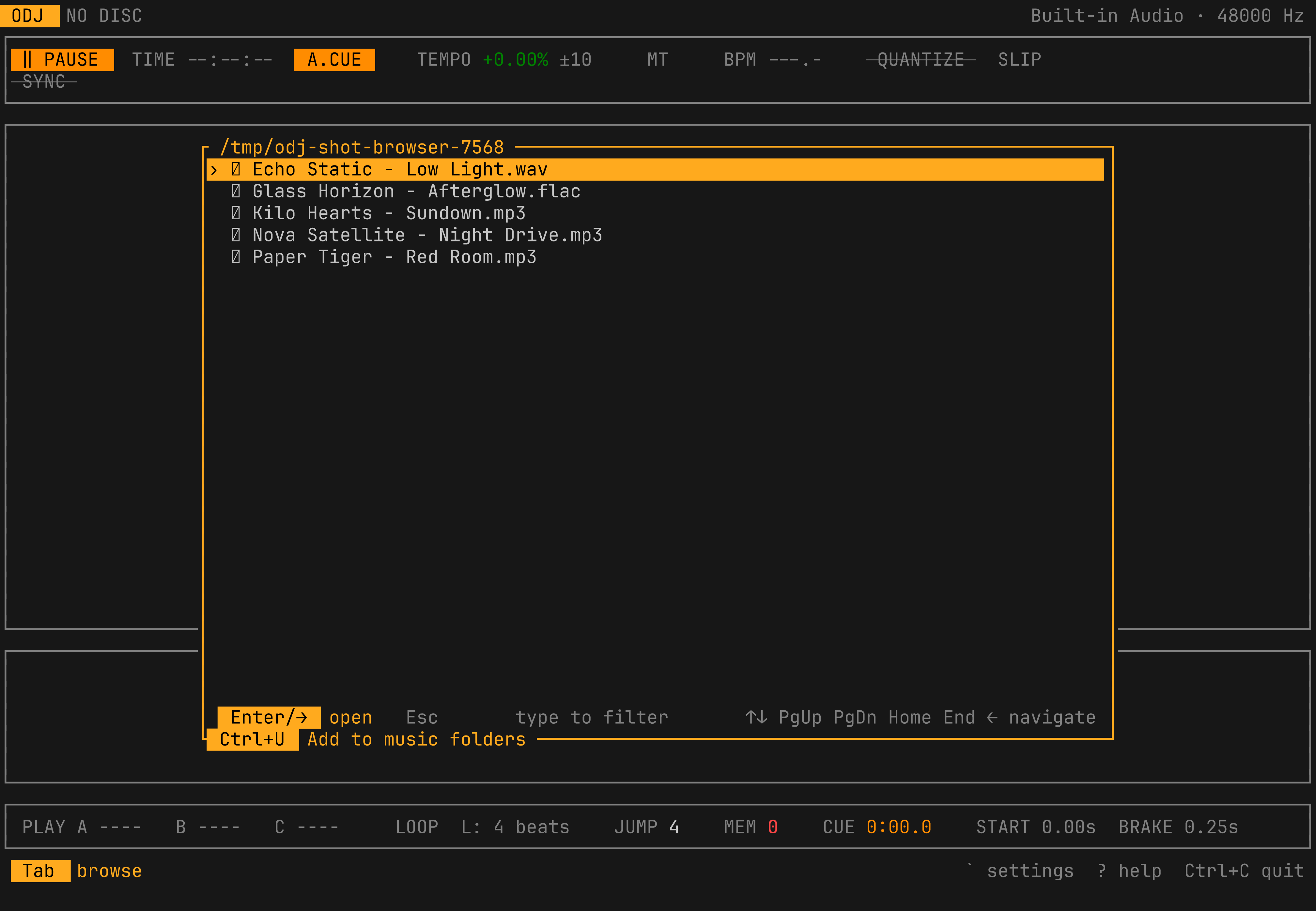
cargo run --release -p odj-player -- track.mp3    # load a track straight away
cargo run --release -p odj-player -- --deck 2     # forces deck 2 (defaults to whichever's free, usually 1)
cargo run --release -p odj-sampler                # 16 pads of stored cues
The first run (or whenever no music folder is set yet) asks you to pick one
and remembers it; with more than one saved, it asks which to open instead of
guessing. Passing a folder on the command line just browses there for that
session, without changing what's remembered. Manage saved folders any time
from Settings (`).
Needs librubberband (for Master Tempo), ALSA and PipeWire; building also
needs libclang. Plays MP3, FLAC, WAV, OGG/Vorbis, AAC/M4A and AIFF.
If there is more than one stereo output (say, a USB audio interface next to the built-in card), odj-player and odj-sampler ask at start which one to play on (unless a mixer is running — see below): a stereo output, or one side of it in mono. HDMI outputs are not listed. Audio goes through PipeWire, so you can run one odj-player per output, e.g. two decks on the two line outs of an interface. Without PipeWire, odj-player opens the card directly and holds it while it runs.
Each running odj-player claims a deck number — shown as "DECK n" in the
header — defaulting to the first one free (1, unless another instance is
already running); pass --deck 1/--deck 2 to force a specific one, e.g.
to start deck 2 before deck 1.
odj-player runs either standalone, playing straight to a real output with no Volume or EQ control of its own, or routed through odj-mixer: if one is already running when a deck starts, that deck routes its output through it instead of a real device, and odj-mixer discovers it live, as "Deck n", to apply Volume/EQ to (by hand or by MIDI knob) the same way it does for any sound-card input — see below. Which one happens is checked once, at startup, not re-checked if odj-mixer starts or quits mid-session.
odj-sampler works the same way: standalone with a real output, or, if odj-mixer is already running when it starts, routed through it instead (no output picker in that case), discovered live as "Sampler" and given the same Volume/EQ treatment.
Use a terminal with the kitty keyboard protocol (Ghostty, kitty, foot, Alacritty, WezTerm) and run it outside tmux. Hold-to-preview cue, jog nudges and search need key-release events; elsewhere those holds fall back to timers.
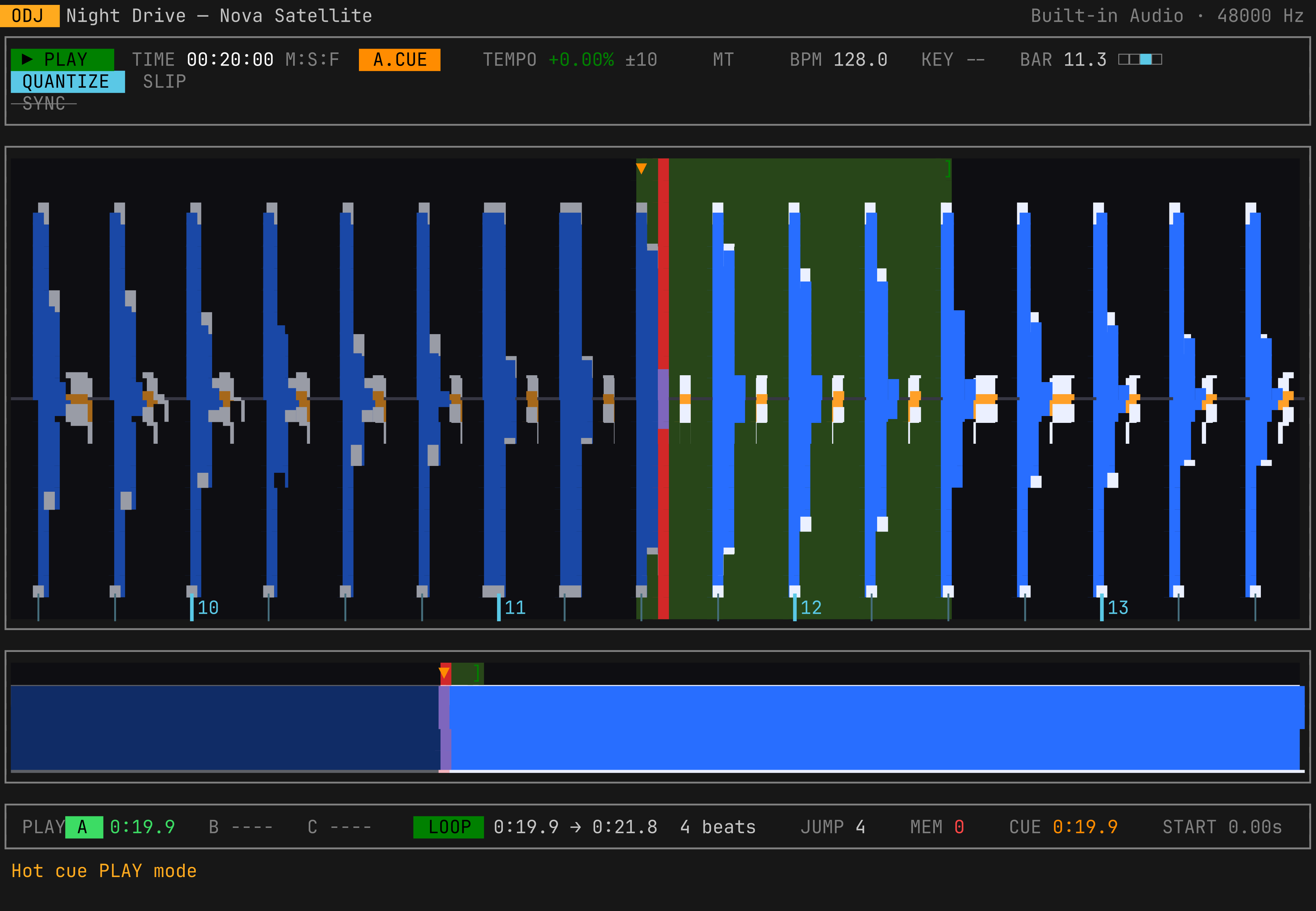
odj-player finds where each track's beats and bars fall, not just its tempo,
and shows them on a ruler under the waveform, with bar numbers (in amber
where a 16-bar phrase starts), and a bar.beat counter. When the
grid is off, fix it: D makes the playhead beat 1 of a bar, A taps the
tempo (while playing the beats also move onto your taps), and Y enters grid
adjust, where , / . shift the beats by 1 ms and ↑ / ↓ change the BPM by
0.01. Shift+A goes back to the detected grid.
With quantize on (Q), cues, hot cues, loop in and out and auto loops go on
the nearest beat, the paused beat jog steps along the grid, and a hot cue or
reloop pressed while playing waits for the next beat, so the music stays in
phase. Quantize is set per track. It starts on for tracks whose beats keep
to the grid, such as most electronic music, and off for loosely played ones.
On the grid you can also beatjump (- / =, Shift to change the size from 1
to 64 beats; while looping, the loop moves along), make beat loops of 1/32 to
64 beats (L, with [ / ] setting the size), and hold ; for a loop roll
of that size; tapping [ / ] while holding it halves or doubles the roll
for a stutter build-up. A roll stops when you let go, and the track goes
on from where it would have been had you never rolled. Slip mode (Z) does the same
for loops, reverse, held hot cues and pause: the track keeps going
underneath, shown as a purple line on the waveform, and comes back in time.
odj-player finds each track's musical key and shows it after the BPM, as its
Camelot code and name (KEY 8A Am). Without Master Tempo the pitch moves with
the tempo, so the key shown is the one you hear, with how many semitones it
has moved (+1). With other decks running, the sync row shows their keys too,
in green where they mix well with this one: the same number on the Camelot
wheel, or the same letter a step either way.
Run one odj-player per deck and they find each other: each takes a deck
number (DECK 1 to 4, in the header) and shows the others' tempo. F syncs a
deck to the master: it takes the master's tempo, or half or double it,
whichever is nearer, and keeps its beats on the master's, correcting drift by
up to 0.3% of speed and jumping back in if it's far out. Play on a synced deck
waits for the master's next beat, and quantize stays on while synced. Decks
whose beats don't keep to the grid sync their tempo only (SYNC BPM).
The first synced deck to play becomes the master; when it stops, a synced deck
that's playing takes over, so loading your next track never moves the tempo
of what's playing. Shift+F makes a deck the master. The phase meter shows
how far a deck's beats are from the master's, or another playing deck's,
in ms, so it helps when beatmatching by ear too. Under the ruler, each other deck
gets a row showing its beats against this one's (the master's in yellow): in
phase, the rows line up. Sync allows for each sound
card's latency and Master Tempo's, so decks on different cards meet at the
mixer.
Press ? in the app for all keys, or see Keys. Memory points, hot cues, loops, beat grid
corrections and quantize are remembered per track, one JSON file each under
~/.local/share/odj/tracks/. Files are named by a fingerprint of the audio, so
cues survive renaming, moving and retagging. Settings such as Auto Cue live in
~/.config/odj/settings.json.
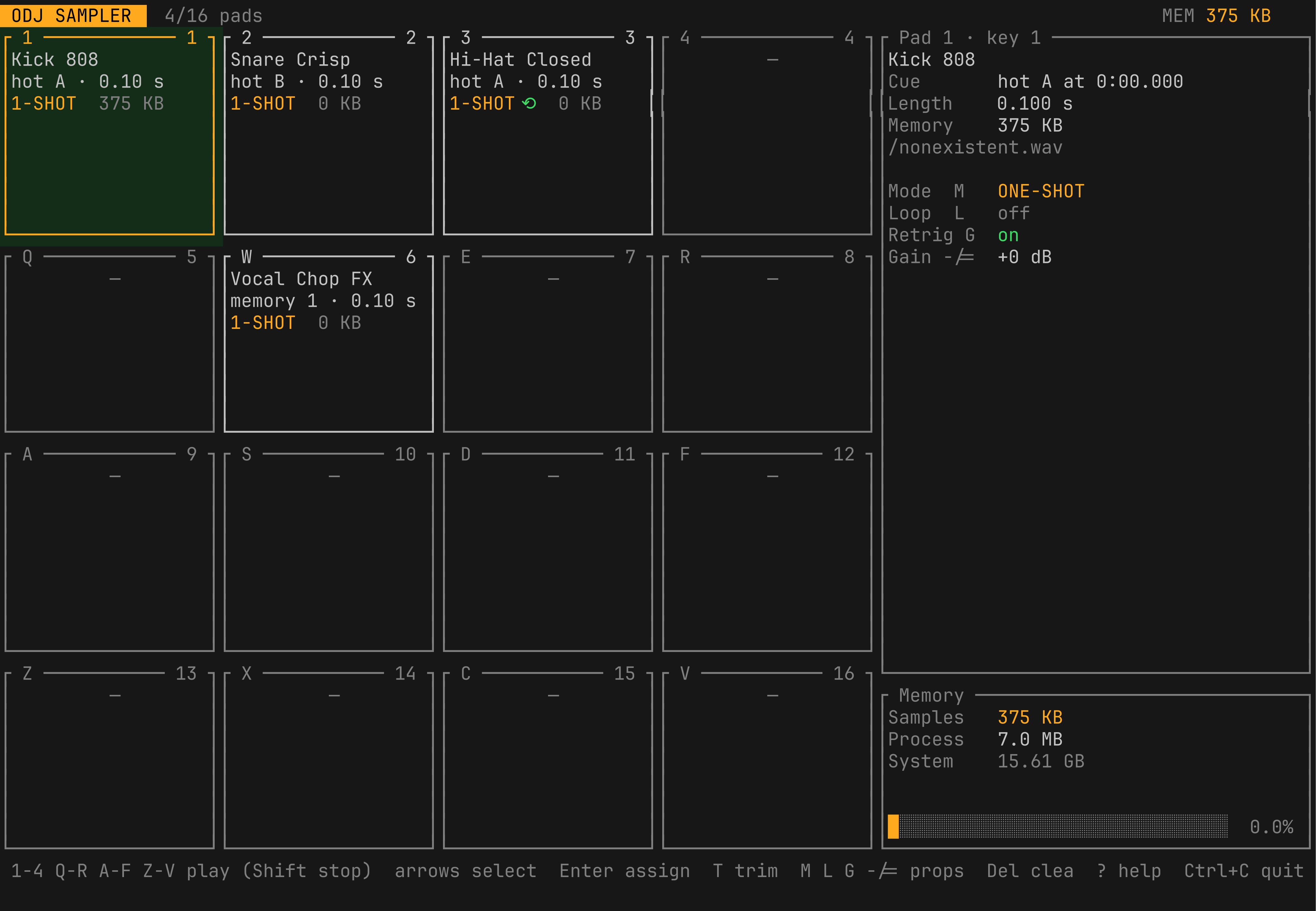
Sixteen pads on the keys 1234 / QWER / ASDF / ZXCV. Press Enter to browse
samples for the selected pad: the active kit's own samples first, Up to
browse any other kit's (the embedded "Acoustic (Embedded)" kit is always
there too, even before you've ever picked it — see Kits below), or jump
straight to a shortcut that browses your stored odj-player cues (hot cues,
memory points, last loops) instead. A
loop from a cue goes on as it is; a cue without an end opens the sample
editor, which starts at 4 bars and lets you move the start and the end
along the beat grid by beats or bars, or by milliseconds, and preview it;
T brings a pad back into it. Each pad can be one-shot, gate (plays while
held) or toggle, loop or not, and has its own gain.
A pad holds its own copy of the audio, cut out and converted to the output
rate, so the track file isn't read again while you play. The first time a
cue is put on a pad, it's cut from the original track and saved as its own
.wav inside the kit — from then on that kit owns the sample outright,
even if you later clear the pad; picking it again (or giving it to another
kit via the sample browser's Up) just reuses that file. The header and
the memory panel show how much memory the pads take.
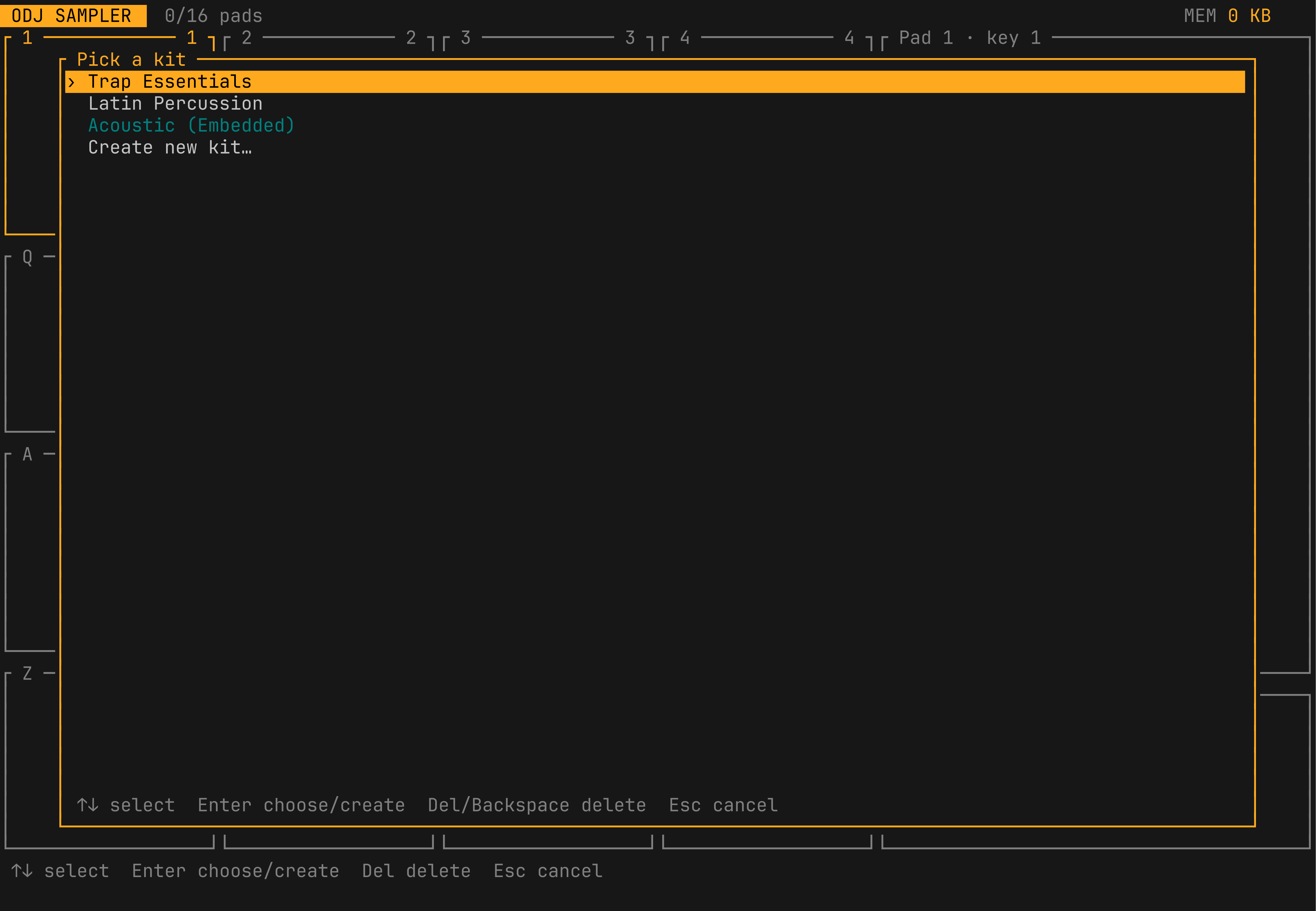
Kits. Everything above belongs to one kit at a time — pad assignments,
properties, and the samples themselves — each its own self-contained
folder under ~/.local/share/odj/kits/<name>/ (a kit.json plus its
samples/). Press K any time to switch kits or create a new, empty one;
odj-sampler remembers the last one used (in the settings file shared with
odj-player, ~/.config/odj/settings.json) and loads it directly next time. On first run, with no kit yet, the same
browser offers "Acoustic (Embedded)", a small kit built into the binary
(works offline, no setup) — picking it doesn't create a kit folder either,
until it's actually changed, same as above — fuller kits downloaded from
the companion odj-kits repo (currently
Acoustic and Latin percussion, both CC0), or creating a new, empty kit of
your own. Deleting the kit you're on falls back to another one if you have
one, or to a fresh, unnamed kit otherwise — nothing's written to disk for
that until you actually change something, at which point you're asked to
name it, which creates its folder.
Pads can also be triggered over MIDI — Note On/Off from an external sequencer (hardware or software) works exactly like a key press, including one-shot/gate/toggle behaviour. At startup, if any MIDI input is available, you're asked which one to use (or none). The first time you pick a given device, you're walked through pressing each of the 16 pads in order so its notes are learned rather than assumed (controllers don't agree on how they number pads); after that it's remembered. The chosen port and each device's learned notes are kept in the same shared settings file.
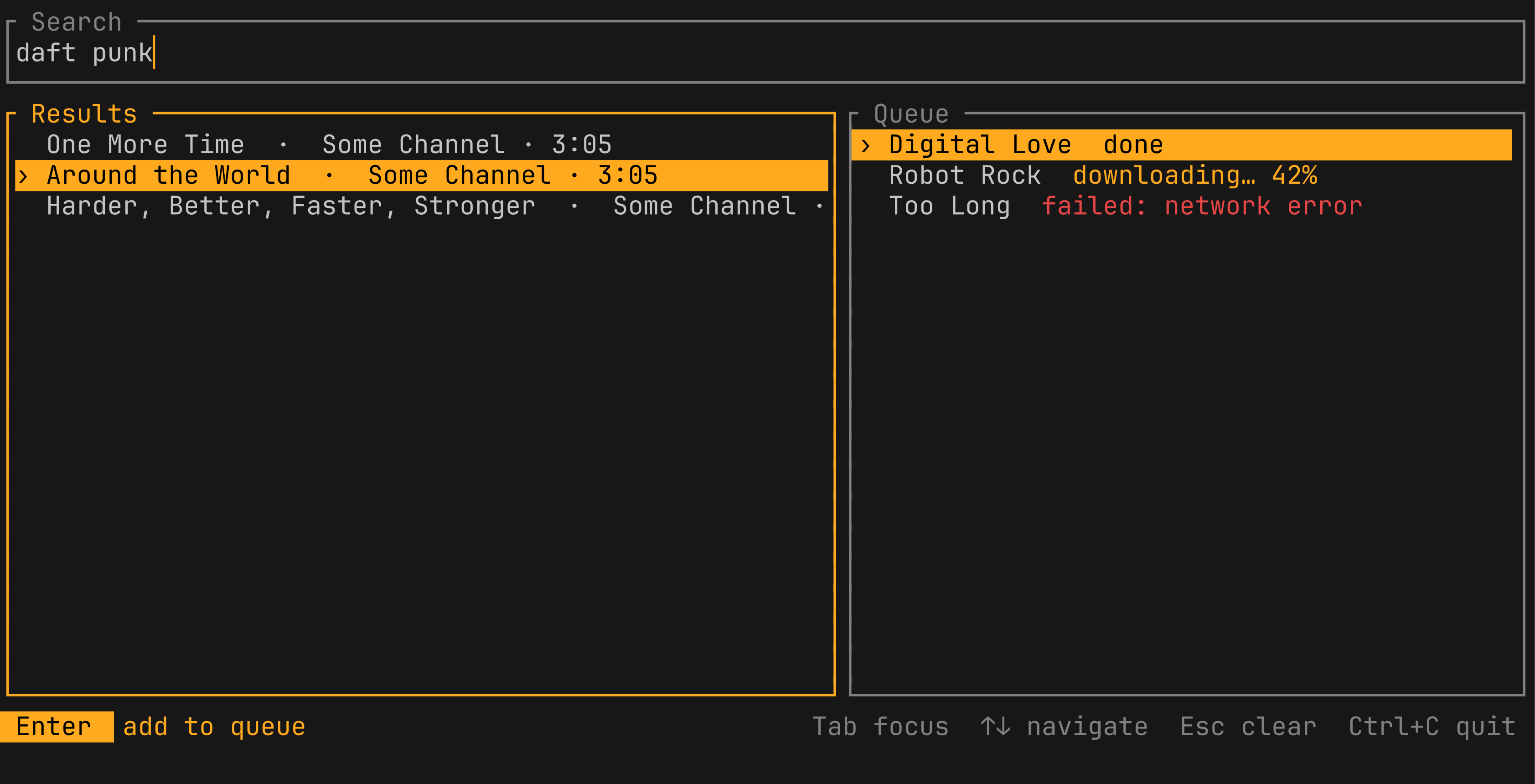
Searches YouTube via yt-dlp and downloads whatever you queue, one at a
time, into ~/Downloads — handy for getting a track straight into a
folder odj-player already watches. Tab moves focus between the search
box, results and queue; Enter runs a search (or, on a result, queues
it); ↑/↓ navigate the focused list; x/Delete removes a queued
item; Esc clears the query or cancels a search in progress; Ctrl+C
quits.
Continuously detects running odj-player decks and a running
odj-sampler, and connects every one of them to the main output
automatically, live — each is already part of the session, so it just
plays, no extra step needed (none of them send their audio anywhere
special for this: each plays into its own virtual sink instead of a
real device, and odj-mixer captures it from there). A sound-card input
(a turntable's line-in, a mixer channel, a mic) is different: there's
usually several, not all of them meant to be mixed in, so each one
instead waits until it's added from Settings (`, see below) —
once added, every Volume/EQ control works identically whether a strip
is a turntable, a deck or the sampler. Needs PipeWire running (it
refuses to start without it): both the virtual sinks and routing
between two different real cards rely on PipeWire's shared graph
clock, which plain ALSA has no way to provide.
The live screen looks like a real mixer: one channel strip per running
deck (or the sampler) plus every input that's been added, side by side, each with High,
Mid and Low and a vertical Volume fader. A hardware input's title is
cut down to whatever's actually different about it compared to every
other one currently shown — just "2" among several inputs on the same
interface, "UMC404HD 192k" if what's different is which interface, and
so on — so two inputs never read the same just because a long shared
name pushed the part that differs off the edge. ←/→ picks the
channel and ↑/↓ picks which control is active (High, Mid, Low,
Volume, wrapping top to bottom and back) — that's all either does,
never changing a value, so they're always safe to tap. +/- adjusts
the selected control instead (Shift: ×4 steps, a no-op until the
channel's actually connected). Nothing on the live screen changes a
MIDI mapping any more — that only happens from Settings. As on
odj-player's own live screen, the footer's contextual keys sit on the
left and the globals (` settings, ? help, Ctrl+C quit) stay
pinned to the right.
Picking a MIDI controller at startup needs no picker either, the same
way the main output doesn't: every controller odj-mixer's ever learned
knob mappings for is remembered (Settings.mixer_midi_controllers, by
its own stable name — not its connection-order port id, which can
change across a replug), so if exactly one known one is plugged in, it's
used automatically; if more than one is, the last-used one is
(Settings.mixer_midi_last), or whichever sorts first by name if that
one isn't among them. Only when every currently plugged-in controller
is unknown does it fall back to asking (Esc/N skips it) — picking
one there makes it known from then on, with an empty map to start.
Either way, it then briefly looks for decks (and the
sampler) already running, then walks you through turning a knob for
each one's Volume, Low, Mid and High that isn't mapped yet on that
controller (so 8 knobs total for two decks, 12 with the sampler too) —
Esc at any point stops the walkthrough, leaving the rest for later.
Inputs are left out of this walkthrough (most already have a physical
knob on their own hardware); map one on demand from Settings instead.
Any knob mapped this way, for an input, a deck or the sampler, is
remembered under that controller's own entry in the settings file
shared with the other apps — switching controllers (see MIDI
below) never mixes up what's mapped on one with another.
` ("settings", on the right of the live screen's hint line) opens
Settings, 3 tabs — Tab/Shift+Tab cycles through them either way,
the current one highlighted the same way the help overlay's own tabs
are (black on amber). Its own border bottom matches the help
overlay's too, exactly: Esc ("Back" while drilled into a row's own
settings, "Close" otherwise) on the left in amber, Tab ("Next tab")
on the right in the help overlay's own distinct light blue, both in
the same highlighted-badge style — with whatever's specific to the
current tab in plain text between them — Tab is left off entirely
while drilled in, since it doesn't do anything there.
Inputs (the tab it opens to) is one list, one row per detected
input, deck and the sampler —
plus one more for any device that's no longer detected but still has
a MIDI mapping, so that mapping stays visible (and clearable) instead
of quietly surviving, unseen, in the settings file — with a
right-aligned indicator for whether it's currently mixed in: ●/○
for an input (Space toggles it — adding one connects it to the main
output right away, removing one disconnects it; this is also
remembered in the shared settings file, so an added input is still
there, reconnected automatically, next time odj-mixer runs — same as
a deck or the sampler already is), ◆/◇ for a deck or the sampler
— a different shape, not just a different state, since either is
always connected automatically and Space can't change that — or
✕ for one of those mapped-but-undetected rows, just as
non-interactive as a deck's for the opposite reason: there's nothing
there to connect. Each row is 2 lines tall, the 2nd showing its own
MIDI mapping summary — MIDI H:n M:n L:n V:n, "—" for whichever
of the 4 isn't mapped — so a mapping can be seen without drilling in
to check one at a time. ↑/↓ picks a row; Enter, on any of the
3 kinds, drills into its own settings — for now just its Volume, Low, Mid and High, each showing
whatever CC it's bound to, or "—" if none. ↑/↓ picks one there,
Enter maps (or remaps) a knob to it, X/Delete clears it, Esc
goes back to the channel list. Esc/` from there closes
Settings back to the live screen.
Outputs is one list, one row per detected output, ●/○ marking
which one is currently the main output — ↑/↓ picks a row, Enter
makes it the main output instead (a no-op on one that isn't currently
available, shown in red). This is what used to be a mandatory pick
before the live screen could even start; now it's remembered the same
way an added input is (Settings.mixer_output), restored
automatically next run — or, the very first time, defaulted to the
internal speakers (whichever output looks like fixed, onboard audio
rather than something plugged in) rather than nothing at all — and can
be changed again any time from here — switching tears down every
channel's route and lets the same auto-connect that handles a newly
detected one put them all back on the new output. Esc/` closes
Settings back to the live screen here too.
MIDI is one list, one row per controller odj-mixer has at least
one saved knob mapping for, plus one more for each currently plugged
in that has none yet — so a controller with mappings still shows up
even unplugged, and a brand new one can be picked the moment it's
seen, not only once it's been used before. Each row names how many
mappings it has, right-aligned ahead of the marker (0 for one that's
merely plugged in), right there instead of drilling in to check. The
marker is the same 3-icon convention Inputs uses for its own
not-currently-detected rows: ✕ for a controller that's unplugged
(known only from its saved mappings — not something Enter can do
anything with), ● for whichever one is actually connected, ○ for
any other one that's plugged in but not the active one. ↑/↓
picks a row, Enter switches to it live if it's plugged in (tearing
down whatever was connected before and loading that controller's own
saved mappings, or an empty one if it has none), X/Delete forgets
its mappings instead — a no-op if it has none to forget, same as
Enter is on one that isn't plugged in. Esc/` closes Settings back to the live
screen here too.
?// opens the full key list from the live screen (Settings has
no help of its own — every key's already spelled out in its own hint
line), taking over until Esc/?// closes it again. Ctrl+C quits
(at the top level) — q/Esc don't; Esc is reserved for backing out
of whatever's open instead.
Every error odj-mixer shows on screen (as a red "Status" popup) is also
appended, with when it happened, to ~/.local/share/odj/mixer.log — the
popup itself clears on the next keypress, so this is the place to look
for one that's already gone.
Press ? in either app for these keys, on the same pages as here: Tab and
Shift+Tab (or → and ←) turn the pages, ↑ and ↓ scroll, and Esc
closes the help. The last page, About, shows the version, the author and the
license. Ctrl+C quits either app; the player saves its cue memory first, and
the sampler saves its kit as you go. The file browser and the cue picker show their keys
along their bottom edge, as does the output picker at start.
| Key | Does |
|---|---|
Space |
Play / Pause |
C |
Cue |
1 2 3 |
Hot cue A/B/C |
L |
Beat loop / exit the loop |
← / → |
Search (Shift: super fast) |
↑ / ↓ |
Tempo (Shift: ×10) |
, / . |
Jog: hold to slow down / speed up 3% (Shift: 12%) |
R |
Reverse |
F |
Sync to the master deck |
B / N |
Previous / next track in folder |
Tab |
File browser |
Ctrl+U in the browser |
Add this folder to your music folders |
` |
Settings: auto-cue, music folders |
| Key | Does |
|---|---|
C |
Cue — playing: back to cue & pause · paused: set cue · hold on cue: preview |
Space while holding C |
Keep playing after releasing Cue |
1 2 3 |
Hot cue A/B/C: jump & play (on the next beat when quantizing) · REC mode: store the cue, or the loop while looping |
1 2 3 held in slip |
Play the hot cue while held, then back to where the track would be |
E |
Hot cue REC / PLAY mode |
Shift+1 2 3 |
Clear hot cue (REC mode only) |
W / J / K / X |
Memory: store cue or loop / jump to the nearest one left / right / delete |
X X on a loop memory |
A loop needs a second X within 2s to confirm the delete |
T |
Elapsed / remaining time |
Shift+T |
Auto Cue on/off |
| Key | Does |
|---|---|
I / O / P |
Loop in / Loop out / Reloop-Exit (back into whatever loop you're at or just left) |
O while looping |
Loop out adjust: , / . move the out point (Shift: ×10), O to finish |
R while looping |
Play the loop backwards, R again for forwards |
L |
Beat loop of the loop size / exit the loop |
Shift+P |
Jump to the draft loop (last one set by I/O/L), even after visiting another memory |
Shift+L |
Promote the draft loop to a real memory |
[ / ] |
Halve / double the roll or loop, else the next beat loop's size |
Shift+[ / ] |
Same, but from the in point: extends or shrinks the loop to the left |
; (hold) |
Loop roll of the loop size, [ / ] change it; back to where the track would be |
- / = |
Beatjump back / forward (moves the loop while looping) |
Shift+- / = |
Beatjump size 1 … 64 beats |
Z |
Slip: loops, reverse, held hot cues and pause carry on underneath |
| Key | Does |
|---|---|
↑ / ↓ |
Tempo fader (Shift: ×10) |
0 / G |
Reset tempo / cycle range ±6 ±10 ±16 WIDE |
H |
Master Tempo (key lock) |
F |
Sync to the master deck's tempo and beats |
Shift+F |
Make this deck the master |
, / . |
Jog: hold to slow down / speed up 3% (Shift: 12%) · paused: 1 frame (Shift: 1 beat, 1 s without a BPM) |
S / V |
Cycle start / brake time |
| Key | Does |
|---|---|
Q |
Quantize this track: cues, loops and jumps go on the beat (always on while synced) |
A |
Tap BPM (playing: the beats go on the taps) |
Shift+A |
Back to the detected grid |
D |
Make the playhead beat 1 of a bar |
Y |
Grid adjust: , / . shift the beats 1 ms (Shift: 10 ms) · ↑/↓ BPM ±0.01 (Shift: ±0.1) · Y or Esc to finish |
| Key | Does |
|---|---|
1 2 3 4 / Q W E R |
Pads 1–8 (press to play, also selects) |
A S D F / Z X C V |
Pads 9–16 |
Shift+pad |
Stop that pad |
Space |
Stop all pads |
← → ↑ ↓ |
Select a pad |
Enter |
Browse samples to assign to the selected pad |
K |
Browse kits: switch, or create a new one |
| Key | Does |
|---|---|
Enter |
Browse samples to assign to the selected pad |
K |
Browse kits: switch, or create a new one |
T |
Trim: open the selected pad in the sample editor |
M |
Mode: one-shot · gate (plays while held) · toggle |
L |
Loop on/off |
G |
Retrigger: a one-shot press while playing restarts or is ignored |
- / = / 0 |
Gain down / up / 0 dB |
Delete / Backspace |
Clear the selected pad |
| Key | Does |
|---|---|
↑ ↓ |
Select a row |
Enter |
Assign the sample, open the kit, or browse odj-player's cues |
Esc |
Close without assigning |
| Key | Does |
|---|---|
↑ ↓ |
Select a row |
Enter |
Switch to that kit, or start naming a new one |
Delete / Backspace |
Delete the selected kit (asks to confirm first, in red) |
(typing) |
Name a new kit; Enter creates it, Esc cancels |
Esc |
Close without switching |
| Key | Does |
|---|---|
(typing) |
A kit changed for the first time has no name yet |
Enter |
Save it under this name, creating its folder |
Esc |
Leave it unsaved for now; asked again next change |
| Key | Does |
|---|---|
Tab |
Switch between moving the start and the end |
← / → |
Move it a beat along the grid (Shift: a bar); without a grid 0.1 s (Shift: 1 s) |
, / . |
Move it ±10 ms (Shift: ±1 ms) |
[ / ] |
Halve / double the length |
Space |
Preview (loops) |
Enter / Esc |
Put it on the pad / cancel |
A Cargo workspace: crates/odj-core holds what the apps share (decoding and
fingerprinting, the cue library, audio input/output, the file browser, the
link between decks);
crates/odj-player, crates/odj-sampler, crates/odj-downloader and
crates/odj-mixer are the four binaries.
git clone https://github.com/ibz/odj && cd odj/packaging/arch
makepkg -si
This builds the latest master, pulls in rubberband, alsa-lib, libpipewire
and yt-dlp, and installs all four binaries (odj-player, odj-sampler,
odj-downloader, odj-mixer), an odj alias for odj-player, and a launcher
entry (Super+Space → "odj player"), which opens in your default terminal. Run
makepkg -si again to update; sudo pacman -R odj-git removes it. Once it's
on the AUR: yay -S odj-git.
git clone https://github.com/ibz/odj && cd odj
packaging/debian/build.sh              # or: packaging/debian/build.sh ubuntu:24.04
sudo apt install ./packaging/debian/dist/debian-trixie/odj_*.deb
This builds the package in a Docker container of the release you name (Debian
trixie by default), so it matches that release's libraries. It installs all
four binaries, an odj alias for odj-player and the launcher entry, and
pulls in rubberband, ALSA, PipeWire and yt-dlp. sudo apt remove odj
removes it.
MIT, see LICENSE.