Performer Guide
This is what an actor or stage performer does in Understudy. Open the app, pick Perform, and your phone becomes a smart teleprompter that knows where you are in the room.
When you launch in Perform mode, the screen is structured like a theatrical eye-line:
┌────────────────────────────────────────────┐
│  [Title • Room • peers • version]          │  ← top bar (calibration, teleprompter, settings)
│                                            │
│        ┌──────────────────────┐            │
│        │ ON FRANCISCO'S POST  │            │  ← current cue card (line, light, sound)
│        │ FRANCISCO            │            │
│        │ Who's there?         │            │
│        └──────────────────────┘            │
│                                            │
│              ╭─────╮                       │
│            ╭─┤  1.4│─╮                     │  ← guidance ring — shrinks as you arrive
│            │ │  m  │ │                     │
│            ╰─┤     ├─╯                     │
│              ╰─────╯                       │
│             to Mark 2                      │
│                                            │
│  [Tracking • REC • 🚶 ghost • ⚫ record]    │  ← bottom bar
└────────────────────────────────────────────┘
Behind everything: the live AR camera feed with marks rendered as glowing discs on the floor.
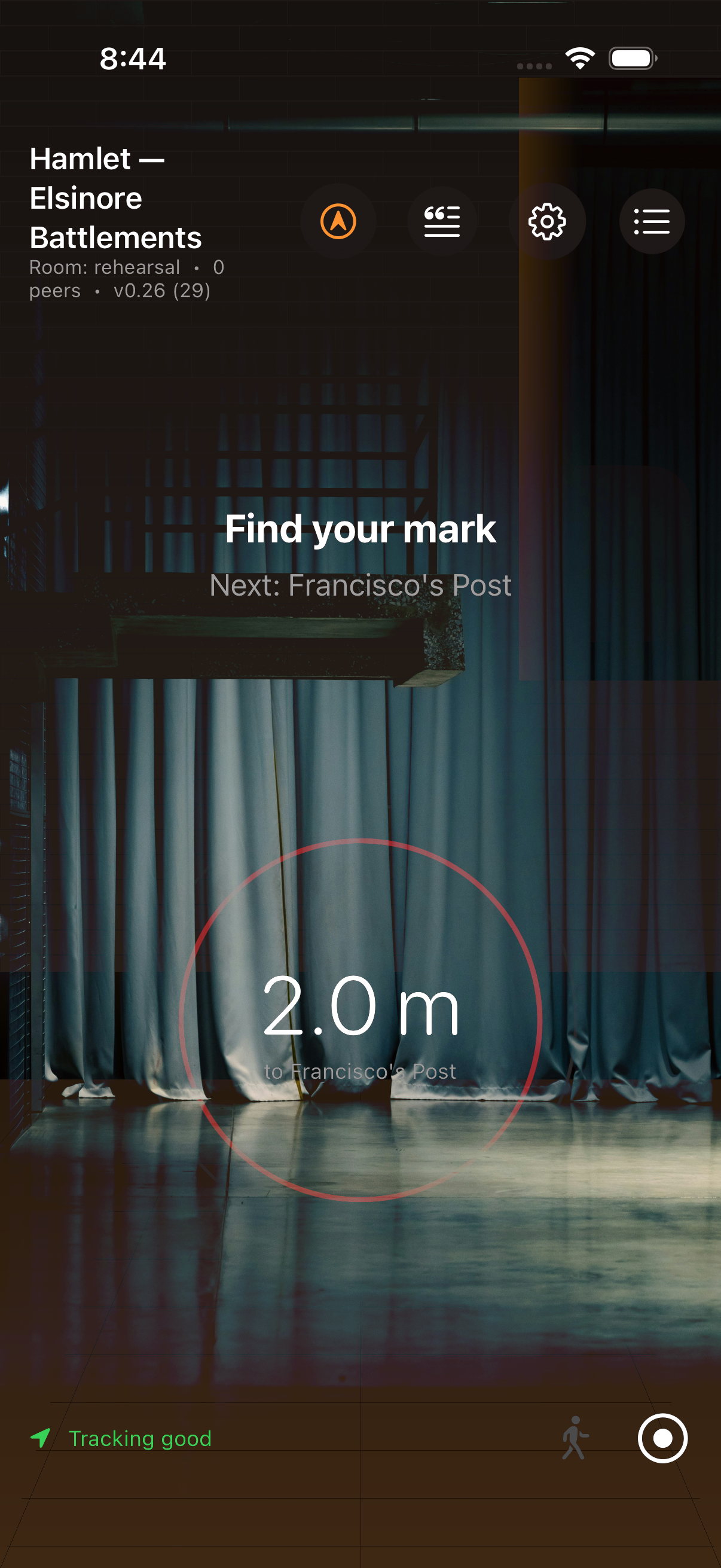
- Stand at your starting position. Look at the screen — the guidance ring shows you the distance to the next mark.
- Walk towards the mark. The ring shrinks as you approach.
- Cross into the disc. Phone pulses (haptic). The light cue fires (screen flashes). Your line appears in serif type at the top.
- Speak your line. If voice mode is on (see Teleprompter below), the prompter scrolls at your pace and the next cue auto-fires when you finish the line.
- Walk to the next mark. Repeat.
If you have AirPods or other audio out, sound effects (doorbells, thunder, applause) play through them automatically.
Tap the quote icon at the top of the screen to open the teleprompter as a full-screen overlay. The script displays in karaoke style:
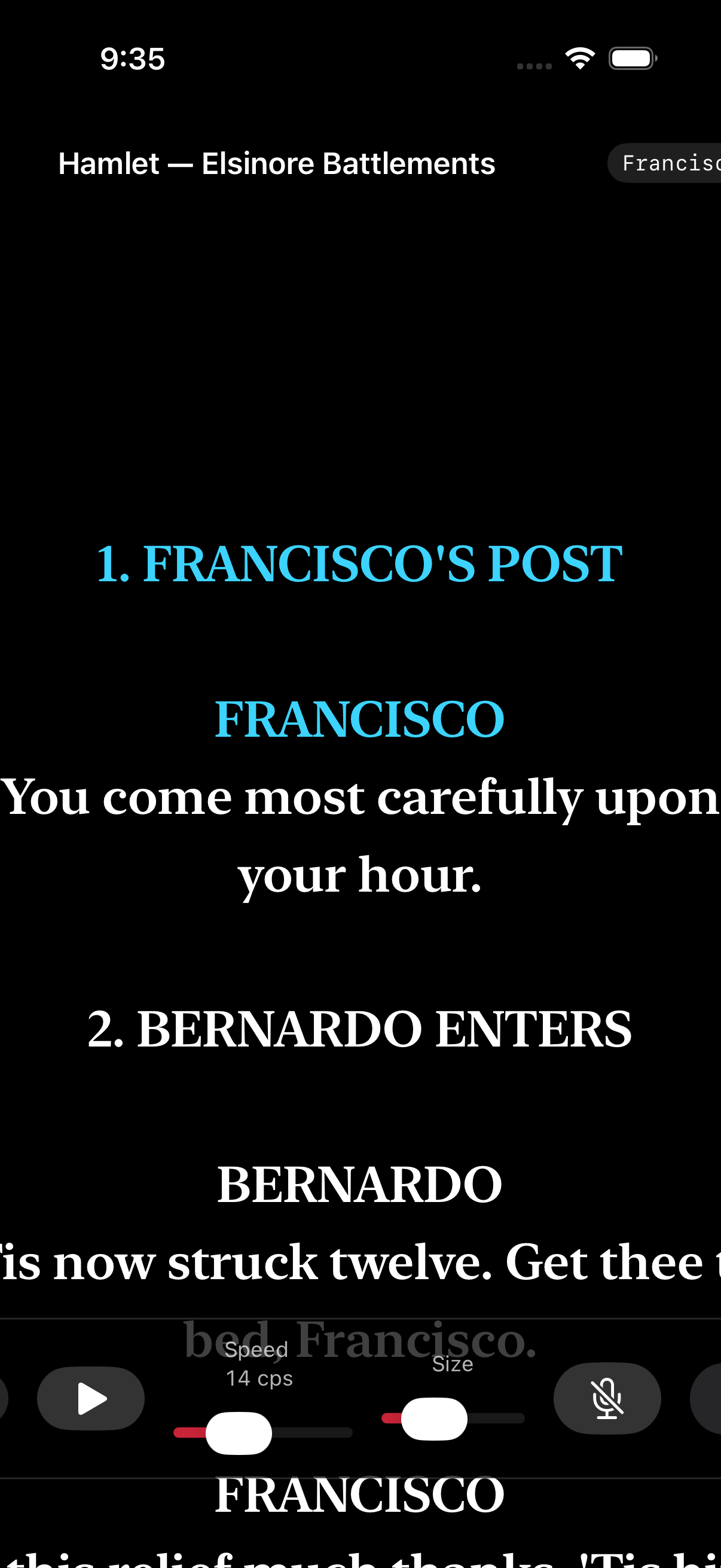
- Past text in dimmed grey
- A 30-character active window in cyan — that's where the scroll cursor sits
- Future text in white serif
Four ways to scroll:
Two-finger drag (or scroll wheel on a connected mouse) to move the cursor manually. Useful for skipping ahead or going back.
Tap the play button. The cursor advances at a configurable rate (default 14 chars/second ≈ theatrical pace). Slider next to it adjusts speed.
Tap the microphone. Grant permission. The phone now listens to you and follows your voice through the script — match the algorithm Alex wrote for the AI Glasses teleprompter, ported back to Swift.
You can be a paragraph behind the cursor and the prompter waits. You can ad-lib, pause, or re-read a line; the algorithm tolerates it.
Voice mode is on-device only. Audio never leaves your phone. Lines never go to a cloud transcription service.
When a director or performer triggers a new mark, the prompter snaps to that mark's first line — unless you manually dragged within the last 3 seconds (polite deference).
Inside the teleprompter, next to the microphone, is a 🔥 flame button.
When voice mode is on AND auto-fire is on:
- You speak a line.
- The voice matcher detects you've finished it.
- All non-line cues on that mark (sound effects, light cues, beats) fire automatically.
- A small "🔥 3 cues fired" pill flashes above the controls.
The director / stage manager / QLab operator no longer has to time anything. Voice → text match → cue firing. This is the closest the app gets to "the show runs itself."
Disable auto-fire (flame is grey) and voice still scrolls the prompter, but cues stay manual.
Tap the red record dot at the bottom right.
While recording:
- A flashing REC badge with elapsed seconds appears in the bottom bar.
- Every position update from your phone (about 30 Hz) is sampled to the recording.
Tap the stop icon to stop. A green "Walk saved (12.3s)" toast confirms.
The recorded walk becomes the blocking's reference — late-joining performers can play it back as a magenta ghost they can chase. The director can scrub through it. The audience experiences it.
Only the most recent walk is kept. Recording again replaces the previous reference. Export the blocking (Author → Export) to save it permanently.
The 🚶 button next to the record dot plays back the saved reference walk. A magenta ghost orb appears in the AR scene, tracking the director's recorded path. Useful for late-joining a rehearsal — chase the ghost, learn the blocking.
Disabled (greyed out) until a reference walk has been recorded.
Tap the list icon at the top to see every mark in order. Tap any mark — its cues fire immediately as a preview. Useful for:
- Testing in the simulator (no real walking)
- Scrubbing to a specific beat in rehearsal
- Reminding yourself what fires where
The active mark gets a red badge for ~1.5 seconds.
The gear icon in the top bar opens the Settings sheet. Most relevant for performers:
| Section | What it does |
|---|---|
| Mode | Switch between Perform, Author, Audience without re-onboarding. Return to main menu sends you back to the role picker. |
| Identity | Your display name. Other devices see this above your ghost avatar. |
| Display | Toggle the AR camera feed on/off. Off = solid curtain gradient (no camera permission needed). |
| Room | Room code — must match the director's. |
| Transport | Multipeer (Apple-only LAN, default) or WebSocket (relay-mediated, includes Android). |
| OSC Bridge / Stage Manager / DMX | Advanced — see QLab-and-OSC and DMX-Lighting. |
| Shared-origin calibration | Show / scan the QR target so all devices share an origin. |
| Blocking → New Blocking… | Discard the current document and start fresh with a chosen title. |
| About | Version + current blocking title. |
The bottom-left corner shows tracking status:
- 🟢 Tracking good — ARKit is confidently locating you
- 🟠 Tracking limited — slow down, or move to a more textured area
- 🟠 No tracking — move around (ARKit can't lock onto a featureless wall)
If tracking is lost mid-rehearsal, the guidance ring stops updating. Recover by walking around for a few seconds.
- Calibrate first, walk second. If you skip the calibration ceremony (or the QR scan), every mark on your phone will be in a different physical spot than the director sees. The whole show drifts. See Multiple-Devices § Calibration.
- Headphones for SFX. System sounds play out the speaker by default — use AirPods if other performers shouldn't hear them.
- Cap the speed. If you're using auto-scroll for a teleprompter run-through, theatrical pace is around 14 cps. Faster than 20 reads as broadcast news, not theatre.
- Voice mode is forgiving but not magic. It needs at least three words at a time to confidently match. If you're only mouthing lines, manual scroll is more reliable.
- Author's Guide — building blockings.
- Audience Mode — the show as a self-paced tour.
- Camera & Film Mode — same app, lens specs and viewfinder.
- Troubleshooting — common issues.