
The shared React Native / Expo component library for Crown One apps.
Themed atoms and molecules with light and dark mode built in, so every Crown One app looks and behaves the same.




 |
 |
 |
 |
 |
 |
-
Typography & Media Actions Inputs Feedback Layout StyledText StyledButton StyledTextField StatusCard StyledCard StyledImage StyledChip SearchBar LoadingComponent OrDivider StyledIcon StyledTabs StyledDropdown Skeleton BottomActionsBar AlphabetAvatar StyledCheckbox FieldError BlurModalBackdrop StyledRadioButton
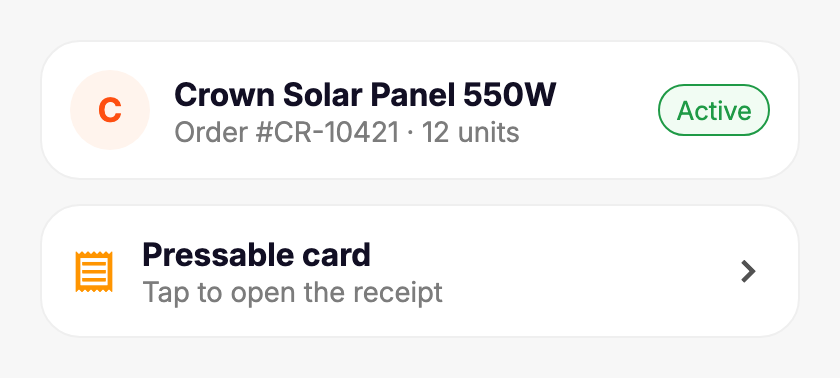
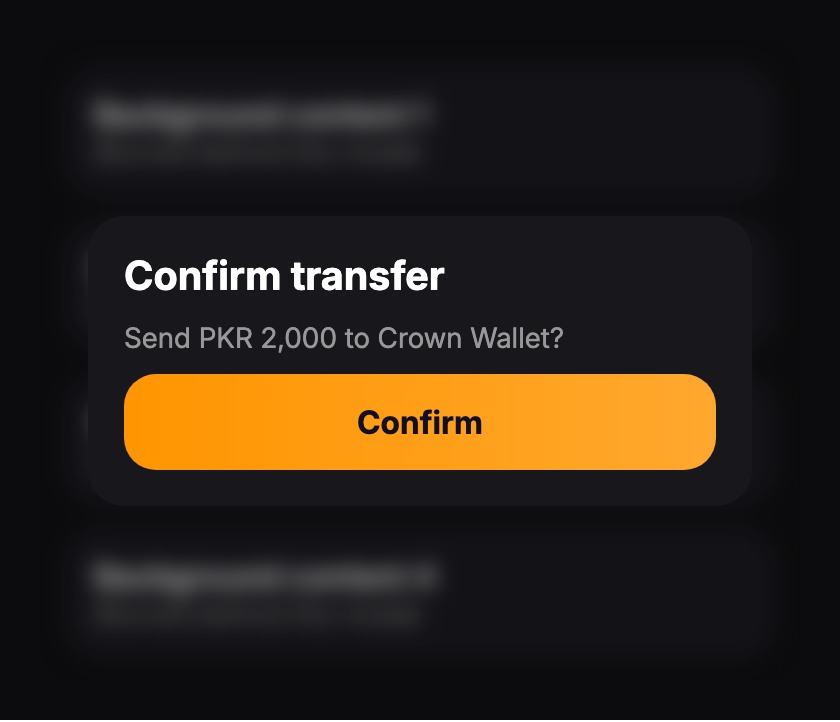
About the previews: every image in this README is a real render of the component, not a mockup. Images switch between light and dark to match your GitHub theme. Each section's code block reproduces the preview.
- 20 production components. These are the same components used across the Crown One apps.
- Light and dark mode. Every component reads its colors from a single theme object.
- Custom themes. Override any color token (e.g. brand colors) without touching component code.
- Typed. Full TypeScript definitions, including generic
StyledDropdown<T>andStyledTabs<Key>. - Cross-platform. iOS, Android and Web, with platform-specific implementations where needed (e.g.
StyledImage,StyledDropdown). - Built for forms.
StyledTextFieldandStyledDropdownreadreact-hook-formerrors directly. - Built-in safeguards.
StyledButtonthrottles double-taps, andBottomActionsBarrespects safe areas.
| Dependency | Version |
|---|---|
| React | >= 18 |
| React Native | >= 0.73 |
| Expo SDK | >= 50 |
npm install @crownone/uiThen install the peer dependencies. Skip any that your project already has.
npx expo install \
  @expo/vector-icons \
  expo-blur \
  expo-image \
  expo-linear-gradient \
  react-native-reanimated \
  react-native-safe-area-context \
  react-native-size-matters
react-native-reanimatedneeds its Babel plugin. Recent Expo SDK versions configure it automatically throughbabel-preset-expo. See the Reanimated install guide if you use a custom Babel config.
Components use the Inter font family. On iOS and Android, load the font files under these exact family names before rendering any component:
// app/_layout.tsx
import { useFonts } from 'expo-font';
import * as SplashScreen from 'expo-splash-screen';
import { useEffect } from 'react';

SplashScreen.preventAutoHideAsync();

export default function RootLayout() {
  const [loaded] = useFonts({
    inter_light:    require('../assets/fonts/Inter-Light.ttf'),
    inter_regular:  require('../assets/fonts/Inter-Regular.ttf'),
    inter_medium:   require('../assets/fonts/Inter-Medium.ttf'),
    inter_semiBold: require('../assets/fonts/Inter-SemiBold.ttf'),
    inter_bold:     require('../assets/fonts/Inter-Bold.ttf'),
  });

  useEffect(() => {
    if (loaded) SplashScreen.hideAsync();
  }, [loaded]);

  if (!loaded) return null;

  return <App />;
}
Download the font files from rsms.me/inter and put the .ttf files in assets/fonts/.
Web: on web, components use the CSS font family
Inter. If Inter isn't loaded on the page, the browser falls back to the system sans-serif font.
import { ThemeProvider } from '@crownone/ui';
import { useColorScheme } from 'react-native';

export default function App() {
  const scheme = useColorScheme();

  return (
    <ThemeProvider dark={scheme === 'dark'}>
      {/* your app */}
    </ThemeProvider>
  );
}
Without a provider, components fall back to the light theme.
import { StyledButton, StyledText } from '@crownone/ui';

export function Welcome() {
  return (
    <>
      <StyledText h4>Welcome to Crown One</StyledText>
      <StyledButton title="Get started" onPress={() => {}} />
    </>
  );
}Try every component without installing anything. The playground runs in Expo Snack: use it in the browser, or scan the QR code with Expo Go to run it on your phone.

What you can try:
- Switch between light and dark mode live.
- Submit the form empty to see
StyledTextFieldandFieldErrorvalidation. - Filter a list with
SearchBar, select chips, radios, tabs and the dropdown. - Toggle the
Skeletonloading state, open theBlurModalBackdropmodal, and use the stickyBottomActionsBar.
Each component below also has a ▶ Try it live button. It opens the same playground, scrolled to that component's section with the section outlined.
The playground's source is examples/Playground.js in this repo. Snack loads it from the main branch and always uses the latest published @crownone/ui.
All components are named exports from the package root:
import { StyledButton, StyledText, StatusCard /* … */ } from '@crownone/ui';The base text component. It supports a full typographic scale, shorthand props for common styles, and colors from the theme.


import { StyledText } from '@crownone/ui';

// Headings
<StyledText h1>Heading 1</StyledText>
<StyledText h2>Heading 2</StyledText>
<StyledText h3>Heading 3</StyledText>
<StyledText h4>Heading 4</StyledText>
<StyledText h5>Heading 5</StyledText>
<StyledText h6>Heading 6</StyledText>

// Body
<StyledText p>Paragraph — body medium regular</StyledText>
<StyledText small>Small — body small regular</StyledText>
<StyledText mini>Mini — body xsmall regular</StyledText>

// Colors: theme key, palette key, or any color value
<StyledText primary bold>Primary</StyledText>
<StyledText textColor="success" bold>Success</StyledText>
<StyledText textColor="danger" bold>Danger</StyledText>
<StyledText textColor="textMuted">Muted</StyledText>
<StyledText textColor="#FF6600">Custom hex</StyledText>

// Exact variant
<StyledText variant="bodyLargeBold">Body large bold</StyledText>| Prop | Type | Default | Description |
|---|---|---|---|
variant |
TextVariant |
— | Exact variant, e.g. "heading1Bold", "bodySmallRegular" |
h1 – h6 |
boolean |
— | Heading shortcuts |
p |
boolean |
— | Body medium regular |
small |
boolean |
— | Body small regular |
mini |
boolean |
— | Body xsmall regular |
bold |
boolean |
— | Switches the current size to its bold variant |
primary |
boolean |
— | Uses theme.colors.primary |
textColor |
string |
theme.colors.text |
Theme color key, palette key, or any color value |
Available variants: heading1–heading6, bodyLarge, bodyMedium, bodySmall, bodyXSmall, bodyXXSmall, each with a Bold or Regular suffix (e.g. heading3Bold, bodyXSmallRegular).
All React Native Text props (numberOfLines, onPress, style, …) are also accepted.
An image component that shows a loading indicator and falls back to a placeholder on error. It's backed by expo-image on iOS and Android, and by React Native's Image on web.


import { StyledImage } from '@crownone/ui';

// Rounded tile
<StyledImage
  source={require('./assets/shop-board.webp')}
  contentFit="cover"
  style={{ width: 220, height: 138, borderRadius: 14 }}
/>

// Circle
<StyledImage
  source={{ uri: 'https://example.com/photo.jpg' }}
  contentFit="contain"
  style={{ width: 120, height: 120, borderRadius: 60 }}
/>

// Placeholder on error + custom loader color
<StyledImage
  source={{ uri: user.avatarUrl }}
  placeholderSource={require('./assets/default-avatar.png')}
  loaderColor="#FF9500"
  style={{ width: 80, height: 80, borderRadius: 40 }}
/>| Prop | Type | Default | Description |
|---|---|---|---|
source |
ImageSource |
required | Remote { uri } or local require(...) |
placeholderSource |
ImageSource |
— | Shown if source fails to load |
loaderColor |
string |
theme.colors.primary |
Color of the loading spinner |
style |
ImageStyle |
— | Size, radius, and other styles for the image container |
All expo-image props (contentFit, transition, cachePolicy, …) are also accepted.
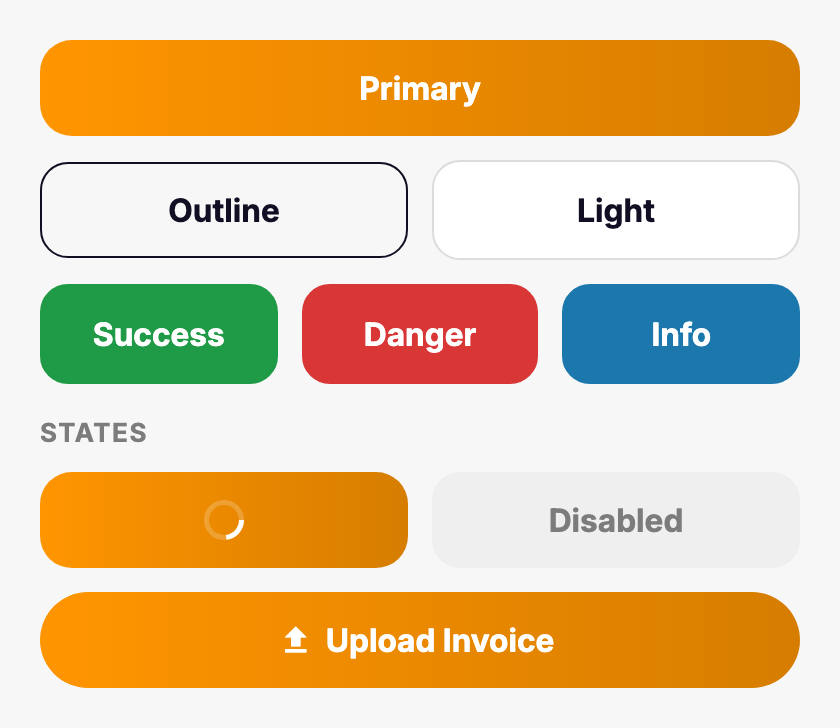
A button with a gradient primary style, a press animation, a loading state and icon slots. Presses are throttled for 1 second to block accidental double-taps.


import { StyledButton, StyledIcon } from '@crownone/ui';

// Variants
<StyledButton title="Primary" onPress={fn} />
<StyledButton title="Outline" variant="outline" onPress={fn} />
<StyledButton title="Light"   variant="light"   onPress={fn} />
<StyledButton title="Success" variant="success" onPress={fn} />
<StyledButton title="Danger"  variant="danger"  onPress={fn} />
<StyledButton title="Info"    variant="info"    onPress={fn} />

// States
<StyledButton title="Loading"  loading  onPress={fn} />
<StyledButton title="Disabled" disabled onPress={fn} />

// Rounded with an icon
<StyledButton
  title="Upload Invoice"
  rounded
  leftIcon={<StyledIcon name="upload" size={18} color="#FFFFFF" />}
  onPress={fn}
/>

// Side by side: use containerStyle (not style) for flex
<StyledButton title="Success" variant="success" onPress={fn} containerStyle={{ flex: 1 }} />| Prop | Type | Default | Description |
|---|---|---|---|
title |
string |
required | Button label |
variant |
StyledButtonVariant |
"primary" |
primary · outline · light · success · danger · info |
onPress |
() => void |
— | Press handler (throttled to once per second) |
loading |
boolean |
false |
Shows a spinner and disables presses |
disabled |
boolean |
false |
Muted style and disables presses |
rounded |
boolean |
false |
Fully rounded pill shape |
leftIcon |
ReactNode |
— | Element before the label |
rightIcon |
ReactNode |
— | Element after the label |
textColor |
string |
variant default | Overrides the label color |
style |
ViewStyle |
— | Style for the inner button surface |
textStyle |
TextStyle |
— | Style for the label |
containerStyle |
ViewStyle |
— | Style for the outer animated wrapper (use this for flex, margins) |
A themed surface for grouping content. It renders as a pressable card when onPress is provided.


import { AlphabetAvatar, StyledCard, StyledChip, StyledIcon, StyledText } from '@crownone/ui';

// Static card
<StyledCard>
  <View style={{ flexDirection: 'row', alignItems: 'center', gap: 12 }}>
    <AlphabetAvatar name="Crown Solar" size={40} />
    <View style={{ flex: 1 }}>
      <StyledText variant="bodyMediumBold">Crown Solar Panel 550W</StyledText>
      <StyledText small textColor="textMuted">Order #CR-10421 · 12 units</StyledText>
    </View>
    <StyledChip label="Active" variant="success" size="sm" />
  </View>
</StyledCard>

// Pressable card
<StyledCard onPress={() => router.push('/receipt')}>
  <View style={{ flexDirection: 'row', alignItems: 'center', gap: 12 }}>
    <StyledIcon name="receipt-text-outline" size={24} color={theme.colors.primary} />
    <View style={{ flex: 1 }}>
      <StyledText variant="bodyMediumBold">Pressable card</StyledText>
      <StyledText small textColor="textMuted">Tap to open the receipt</StyledText>
    </View>
    <StyledIcon name="chevron-right" size={22} />
  </View>
</StyledCard>| Prop | Type | Default | Description |
|---|---|---|---|
children |
ReactNode |
required | Card content |
onPress |
(e) => void | null |
— | Makes the card pressable |
style |
ViewStyle |
— | Additional styles |
A controlled checkbox whose checked and unchecked states follow the theme.


import { StyledCheckbox, StyledText } from '@crownone/ui';

const [accepted, setAccepted] = useState(true);

<View style={{ flexDirection: 'row', alignItems: 'center', gap: 12 }}>
  <StyledCheckbox value={accepted} onChange={setAccepted} />
  <StyledText p>Checked</StyledText>
</View>

// Disabled
<StyledCheckbox value disabled />| Prop | Type | Default | Description |
|---|---|---|---|
value |
boolean |
required | Checked state |
onChange |
(value: boolean) => void |
— | Called with the new state |
disabled |
boolean |
false |
Dims the checkbox and blocks interaction |
style |
ViewStyle |
— | Additional styles |
A radio indicator. It's display-only: keep the selection state in the parent and wrap it in a pressable.


import { StyledRadioButton, StyledText } from '@crownone/ui';

type Method = 'cash' | 'points';
const [method, setMethod] = useState<Method>('cash');

<Pressable onPress={() => setMethod('cash')} style={{ flexDirection: 'row', gap: 12 }}>
  <StyledRadioButton isSelected={method === 'cash'} />
  <StyledText p>Cash wallet</StyledText>
</Pressable>

<Pressable onPress={() => setMethod('points')} style={{ flexDirection: 'row', gap: 12 }}>
  <StyledRadioButton isSelected={method === 'points'} />
  <StyledText p>Points wallet</StyledText>
</Pressable>

// Disabled
<StyledRadioButton isSelected={false} isDisabled />| Prop | Type | Default | Description |
|---|---|---|---|
isSelected |
boolean |
required | Whether this option is selected |
isDisabled |
boolean |
false |
Muted, disabled style |
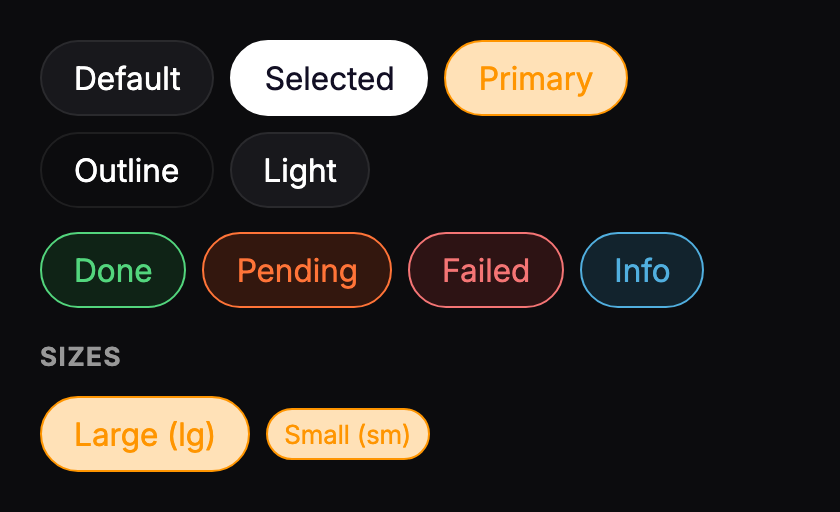
A tag or badge with color variants, two sizes and optional press behavior. Use it for statuses, filters and labels.

import { StyledChip } from '@crownone/ui';

// Neutral
<StyledChip label="Default" variant="default" />
<StyledChip label="Selected" selected />
<StyledChip label="Primary" variant="primary" />
<StyledChip label="Outline" variant="outline" />
<StyledChip label="Light"   variant="light" />

// Status
<StyledChip label="Done"    variant="success" />
<StyledChip label="Pending" variant="warning" />
<StyledChip label="Failed"  variant="danger" />
<StyledChip label="Info"    variant="info" />

// Sizes
<StyledChip label="Large (lg)" variant="primary" size="lg" />
<StyledChip label="Small (sm)" variant="primary" size="sm" />

// Pressable filter
<StyledChip label="Active" selected={filter === 'active'} onPress={() => setFilter('active')} />| Prop | Type | Default | Description |
|---|---|---|---|
label |
string |
required | Chip text |
variant |
StyledChipVariant |
"default" |
default · selected · primary · outline · light · success · warning · danger · info |
selected |
boolean |
— | Forces the selected style |
size |
"sm" | "lg" |
"lg" |
Controls the padding |
onPress |
() => void |
— | Makes the chip pressable |
chipStyle |
ViewStyle |
— | Container style |
textStyle |
TextStyle |
— | Label style |
A wrapper around MaterialCommunityIcons. It uses the theme's icon color unless you pass color.


import { StyledIcon, useTheme } from '@crownone/ui';

const theme = useTheme();

// Theme icon color
<StyledIcon name="home-outline" size={26} />
<StyledIcon name="bell-outline" size={26} />
<StyledIcon name="qrcode-scan" size={26} />

// Semantic colors
<StyledIcon name="star"          size={26} color={theme.colors.warning} />
<StyledIcon name="check-circle"  size={26} color={theme.colors.success} />
<StyledIcon name="alert-circle"  size={26} color={theme.colors.danger} />
<StyledIcon name="information" size={26} color={theme.colors.info} />| Prop | Type | Default | Description |
|---|---|---|---|
name |
string |
required | Icon name from the MDI library |
size |
number |
required | Icon size in dp |
color |
string |
theme.colors.icon |
Icon color |
style |
TextStyle |
— | Additional styles |
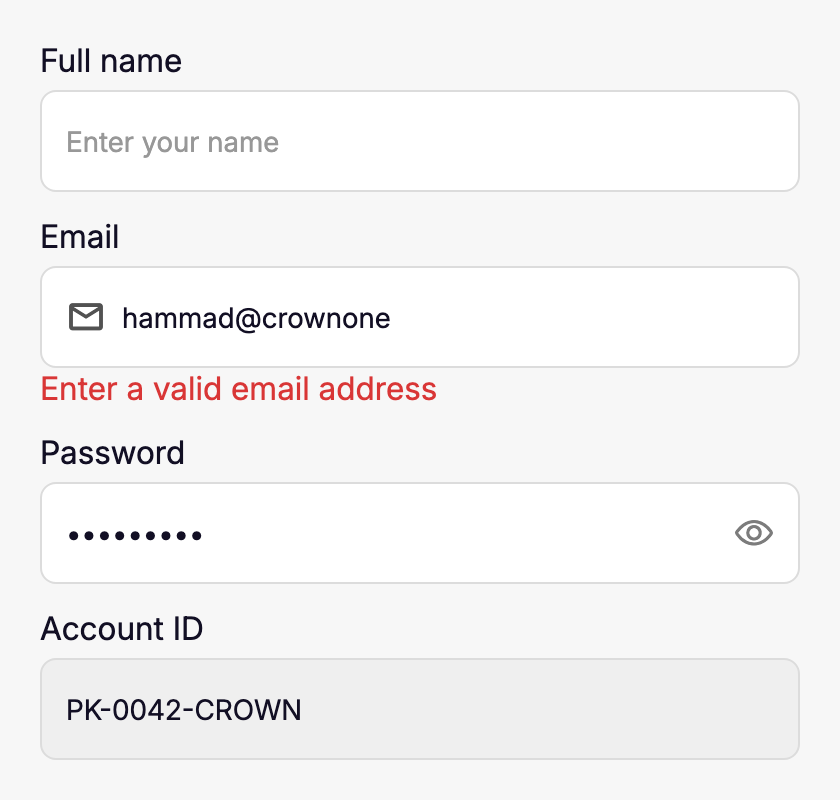
A text input with a label, a left icon slot, a password visibility toggle and inline react-hook-form errors.


import { StyledIcon, StyledTextField } from '@crownone/ui';

// Basic
<StyledTextField label="Full name" placeholder="Enter your name" text={name} setText={setName} />

// Icon + react-hook-form error
<StyledTextField
  label="Email"
  text={email}
  setText={setEmail}
  icon={<StyledIcon name="email-outline" size={20} />}
  formKey="email"
  errors={errors} // from useForm(), or { email: 'Enter a valid email address' }
/>

// Password with visibility toggle
<StyledTextField
  label="Password"
  text={password}
  setText={setPassword}
  secureTextEntry
  withPasswordToggle
/>

// Disabled
<StyledTextField label="Account ID" text={accountId} setText={setAccountId} disabled />| Prop | Type | Default | Description |
|---|---|---|---|
text |
string |
— | Controlled value |
setText |
Dispatch<SetStateAction<string>> |
required | State setter |
label |
string |
— | Label above the input |
placeholder |
string |
"" |
Placeholder text |
icon |
ReactElement |
— | Element on the left side of the input |
formKey |
string |
"" |
Key to look up in errors |
errors |
Record<string, string | { message?: string }> |
{} |
react-hook-form errors object |
withPasswordToggle |
boolean |
false |
Shows an eye toggle when secureTextEntry is set |
disabled |
boolean |
false |
Non-editable, muted background |
marginVertical |
number |
0 |
Vertical spacing |
containerStyle |
ViewStyle |
— | Outer container style |
inputStyle |
TextStyle |
— | TextInput style |
All React Native TextInput props are also accepted.
A cross-platform select. It opens a native ActionSheetIOS on iOS and a modal list on Android and Web.


import { StyledDropdown } from '@crownone/ui';
import type { DropdownItem } from '@crownone/ui';

const countries: DropdownItem<string>[] = [
  { label: 'Pakistan',             value: 'PK' },
  { label: 'United Arab Emirates', value: 'AE' },
  { label: 'United Kingdom',       value: 'GB' },
];

// Placeholder
<StyledDropdown items={countries} value={null} onChange={setCountry}
  placeholder="Select country" formKey="country" errors={errors} />

// Selected
<StyledDropdown items={countries} value="PK" onChange={setCountry}
  formKey="country" errors={errors} />

// Error
<StyledDropdown items={cities} value={null} onChange={setCity}
  placeholder="Select city" formKey="city" errors={errors} errorText="City is required" />
With react-hook-form:
<Controller
  control={control}
  name="country"
  render={({ field: { value, onChange } }) => (
    <StyledDropdown
      items={countries}
      value={value}
      onChange={onChange}
      placeholder="Select country"
      formKey="country"
      errors={errors}
    />
  )}
/>| Prop | Type | Default | Description |
|---|---|---|---|
items |
DropdownItem<T>[] |
required | { label, value, disabled? } |
value |
T | null | undefined |
required | Selected value |
onChange |
(value: T) => void |
required | Called on selection |
formKey |
string |
required | Key to look up in errors |
errors |
object |
required | react-hook-form errors object (pass {} if unused) |
placeholder |
string |
"Select…" |
Shown when nothing is selected |
errorText |
string |
— | Explicit error message below the input |
disabled |
boolean |
false |
Prevents opening |
inputStyle |
ViewStyle |
— | Style for the input box |
rightAdornment |
ReactNode |
— | Element on the right side of the input |
A segmented tab bar with optional count badges.


import { StyledTabs } from '@crownone/ui';
import type { TabItem } from '@crownone/ui';

type TabKey = 'all' | 'active' | 'closed';

const tabs: TabItem<TabKey>[] = [
  { key: 'all',    label: 'All',    badge: 12 },
  { key: 'active', label: 'Active', badge: 5 },
  { key: 'closed', label: 'Closed' },
];

const [activeTab, setActiveTab] = useState<TabKey>('all');

<StyledTabs tabs={tabs} activeKey={activeTab} onTabChange={setActiveTab} />| Prop | Type | Default | Description |
|---|---|---|---|
tabs |
TabItem<Key>[] |
required | { key, label, badge? } |
activeKey |
Key |
required | Currently active tab |
onTabChange |
(key: Key) => void |
required | Called when a tab is pressed |
style |
ViewStyle |
— | Container style |
tabStyle |
ViewStyle |
— | Style for every tab |
activeTabStyle |
ViewStyle |
— | Style for the active tab |
textStyle |
TextStyle |
— | Tab label style |
activeTextStyle |
TextStyle |
— | Active tab label style |
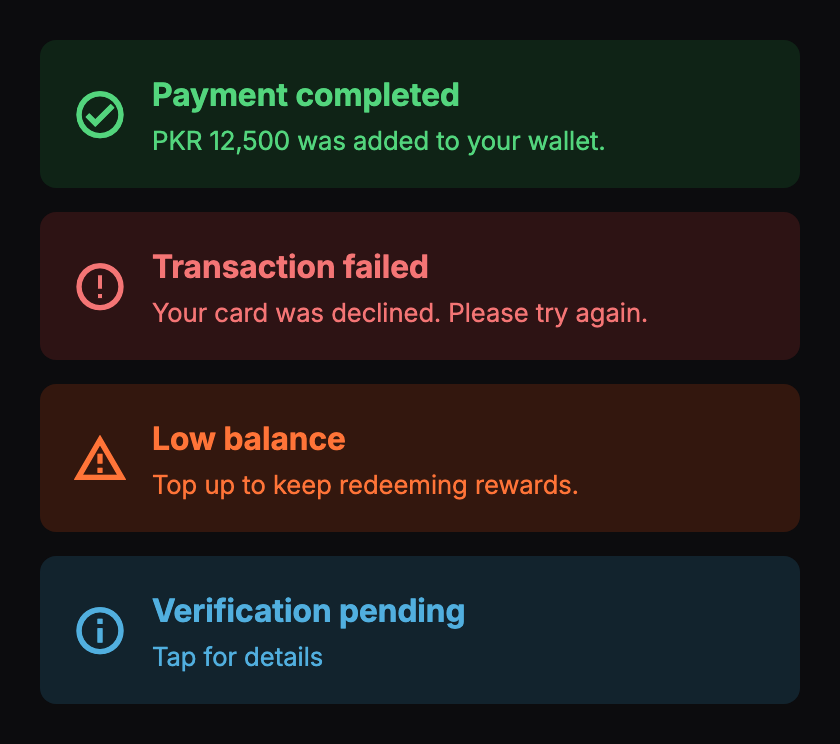
An inline alert banner with an icon, an optional title, a message and a description. It can also be pressable.

import { StatusCard } from '@crownone/ui';

<StatusCard variant="success" message="Payment completed"
  description="PKR 12,500 was added to your wallet." />

<StatusCard variant="error" message="Transaction failed"
  description="Your card was declined. Please try again." />

<StatusCard variant="warning" message="Low balance"
  description="Top up to keep redeeming rewards." />

// Clickable, with a hint line
<StatusCard variant="info" message="Verification pending"
  clickable hintText="Tap for details" onPress={() => router.push('/kyc')} />

// Custom title and icon
<StatusCard variant="warning" title="Offline" iconName="wifi-off"
message="No internet connection." />| Prop | Type | Default | Description |
|---|---|---|---|
variant |
StatusCardVariant |
"error" |
error · warning · info · success |
message |
string |
— | Main message |
description |
string |
— | Supporting text |
title |
string |
— | Small uppercase label above the message |
iconName |
string |
variant default | MaterialCommunityIcons name |
clickable |
boolean |
false |
Renders as a pressable card |
onPress |
(e) => void |
— | Press handler when clickable |
hintText |
string |
"Tap to check details." |
Hint shown when clickable |
style |
ViewStyle |
— | Additional styles |
A circular avatar showing the first letter of a name. The background color is derived from the letter, so the same name always gets the same color.


import { AlphabetAvatar } from '@crownone/ui';

<AlphabetAvatar name="Hammad Anwar" size={56} />
<AlphabetAvatar name="Crown One"    size={48} />
<AlphabetAvatar name="Bilal"        size={44} />
<AlphabetAvatar name="Zara"         size={36} />
<AlphabetAvatar name="Owais" size={28} />| Prop | Type | Default | Description |
|---|---|---|---|
name |
string |
required | Source of the letter and color |
size |
number |
44 |
Diameter in dp |
style |
ViewStyle |
— | Outer style |
A thin wrapper around ActivityIndicator that renders only while loading is true.


import { LoadingComponent, useTheme } from '@crownone/ui';

const theme = useTheme();

<LoadingComponent loading={isFetching} size="small" color={theme.colors.primary} />
<LoadingComponent loading={isFetching} size="large" color={theme.colors.primary} />
<LoadingComponent loading={isFetching} size="large" color={theme.colors.success} />| Prop | Type | Default | Description |
|---|---|---|---|
loading |
boolean |
false |
Renders nothing when false |
size |
"small" | "large" |
required | Spinner size |
color |
string |
theme.colors.textInverse |
Spinner color |
style |
ViewStyle |
— | Additional styles |
The default color is
textInverse, which is meant for spinners on colored surfaces such as buttons. On a plain background, passcolorexplicitly.
A validation message for a form field. Renders nothing when message is empty.


import { FieldError } from '@crownone/ui';

<FieldError message={errors.mobile?.message} />
// e.g. "Mobile number must be 11 digits"| Prop | Type | Default | Description |
|---|---|---|---|
message |
string |
— | Error text; nothing is rendered when it's falsy |
A horizontal rule with a centered label. It's commonly used to separate alternative actions.


import { OrDivider, StyledButton } from '@crownone/ui';

<StyledButton title="Sign in with OTP" onPress={fn} />
<OrDivider />
<StyledButton title="Sign in with PIN" variant="outline" onPress={fn} />
<OrDivider label="OR CONTINUE WITH" />| Prop | Type | Default | Description |
|---|---|---|---|
label |
string |
"OR" |
Centered text |
A pulsing placeholder for loading states. Give it a shape and a background color, or wrap other content in it.


import { Skeleton, useTheme } from '@crownone/ui';

function ListItemSkeleton() {
  const { colors } = useTheme();
  const bg = colors.backgroundTertiary;

  return (
    <View style={{ flexDirection: 'row', alignItems: 'center', gap: 12 }}>
      <Skeleton style={{ width: 44, height: 44, borderRadius: 22, backgroundColor: bg }} />
      <View style={{ flex: 1, gap: 8 }}>
        <Skeleton style={{ width: '80%', height: 14, borderRadius: 4, backgroundColor: bg }} />
        <Skeleton style={{ width: '50%', height: 12, borderRadius: 4, backgroundColor: bg }} />
      </View>
    </View>
  );
}

// Slower pulse
<Skeleton duration={1500} style={{ height: 60, borderRadius: 8, backgroundColor: bg }} />| Prop | Type | Default | Description |
|---|---|---|---|
style |
ViewStyle |
— | Shape, size and background color |
duration |
number |
1000 |
Length of one pulse in ms |
children |
ReactNode |
— | Optional content to pulse |
A blurred action bar that sticks to the bottom of the screen and respects the safe area. It holds the primary actions of a screen.


import { BottomActionsBar, StyledButton } from '@crownone/ui';

// Reject / Approve pair: Reject (danger) left, Approve (success) right
<BottomActionsBar layout="row" gap={12}>
  <StyledButton title="Reject"  variant="danger"  onPress={reject}  containerStyle={{ flex: 1 }} />
  <StyledButton title="Approve" variant="success" onPress={approve} containerStyle={{ flex: 1 }} />
</BottomActionsBar>

// Stacked
<BottomActionsBar layout="column" align="stretch">
  <StyledButton title="Primary action" onPress={fn} />
  <StyledButton title="Secondary action" variant="light" onPress={fn} />
</BottomActionsBar>

// Inline (not sticky), e.g. at the end of a ScrollView
<BottomActionsBar sticky={false}>
  <StyledButton title="Submit" onPress={fn} containerStyle={{ flex: 1 }} />
</BottomActionsBar>

// Measure the bar to pad the scroll content behind it
const [barHeight, setBarHeight] = useState(0);
<ScrollView contentContainerStyle={{ paddingBottom: barHeight }}>{/* … */}</ScrollView>
<BottomActionsBar onHeight={setBarHeight}>{/* … */}</BottomActionsBar>| Prop | Type | Default | Description |
|---|---|---|---|
children |
ReactNode |
required | Actions or content |
layout |
"row" | "column" |
"row" |
Flex direction |
gap |
number |
10 |
Space between children |
align |
"flex-start" | "center" | "flex-end" | "stretch" |
"center" |
alignItems |
justify |
"flex-start" | "center" | "flex-end" | "space-between" | "space-around" |
"center" |
justifyContent |
sticky |
boolean |
true |
Pins the bar to the bottom of the screen |
respectSafeArea |
boolean |
true |
Adds the bottom safe-area inset |
showTopEdge |
boolean |
true |
Hairline border on top |
intensity |
number |
50 |
Blur intensity |
horizontalPadding |
number |
16 |
Horizontal padding |
verticalPadding |
number |
8 |
Top padding |
onHeight |
(h: number) => void |
— | Reports the measured height |
style |
ViewStyle |
— | Outer style |
contentStyle |
ViewStyle |
— | Inner content style |
A full-screen blurred backdrop for modals and overlays. Taps on the backdrop call onPress. Taps on the content don't.

import { BlurModalBackdrop, StyledButton, StyledText, useTheme } from '@crownone/ui';
import { Modal, View } from 'react-native';

const theme = useTheme();

<Modal visible={visible} transparent animationType="fade" onRequestClose={close}>
  <BlurModalBackdrop onPress={close} contentStyle={{ justifyContent: 'center', padding: 24 }}>
    <View style={{ backgroundColor: theme.colors.surface, borderRadius: 18, padding: 18, gap: 10 }}>
      <StyledText h6>Confirm transfer</StyledText>
      <StyledText small textColor="textMuted">Send PKR 2,000 to Crown Wallet?</StyledText>
      <StyledButton title="Confirm" onPress={confirm} />
    </View>
  </BlurModalBackdrop>
</Modal>| Prop | Type | Default | Description |
|---|---|---|---|
children |
ReactNode |
required | Modal content (taps on it don't dismiss) |
onPress |
() => void |
— | Called when the backdrop is tapped |
contentStyle |
ViewStyle |
— | Style for the content wrapper |
A search input with a magnifier icon, built on StyledTextField.


import { SearchBar } from '@crownone/ui';

const [query, setQuery] = useState('');

<SearchBar value={query} setValue={setQuery} placeholder="Search transactions..." />

// React to changes (e.g. a debounced fetch)
<SearchBar value={query} setValue={setQuery} onChangeText={(text) => search(text)} />| Prop | Type | Default | Description |
|---|---|---|---|
value |
string |
required | Controlled value |
setValue |
Dispatch<SetStateAction<string>> |
required | State setter |
onChangeText |
(value: string) => void |
— | Called after every change |
placeholder |
string |
— | Placeholder text |
containerStyle |
ViewStyle |
— | Outer container style |
inputStyle |
TextStyle |
— | TextInput style |
All React Native TextInput props are also accepted.
The package ships lightTheme and darkTheme. ThemeProvider picks one based on the dark prop, or you can pass a theme of your own.
<ThemeProvider dark={colorScheme === 'dark'}>
  <App />
</ThemeProvider>type AppTheme = {
dark: boolean;
colors: {
primary, primaryPressed, primarySoft, secondary,
background, backgroundSecondary, backgroundTertiary,
surface, surfaceSecondary, card,
border, borderSoft,
text, textSecondary, textMuted, textInverse,
icon, placeholder,
success, successSoft,
warning, warningSoft,
danger, dangerSoft,
info, infoSoft,
overlay, shadow,
tabIconDefault, tabIconSelected,
statusBar,
};
spacing: { xs, sm, md, lg, xl, xxl }; // 4, 8, 12, 16, 24, 32
radius: { xs, sm, md, lg, xl, pill }; // 6, 10, 14, 18, 24, 999
};Spread a built-in theme and override only what you need:
import { lightTheme, ThemeProvider } from '@crownone/ui';
import type { AppTheme } from '@crownone/ui';

const brandTheme: AppTheme = {
  ...lightTheme,
  colors: {
    ...lightTheme.colors,
    primary: '#6200EE',
    primaryPressed: '#3700B3',
    primarySoft: '#EDE7F6',
  },
};

<ThemeProvider theme={brandTheme}>
  <App />
</ThemeProvider>
theme takes precedence over dark.
Read the active theme anywhere inside the provider:
import { StyledText, useTheme } from '@crownone/ui';

function Balance() {
  const theme = useTheme();

  return (
    <View style={{ backgroundColor: theme.colors.surface, borderRadius: theme.radius.md, padding: theme.spacing.lg }}>
      <StyledText textColor={theme.colors.primary}>PKR 12,500</StyledText>
    </View>
  );
}| Export | Description |
|---|---|
colors, palette |
Raw color tokens behind the themes |
fontStyles, FONT_FAMILIES |
Typography styles used by StyledText |
CONTAINER_PADDING, RADIUS |
Layout constants used by the components |
The package ships type definitions. These types are exported for use in your own code:
import type {
  AppTheme,
  AppColors,
  StyledButtonProps,
  StyledButtonVariant,
  StyledChipVariant,
  StatusCardVariant,
  DropdownItem,
  TabItem,
  SkeletonProps,
} from '@crownone/ui';| Package | Version | Used by |
|---|---|---|
react |
>= 18 |
All |
react-native |
>= 0.73 |
All |
@expo/vector-icons |
>= 13 |
StyledIcon, StyledCheckbox, StyledTextField, StatusCard |
expo-blur |
>= 13 |
BottomActionsBar, BlurModalBackdrop |
expo-image |
>= 1 |
StyledImage (iOS and Android) |
expo-linear-gradient |
>= 13 |
StyledButton (primary gradient) |
react-native-reanimated |
>= 3 |
Skeleton |
react-native-safe-area-context |
>= 4 |
BottomActionsBar |
react-native-size-matters |
>= 0.4 |
AlphabetAvatar |
git clone https://github.com/hammadev/crownone-ui.git
cd crownone-ui
npm install
npm run typecheck
npm run build      # outputs CommonJS, ESM and type definitions to lib/
Testing in an app before publishing:
# Option A: install a packed tarball
npm pack                                      # creates crownone-ui-x.y.z.tgz
cd ../your-app && npm install ../crownone-ui/crownone-ui-x.y.z.tgz

# Option B: link the package
npm link                                      # in this repo
cd ../your-app && npm link @crownone/ui
Adding a component:
- Add it under
src/components/atoms/orsrc/components/molecules/. - Read colors from
useTheme()so it works in light and dark mode. - Export it, and any public types, from
src/index.ts. - Document it in this README with a preview, a usage example and a props table.
Updating the playground: edit examples/Playground.js and push to main; the Snack link picks it up automatically. It imports from the published package, so components that exist only in an unreleased version need to be published before they work in the playground. Keep the file plain JavaScript, because Snack loads it as App.js. The per-component links pass a focus.js file naming the component, and the playground scrolls to the section whose components list contains that name. When you add a component, add its name to a section's components prop and add a link under its preview here.
Updating the previews: the images in docs/images/ are <component>-light.png / <component>-dark.png pairs. They're captured at 2× from a showcase screen that renders each component in a fixed 420 px frame. Keep the same file names, and replace both the light and dark image whenever a component's appearance changes.
npm version patch   # 0.1.2 → 0.1.3  bug fixes
npm version minor   # 0.1.2 → 0.2.0  new components, backwards compatible
npm version major   # 0.1.2 → 1.0.0  breaking changes

git push --follow-tags
npm publish --access public            # add --otp=<code> if 2FA is enabled
npm publish runs the prepare script, which builds lib/ automatically. Only lib/ and src/ are published. The docs/ folder is not.
MIT