
|
Disclaimer: This software is for demostration and testing purposes only and is not provided by Swiss Timing.
Swiss Timing Display and Wind Gauge Transmission Protocols as referenced are used though.
Status
Siricco (Gill) Wind Gauge Simulator appears to be sending correct messages as interpretted by Gill WindView app. But no Tunnel opton in the app.
WORKING ON MISTRAL WIND GAUGE PROTOCOL. Watch this space.. 2Do: Test on actual Mistral Display in June. Got the app sending the Wind Gauge Control TP messages
Implemented simulated Wind Gauge to interpret them using Loopback cable a2Do: Test on cross Swiss Timing INT131
Runs OK.
So simulated WindGauge now available 👷
When Wind Speed determined, Mistral data output as array of CommandChar (not static) generated and displayed in Status ready to send.
Serial send back of Wind Speed data: See below
V2.0.4/2.1.0/2.1.1: Fixed some display issues with simulated Mistral Wind Gauge and Display
Siricco Wind Gauge might take a bit longer. Seems it has a different protocol. More later

- (In situ)Test with actual display in field WORKS!
- As per MVACDisplayandWindGaugeCabling diagram
- Nb: Wind Gauge as per this diagram not yet tested and not part of this software yet.
- (in vitro) 6 Digit Gemini display works in race mode as well clear function
- Using Turchel Null Modem cable.
- INT31 -> Display In Port
- Required mains power.
- Previous
- Null modem cable across INT131 enables sent time to be displayed in Simulated 7 seg display, with/without colon and dot between digits.
- 6 Simulated Digit diplay implemented.
- 3 + 6 digit display option now works in Simulator.
- Tuchel Null Modem cable works with INT31 and Simulated Display

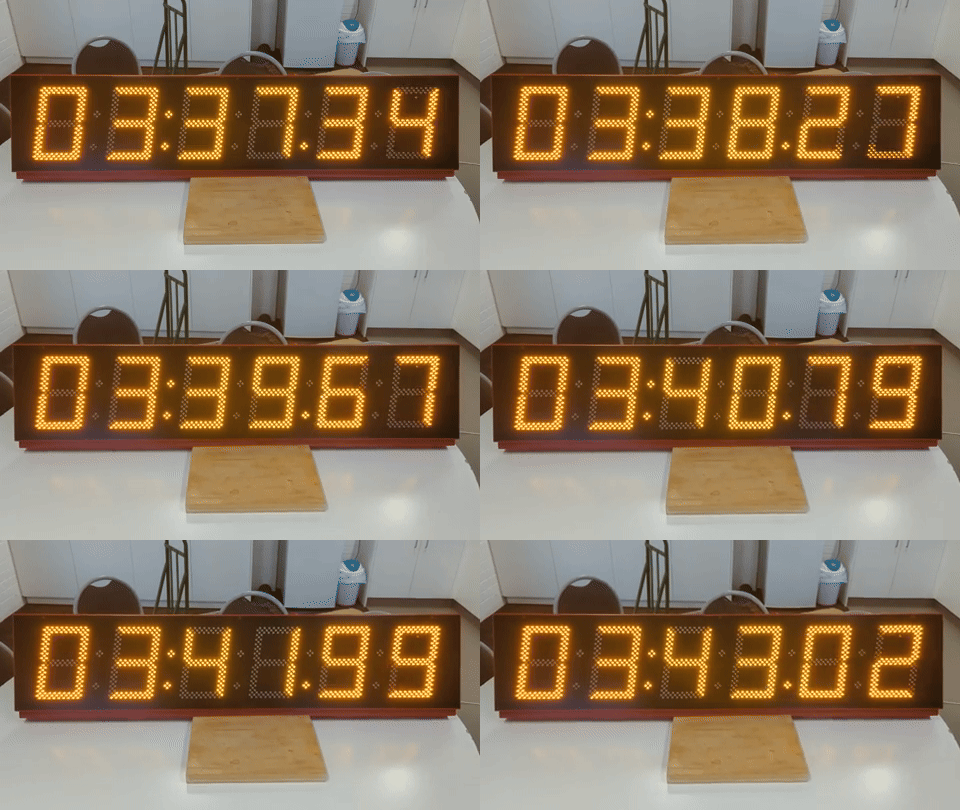

This is a WPF app that can generate display timing messages for a Swiss Timing Gemini 6 Digit 7 segment display, functioning for example, as a running clock or elapsed race time for Athletics events. Messages are sent via the selected Serial-Send port.
Times (wallclock or race running time) are also displayed in a simulated 6 x 7 Segement display in-app. When the Serial-Receive port is not connected, that display displays the transmitted time.
The capability for receiving messages as sent and displaying the received times has also been added so that a loopback cable can be used for testing. To enable serial reception,the Serial-Receive and Serial-Send ports are connected and as such the sent then received data is displayed in-app in the 7 segments rather than the transmitted data ditrectly. In this mode,the app can simulate the physical display.
- There is now a Cosmetic state variable that if true, the app adds appropiate colon/s and dot between digits in the simulated display for the selected time format.
- If Receive port not connected then Cosmetic checkbox does not show.
- 7 Segement display shows the Sent data (Time out) directly.
- Colon/s and dot show as per the Sent Data format
- If Receive port is connected then Cosmetic checkbox shows
- If not selected then no colons/dot show on the receive display.
- HHMMSS/MMSSDD checkbox does not display.
- If selected then HHMMSS/MMSSDD checkbox shows which determines the displayed time format:
- HHMMSS/MMSSDD selection determines what separators show on the receive display.
- Note that selecting Wallclock triggers this to select HHMMSS.
- If not selected then no colons/dot show on the receive display.
- If Receive port not connected then Cosmetic checkbox does not show.
- Selected ports are now persisted as well as other app settings
- 3 + 6 Digit display now works.
- 3 left most digits can display Bib Number, Event No or Lap Count etc.
- Note that the 3 digit display is not intended for use with the Gemini 6 Digit Gemini display.
- Added [Lap]/[Continue] button that captures race elapsed time whilst clock continues in background. Can continue.
- Also have lap up and down count options
- If both persisted COM ports exist autoconnect.
- Clear timing button added and resolved.
- In 6 Digit Mode can display LLMMSS meaning lap as first 2 digits
- Nb: (2Do) This works in simulator
but not in actual display - Update This should now work in Gemini display:
02 49 30 39 30 30 30 34 30 30 39 20 20 03 <- Sent/Recvd Bytes STX I 09 00 04 009 sp sp ETX <- Interpretation- 09 and 009 are lap count in 2 and 3 digit format respectively.
- 09 format is what is displayed in 6 digit display as LL
- 009 would be used by 9 digit display.
- 00 04 is 00:04 as MMSS
- Requires not Wallclock, Cosmetic and Downcounter modes
- Option Start at Finish means if not selected then first [Lap] does not decrement the lap
- Eg 5K, 3K and 1500m where start is as 200m or 300m
- When [Stop] pressed displays MMSSDD
- Now can select how long lap time is displayed for before reverting to elapsed time.
- Nb: (2Do) This works in simulator
- Spruced up the layout
- And added Race distance selection which sets the laps to go for DownCount mode
- And added Start at Finish option for DownCount mode which is set or cleared appropriately.
- If clear then first lap does not decrement the lap count as per 5K, 3K and 1500m where start is as 200m or 300m
- For example, at start of 1500m is Laps set to 3 laps to go so and only decrements when leader passes start second time.
- Wind Gauge
- V1.4.1 Kill either Window by clicking on the Window X top right completely kills the app.
- V1.4.2 Write back of speed from simulator works.
- Various Selections persisted
- Eg Can hide simulator, display simulator speed directly or only once "returned".
- Connection state persisted issues to resolve
- Need to check with display that these changes haven't caused issues. 2Do
- Not tested with actual Wind Gauge yet, simulator only. 2Do
- Various Selections persisted
- 1.9.8: Preview of version 2.0.0 Splash sceen at app start and various settings are persisted including serial connections.
- Next to test on actual Wind Gauge, next week.
- 1.9.8.1: Spruced up Splash screen. Tidied up code.
- 2.0.0: Completed Display fixes.
- Wind Gauge waits test with actual Mistral Wind Gauge.
- 2.0.1: Display Time displayed MM:SS:DD is not from timer
- but from difference between system tics at start and at end.
- Much more accurate, not subject to latency of timer.
- Uses StopWatch which automatically uses the best available timer on the system, giving you sub-millisecond accuracy for the MM:SS.DD display when stopped.
- V2.0.3: Snazzy Button Style in one Resource File
- V2.0.4: Fixed some display issues with simulated Mistral Wind Gauge
- V2.1.0: Fixed impact of 2.0.4 on Display where digits there were right shifted. Both now have a seperate control
Nb: Re ticks resolution:
Is StopWatch time resolution normal be available on windows machines?
Yes, Stopwatch.IsHighResolution is typically true on Windows machines. Windows has a high-resolution performance counter (QueryPerformanceCounter API) that Stopwatch uses by default.

Current implementation use this:

The current code uses _raceStopwatch.ElapsedTicks - _startTicks, which already uses the best available timer:

If high-resolution is available (typical on Windows): Uses the performance counter with ~0.1-1 microsecond precision
If not available: Automatically falls back to the system timer
No need to add conditional logic:

The Stopwatch class handles this internally. You don't need to check IsHighResolution and switch to System Ticks manually. The current implementation is already correct and will use the highest precision available on the system.

Your current code is fine as-is:
var elapsedTicks = _raceStopwatch.ElapsedTicks - _startTicks;
var elapsed = TimeSpan.FromTicks(elapsedTicks);
//This will automatically use the high-resolution timer on Windows, giving you sub-millisecond accuracy for the MM:SS.DD display when stopped.For testing using one INT31:
- Connected INT131 to the PC USB port
- Connected a standard null modem cable between the 2 INT131 RS232 (DB9) ports.
- INT31 Manual
- Gemini 6 Digit 7 Segment Display Manual
- MVAC Track Setup
- Mistral Wind Gauge Manual
- Sirrico Wind Gauge

The app displaying running time

The app displaying sent wallclock time

The app displaying running time in 9 digit mode with lap down count on left.

The app displaying running time in 6 digit mode with lap down count on left displayed as LLMM:SS, laps, minutes and seconds


Also see Models/CharCommand.cs