
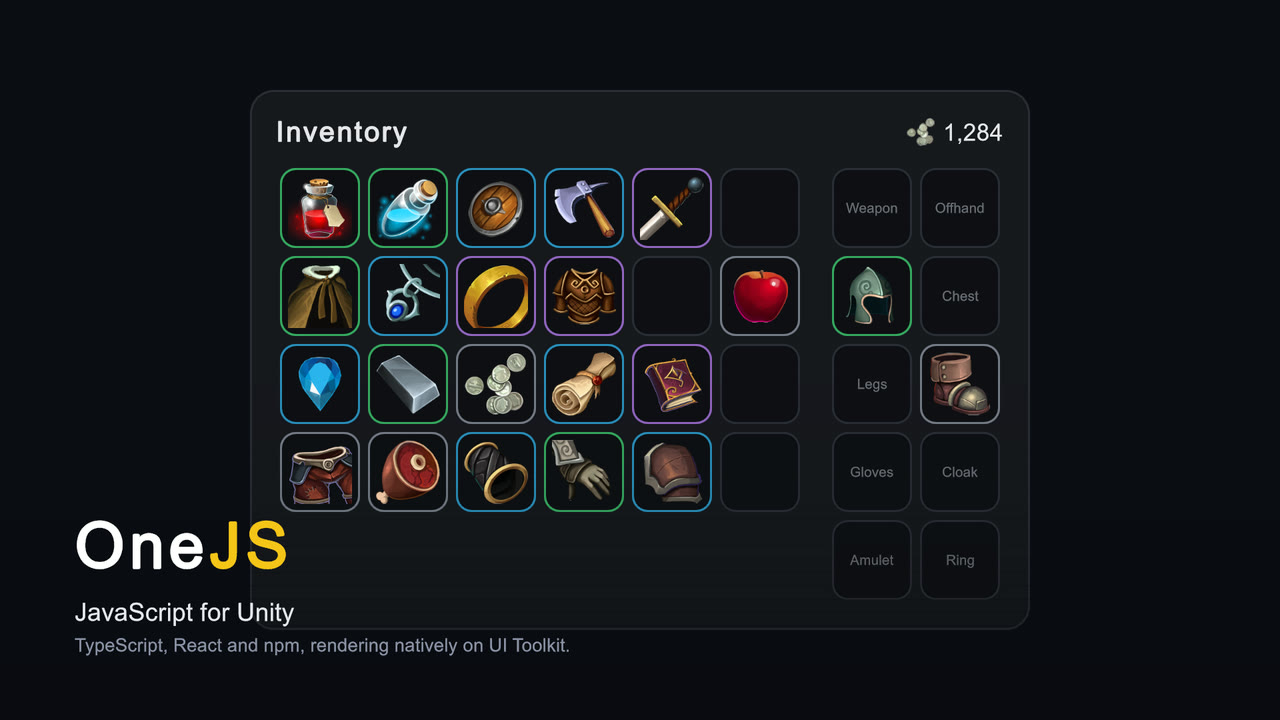
Build Unity UIs with React 19 and TypeScript, rendered natively through UI Toolkit. No browser, no webview.
import { useState } from "react"
import { render, View, Text, Button } from "onejs-react"
import "onejs:tailwind"

function App() {
    const [count, setCount] = useState(0)
    return (
        <View className="p-4">
            <Text text={`Count: ${count}`} className="text-lg" />
            <Button text="+1" onClick={() => setCount(c => c + 1)} />
        </View>
    )
}

render(<App />, __root)
Save the file and the UI hot-reloads in the editor, in both Edit mode and Play mode.
- React 19 + TypeScript with esbuild bundling and npm packages
- Hot reload that works without entering Play mode (edit-mode preview)
- One-click setup: add
JSRunner, click Initialize Project, start coding - Styling three ways: USS, CSS Modules, and a built-in Tailwind-style JIT generator (no npm dependency)
- Full C# interop: reach any C# type from JS, with zero-alloc fast paths for per-frame data
- Batteries included: 2D particles, GPU compute bridge, vector drawing,
fetch,WebSocket,localStorage - Runs everywhere: QuickJS on desktop and mobile; the browser's own JIT engine on WebGL
- Moddable games: players can extend your UI with TypeScript and JSX
- Unity 6.3+
- Node.js 18+ (development machine only)
Package Manager (recommended):
- Open Window > Package Manager
- Click + > Add package from git URL
- Enter:
https://github.com/Singtaa/OneJS.git
Manual:
git clone https://github.com/Singtaa/OneJS.git Assets/OneJSThe Asset Store package (linked from onejs.com) bundles this runtime with premade onejs-ui themes (Pixel, Kawaii, Sketch) and sample cartridges (Game HUD, Inventory, Shader Effects).
- Add the
JSRunnercomponent to a GameObject in a saved scene - Click Initialize Project in the inspector (or just enter Play mode, since first-run setup happens automatically)
JSRunner creates PanelSettings, scaffolds a starter React app next to your scene, runs npm install and npm run build, and starts rendering in the Game view immediately. The editor manages the esbuild watcher from there: save a file, see the change.
Assets/Scenes/Level1.unity            # Your scene
Assets/Scenes/Level1/App/             # App = the GameObject's name
├── ~/                                # TS/TSX source (~ = ignored by Unity)
│   ├── index.tsx                     # Entry point
│   └── package.json, tsconfig.json, esbuild.config.mjs
├── PanelSettings.asset               # Project marker, assigned to JSRunner
└── app.js.txt                        # Built bundle
// ES6 imports of C# namespaces (rewritten at build time)
import { GameObject, Vector3, Debug } from "UnityEngine"

Debug.Log("Hello from JS")
const go = new GameObject("MyObject")
go.transform.position = new Vector3(0, 1, 0)

// Or reach anything directly through the CS proxy
CS.MyGame.Bridge.Instance.StartWave(3)

// C# Tasks become JS Promises
const data = await CS.MyGame.Api.GetDataAsync()
For per-frame data, zero-alloc fast paths avoid reflection entirely: see the state sync and zero-alloc guides.
| Platform | JS Engine | Notes |
|---|---|---|
| Editor | QuickJS | Hot reload + edit-mode preview |
| Windows / macOS / Linux | QuickJS | Bundle embedded as TextAsset |
| iOS | QuickJS | Static linking (JIT-free) |
| Android | QuickJS | Bundle embedded as TextAsset |
| WebGL | Browser JS | Full JIT, native performance |
V2 lives on the onejs-v2 branch and still works on Unity 2022.3+. What changed in V3:
| V2 | V3 | |
|---|---|---|
| UI framework | Preact | React 19 |
| JS engine | PuerTS (QuickJS / V8 / NodeJS) | Purpose-built QuickJS core |
| Setup | Manual UIDocument / PanelSettings | One-click Initialize Project |
| Tailwind | Via PostCSS toolchain | Built in, no npm dependency |
| Preview | Play mode | Edit-mode preview + Play mode |
Full documentation and tutorials: https://onejs.com
AI agents: read AGENTS.md for a condensed, agent-oriented guide to working with OneJS.
MIT