

A Visual Studio Code extension for creating files from templates automatically.
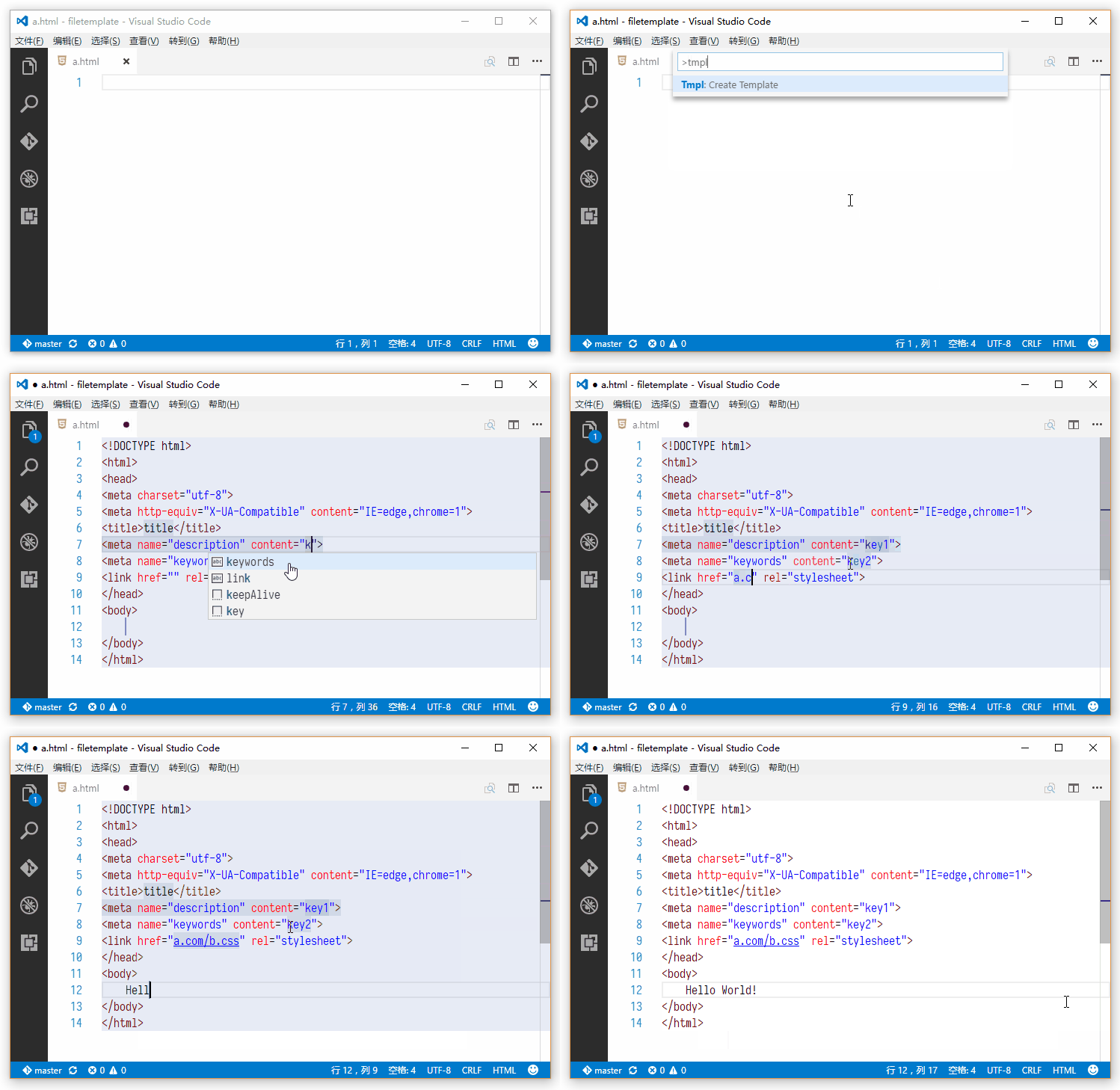
- Open a new file in VS Code.
- Press
Ctrl + Shift + P(orCmd + Shift + Pon macOS) to open the Command Palette. - Type
File Template: Insert Templateand pressEnter.
- JavaScript/TypeScript and JSX/TSX
- HTML
- CSS
- PHP
- Python
- Ruby
- XML
- Vue
The templates you customize live in a personal folder, separate from the ones the extension ships. That folder holds only what you change: for every language you have not touched, the built-in template is used, so improvements to the built-in ones reach you when the extension updates.
-
Edit a template Run
File Template: Edit or Add a Templatefrom the Command Palette and pick a language. A copy of the built-in template opens for editing; change it and your copy is the one that gets inserted from then on. Leave it exactly as it is and it is dropped again, so you keep getting improvements to the built-in one. Delete the file at any time to go back to the built-in template. -
Add a language The same command lets you pick
Other language...and type any VS Code language identifier —cpp,go,shellscript, and so on. Open a file of that language and runFile Template: Insert Template. -
Open the folder
File Template: Open Templates Folderreveals it in your file manager. You can add or remove<languageId>.tmplfiles there directly. The folder lives outside the extension's install directory, so nothing in it is lost when the extension updates.
Templates use TextMate snippet syntax, plus
${date}, which is replaced with the current date and time.
Upgrading from 3.0.x? Those versions filled your folder with a copy of every built-in template, which meant later improvements to them never reached you. On the first run of this version, copies you never edited are removed (the identical built-in template is used instead); every template you customized is kept.
Upgrading from 2.0.x? Those versions had you edit templates inside
~/.vscode/extensions/ralfzhang.filetemplate-<version>/. The first run after upgrading copies your customized templates out of there automatically, on a best-effort basis — VS Code may already have deleted the old version's folder. If it does not find them and that folder still exists, copy your.tmplfiles into the folder opened byFile Template: Open Templates Folder.
MIT