
🌐 Company Site - Here
🤗 Hugging Face - Here
🛟 Help Center - Here
🐳 Docker Hub - Here
Put runtime under
lib\cpu\→pip install -r requirements.txt→run.bat→ Postman orrun_demo.bat(~10 min after Drive download). Jump: Quick start · Get the runtimes · Start the API · SDK License · Setup · About SDK
- Clone
ID-Document-Recognition-Windows - Download runtime into
lib\cpu\— Get the runtimes -
pip install -r requirements.txtthenrun.bat— API on 8082 - Copy machine code
FPMC1.…from the terminal (orGET /api/machinecode) - Contact us to obtain a license key → enter it at the prompt or use
POST /api/activate - Try Postman, curl, or Gradio on 9002 (
run_demo.bat)
There is no Docker on this Windows product. For Linux / Docker Hub use ID-Document-Recognition-Docker. Docs: https://doc.faceplugin.com
FacePlugin ID Document Recognition SDK for Windows is a fully on-premise identity verification engine for ID cards, passports, and driver licenses. It runs OCR, MRZ reading, barcode and QR extraction, document detection and classification, image quality analysis, face extraction from the document, optional NFC/RFID, and authenticity / document liveness (security) checks.
This repository is standalone. Download the Windows runtime into this repo and run — no other FacePlugin repository is required.
All processing stays on your PC. No biometric data is sent to FacePlugin cloud — built for KYC, eKYC, banking, and on-premise compliance workflows.
Windows product: native x64 runtime, local HTTP API, and a Gradio demo covering Result, Liveness, Images, and Raw JSON.
API server — test with Postman, curl, or the local Gradio demo (python demo).
| Feature | Supported |
|---|---|
| ID Card, Passport, and Driver License recognition | ✓ |
| MRZ, Barcode, QR, and OCR data extraction | ✓ |
| Document detection and type classification | ✓ |
| Auto-capture and image quality analysis | ✓ |
| Face, portrait, and signature extraction from document | ✓ |
| NFC / RFID chip reading (where available) | ✓ |
| Platform | Repository |
|---|---|
| Android | ID-Document-Recognition-Android |
| iOS | ID-Document-Recognition-iOS |
| Windows | ID-Document-Recognition-Windows (this repo) |
| Linux / Docker | ID-Document-Recognition-Docker |
| React Native | ID-Document-Recognition-React-Native |
| Flutter | ID-Document-Recognition-Flutter |
| Ionic Capacitor | ID-Document-Recognition-Ionic-Capacitor |
| Ionic Cordova | ID-Document-Recognition-Ionic-Cordova |
| Linux / Docker (Liveness-Only) | ID-Document-Liveness-Detection-Docker |
| Step | What you need |
|---|---|
| 1 | Windows 10/11 x64, Python 3.10+ |
| 2 | Runtime libraries in ./lib/cpu/ — Get the runtimes |
| 3 | You do not need a license to start the API the first time. Copy the machine code (FPMC1.…) from the logs or GET /api/machinecode. Send it to FacePlugin (contact) to get an FP1.… key and unlock product endpoints. |
You do not need a license to start the API once. Product endpoints unlock after you activate.
| Item | Minimum | Recommended |
|---|---|---|
| CPU | 2 cores | 4 cores |
| RAM | 4 GB | 8 GB |
| Disk | 4 GB | 8 GB |
| OS | Windows 10 x64 | Windows 11 x64 |
The ./lib/cpu/ tree is empty on GitHub because native binaries and model files are too large.
DocumentReader is CPU-only — there is no gpu\ package.
DocumentReader Windows runtime (Google Drive)
- Clone the repo (if you have not already):
git clone https://github.com/Faceplugin-ltd/ID-Document-Recognition-Windows.git
cd ID-Document-Recognition-Windows- Open the Google Drive folder above.
- Download all files in that folder (Drive: select all → Download, or download as a zip).
- Put every file directly into
.\lib\cpu\— not inside a nested subfolder.
ID-Document-Recognition-Windows/
└── lib/
    └── cpu/
        ├── DocumentReaderSDK.dll
        ├── dcr-eng.dll
        ├── dcr.fpk
        └── ... (helper DLLs from Drive)
Wrong layout: lib\cpu\SomeFolder\DocumentReaderSDK.dll.
dir lib\cpu\DocumentReaderSDK.dll
dir lib\cpu\dcr-eng.dll
dir lib\cpu\dcr.fpk
The VC++ runtime DLLs ship inside lib\cpu\. You do not need to install vcredist. run.bat puts lib\cpu\ on PATH.
You can start without a license — the server prints your machine code on startup.
pip install -r requirements.txt
run.batThe API starts even if activation fails. Copy the machine code (FPMC1.…) from the log and send it to FacePlugin. When prompted, paste your FP1. license key (or skip and activate later).
Licenses are offline and bound to your machine. Offline cryptography is pre-packaged within the SDK — no third-party licensing libraries or external OpenSSL installations are required.
- Start the server (above). A license is not required for the first start.
- Copy the machine code from the terminal. It looks like
FPMC1.…. - Send that machine code to FacePlugin (contact). We will issue a license key for that code.
- Activate with the license key — either paste it when
run.batprompts you (see screenshot above), or:
:: After run.bat, paste the FP1. key on the terminal like the screenshot. You can try 3 times.

:: Or paste the FP1. key into .\license.txt, then:

curl -s -X POST http://127.0.0.1:8082/api/activate -H "Content-Type: text/plain" --data-binary @license.txt

:: Or stop the process (Ctrl+C), save license.txt, and run run.bat again
Use the machine code from the PC where you will deploy. Windows machine codes are unique to each PC.
After activation, GET /api/licenseStatus reports what the key unlocks. The Gradio demo shows the same summary as License: … at the top of the page.
| Capability | Meaning |
|---|---|
| Recognition | OCR, MRZ, barcode/QR, and document type classification |
| Liveness (authenticity) | Document authenticity: physical document, security patterns, photo origin, barcode format |
Typical labels:
- Recognition + Liveness — full identity verification (Result + Liveness tabs)
- Recognition — OCR, MRZ, and barcode only; Security stays empty / not checked
- Liveness — authenticity / document liveness only; OCR/MRZ/barcode stays empty / not checked
- Not licensed — machine code only until you activate
Check status anytime:
curl -s http://127.0.0.1:8082/api/licenseStatusRequest authenticity in documentProcess with "Authenticity": "normal" (or "strict"). "none" turns Liveness off. The demo and Postman default to "normal".
curl -s http://127.0.0.1:8082/api/healthImport [postman/DocumentReader-API.postman_collection.json](postman/DocumentReader-API.postman_collection.json).
Default base URL: http://127.0.0.1:8082
Canonical protocol: /api/*. No version segment in route paths.
For a local FacePlugin Document Reader demo in the browser — Result, Liveness, Images, and Raw JSON (API must already be running on port 8082):
pip install -r requirements-demo.txt
run_demo.bat
Or (CMD):
set DEMO_PORT=9002
set API_BASE=http://127.0.0.1:8082
python demo
Open http://127.0.0.1:9002. Examples when present: assets/examples/samples/. The header shows License: (for example Recognition + Liveness) from /api/licenseStatus.
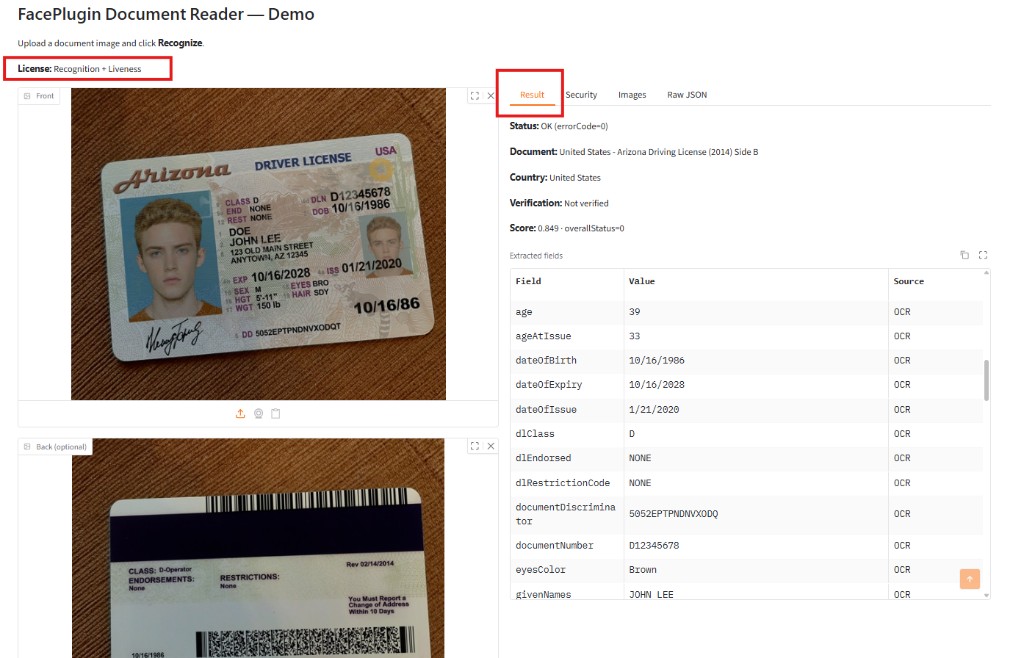
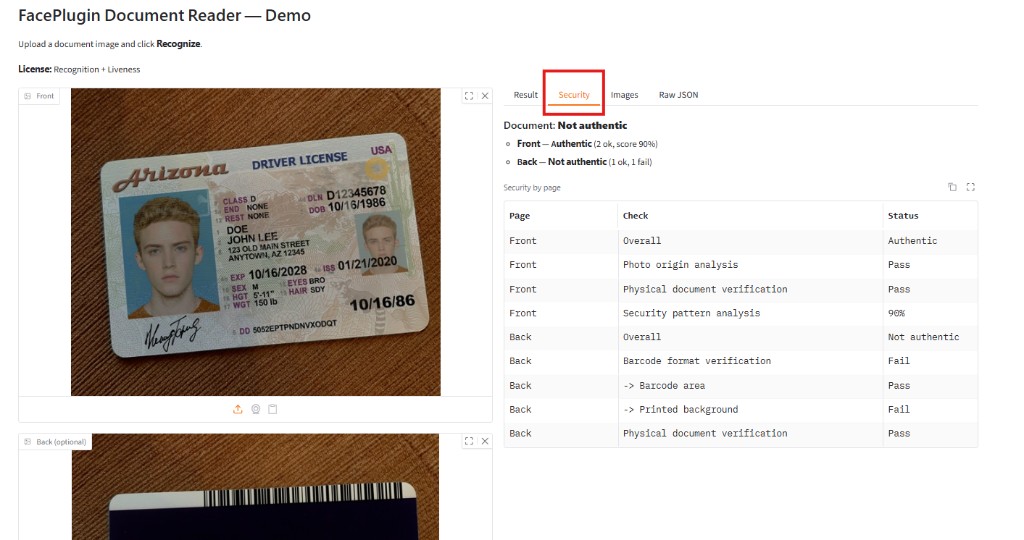
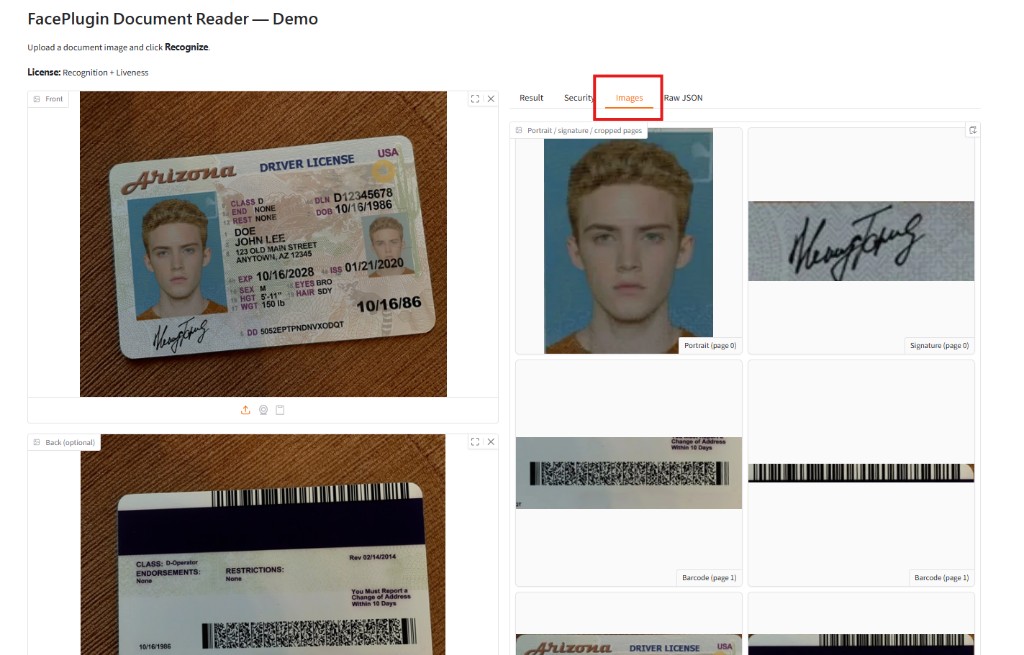
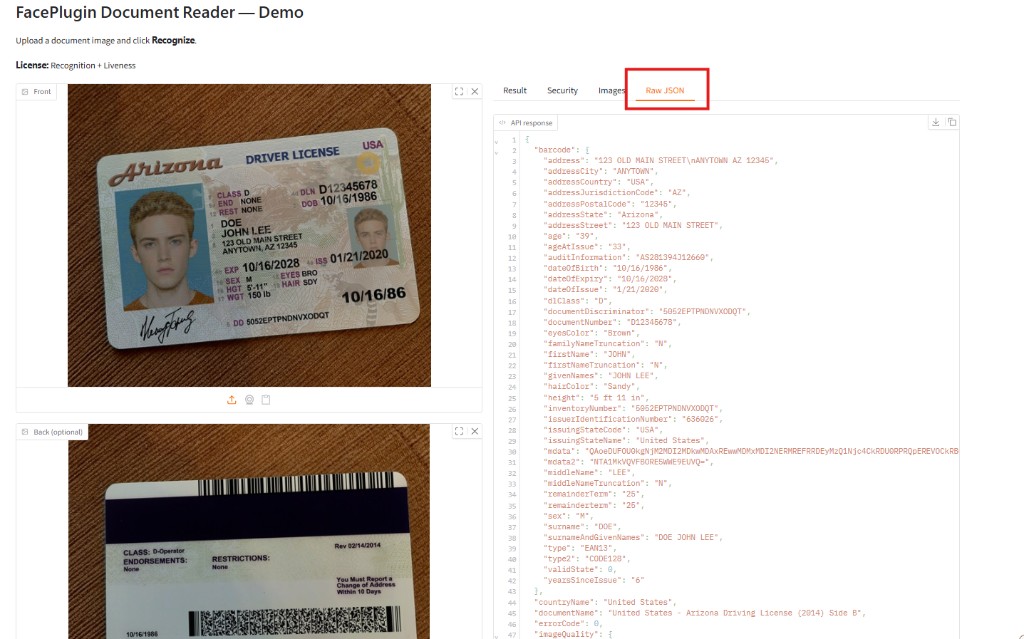
- Result — document type, country, verification, image quality, and OCR / MRZ / barcode fields
- Security — overall and per-page authenticity: photo origin, physical document, security patterns, barcode format (
Authenticity: "normal"or"strict"; needs a Liveness-capable license) - Images — portrait, signature, ghost portrait, barcodes, and cropped pages
- Raw JSON — full
/api/documentProcessresponse for integration
Two paths. You do not need the Gradio demo in production.
HTTP (any language) — run Option A, B, or C, then call the API:
curl -s -X POST http://127.0.0.1:8082/api/documentRecognition \
  -H 'Content-Type: application/json' \
  -d '{"images":[{"image":"<BASE64>"}]}'
curl -s -X POST http://127.0.0.1:8082/api/documentLiveness \
  -H 'Content-Type: application/json' \
  -d '{"images":[{"image":"<BASE64>"}]}'
curl -s -X POST http://127.0.0.1:8082/api/documentProcess \
  -H 'Content-Type: application/json' \
  -d '{"images":[{"image":"<BASE64>"}],"response":{"OCR":"normal","MRZ":"normal","Barcode":"normal","Authenticity":"normal"}}'
Python in-process — keep lib/cpu/ beside [sdk.py](sdk.py):
import sdk

machine_code = sdk.get_machine_code()  # FPMC1.…
sdk.activate("license.txt")
sdk.init_sdk()
result = sdk.document_process(
    [{"image": base64_front}],
    rfid="",
    options={"response": {"OCR": "normal", "MRZ": "normal", "Barcode": "normal", "Authenticity": "normal"}},
)Use the Python bindings in [sdk.py](sdk.py). Return code 0 means success.
import sdk

machine_code = sdk.get_machine_code()
print("machineCode:", machine_code)  # FPMC1.…

ret = sdk.activate("license.txt")
ret = sdk.init_sdk()

result = sdk.document_recognition([{"image": base64_front}])
result = sdk.document_liveness([{"image": base64_front}])
result = sdk.document_process(
    [{"image": base64_front}],
    rfid="",
    options={"response": {"OCR": "normal", "MRZ": "normal", "Barcode": "normal", "Authenticity": "normal"}},
)

# Front + back
result = sdk.document_process(
    [
        {"image": base64_front, "page_idx": 0},
        {"image": base64_back, "page_idx": 1},
    ],
    rfid="",
    options={"response": {"OCR": "normal", "MRZ": "normal", "Barcode": "normal", "Authenticity": "normal"}},
)

result = sdk.general_process(base64_image, options={})
print(sdk.get_license_status())  # recognition / authenticity flags + label
Optional session APIs: sdk.start_new_session(), sdk.start_new_page(), sdk.unload().
HTTP endpoints: /api/health, /api/machinecode, /api/licenseStatus, /api/backend, /api/activate, /api/documentRecognition, /api/documentLiveness, /api/documentProcess, /api/generalProcess.

