
PyWinIoT is a solution made on Python to monitor and control a Windows machine integrated with Home Assistant via MQTT protocol.
By now, you can monitor:
- CPU usage %
- Memory usage %
- Uptime
- Application status (ON = Running / OFF = Not running)
You can control:
- Open an application
- Close an application
You have to define which application do you want to control with PyWinIoT inside config.yaml
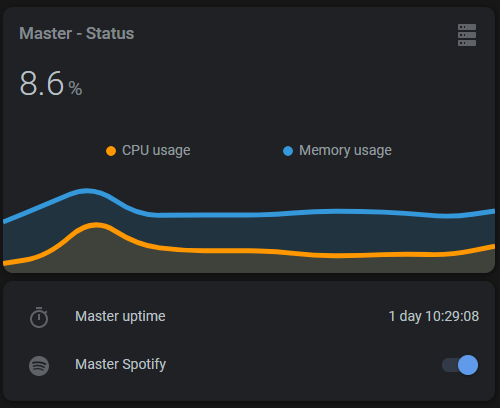
When you run PyWinIoT you will see new entities inside your Home Assistant configuration called "Your Computer name" + sensor / switch
Use the package manager pip to install the libraries needed to run PyWinIoT.
pip install -r requirements.txt- Open your firewall on 1883/TCP port for incoming connections
- Create a copy of change-example.yaml and rename it to config.yaml
- Open your new config.yaml file and edit the settings as you wish.
Below settings:
- name: "ComputerName" (Computer name must be without spaces)
- network: you have to enter your network address. i.e. 192.168.1.1 (This is used to check network ip address before try MQTT connection)
Below mqtt-server:
- server: "ip or url from mqtt broker"
- port: 1883
- userName: "username"
- password: "password"
After this changes, just run pywiniot.pyw with double click or:
pythonw pywiniot.pywThe PyWinIoT icon will appear on taskbar, if you want to close it just right click and "Exit".


You have to create new app item below "apps:" on your config.yaml i.e.:
    - plex:
      - name: "Plex Media Server"
      - path: "C:\\Program Files (x86)\\Plex\\Plex Media Server\\"
      - process: "Plex Media Server.exe"
      - md-icon: "mdi:plex"
Note: md-icon: is optional. You can set any icon from Material Design(https://materialdesignicons.com/). You have to set the icon on the same way as you set an icon on Home Assistant)
Save and just run pywiniot.pyw, you will see your new entity inside Home Assistant
Pull requests are welcome. For major changes, please open an issue first to discuss what you would like to change.
Please make sure to update tests as appropriate.