
StudyStreak is a mainly terminal based study tracker for students who want a simple place to plan work, start focused sessions and do all sort of things that you can normally do in a productivity app but this time its in terminal and it also has a browser extension.
It has some stuff like textual terminal app, cloud syncing across devices, subject/topic tracking, review notes, a timetable, achievements, and a companion browser extension for Chrome, Firefox, and Zen.
StudyStreak requires Python 3.10 or newer:
pip install studystreakOpen the app:
studystreakYou can also launch it explicitly:
studystreak uiUpdate with this command:
pip install --upgrade studystreak- Open
studystreak. - Create an account or log in in my very simplistic login screen.
- Choose whether to start the optional guided tour(recommended if you do not know what you are doing).
- Go to
Settings > Subjects. - Add your subjects, study websites, and topics.
- Press
Settings > Sync > Sync Now. - Install the browser extension and log in with the same account.
- Use Home, Sessions, Timetable, or Focus to start studying.
The app still mostly works locally, but logging in enables cloud sync, browser extension sync, leaderboard data, cross-device setup, and browser focus-quality summaries etc. So just connect to the internet is your best option.
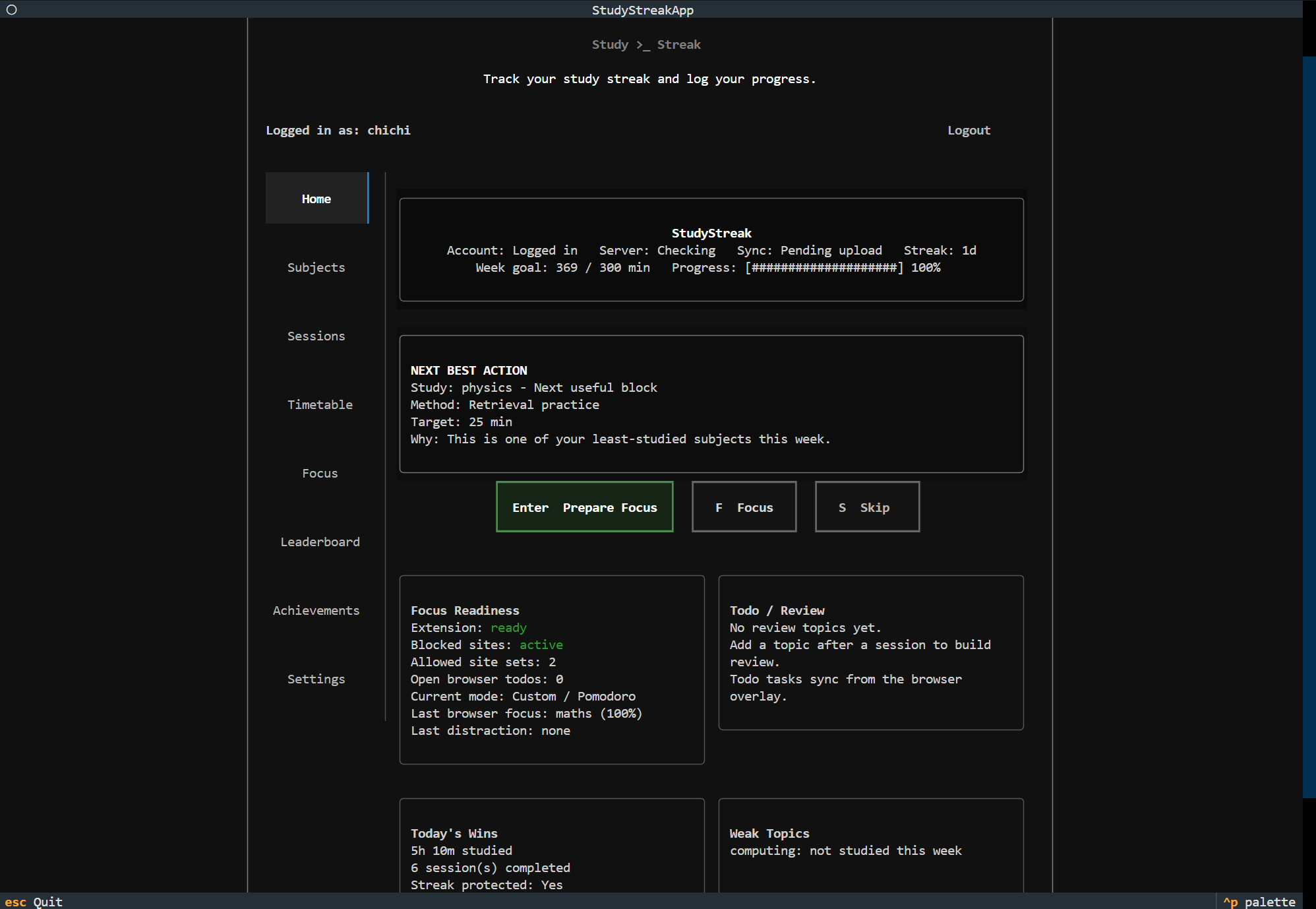
Home is the quick command center of the terminal app. It shows:
- account, server, sync, streak, and weekly goal status
- a next best action based on your recent study data
- visible buttons for
Enter Prepare Focus,F Focus, andS Skip - focus readiness, todo/review status, today's wins, and weak topics
- a setup checklist that disappears as you complete setup
Subjects are the main use for this app unless you use it for building up habit for a hobby then ig it can still be useful. Each subject can have:
- study websites
- topics
- study history
- focus-quality summaries from the browser extension
Use Settings > Subjects to add, edit, or delete subjects. Websites and topics are always sync to the browser extension so no worries about discrepency mostly.
Example websites:
https://pearsonactivelearn.com
https://quizlet.com
https://senecalearning.com
Example topics:
Integration
Circular motion
Databases
Organic chemistry
The Sessions tab combines logging and editing.
Use Log Session to manually add study time with an optional topic and review note.
Use Edit Logs to:
- view session details
- change subject, minutes, topic, or review note
- delete incorrect sessions
StudyStreak protects streaks by date, so logging twice on the same day does not incorrectly create a two-day streak.
When you log a session or finish a focus session, you can add:
- what topic you worked on
- a short review note
Those topics feed the Home review queue and weak-topic suggestions.
The Timetable tab lets you plan weekly study sessions by subject, day, start time, and duration.
When synced, the browser extension can show today's sessions and send notifications when planned sessions come up.
The Focus tab runs focused study sessions from inside the terminal.
It can:
- choose a subject and optional topic
- auto-fill saved websites for that subject
- open all saved websites
- run a custom countdown
- run Pomodoro 50/10
- show a minimal focus screen with a large timer
- auto-log completed Pomodoro work blocks
- ask for a review note at the end
The leaderboard loads from the StudyStreak server and has Today, This week, and All time views.
Rows show study minutes and current streak days.
Achievements unlock as you add subjects, log sessions, use focus mode, protect streaks, and build better study habits. Sounds and notifications can be controlled in Settings.
Settings contains:
Weekly Goal: set the weekly study targetSetup Health: see what is still missingSync: upload and download cloud dataTour: replay or complete the guided tourUpdates: check PyPI for a newer app versionExtension: open browser extension setup guidanceAppearance: switch dark/light modeSounds: control UI, focus, streak, achievement, and notification soundsSubjects: edit subjects, websites, and topicsData & Privacy: export data, clear focus quality, or reset local dataFocus Import: offline/debug fallback for signed browser focus JSON
StudyStreak Companion adds browser-based focus tracking and overlays.
It can:
- sync subjects, websites, topics, timetable sessions, and todos
- start and stop focus sessions
- show a movable timer overlay on webpages
- show a movable todo overlay on webpages
- let you check off todos from the overlay
- clear completed todo tasks
- track focused, distracted, and idle time
- use an 8 minute idle threshold
- run Pomodoro 50/10 with Work and Break labels
- upload completed Pomodoro work blocks
- ask for a topic and review note after stopping focus
- sync focus sessions and review notes back to the terminal app
- sync full focus-quality summaries
- use Strict Focus to redirect distracting sites to an allowed study site
- show timetable reminders from the account
Reminder, Focus, Todo, and Settings stay disabled until you log in, so account data does not carry across users by mistake.
Install from Firefox Add-ons:
https://addons.mozilla.org/firefox/addon/studystreak-companion/
Then open the extension, log in, and press Refresh Subjects.
Zen is Firefox-based, so use the Firefox Add-ons version when possible.
If you are testing locally, follow the temporary install steps below.
Chrome currently uses the local development folder.
git clone https://github.com/Chi-ChunL/StudyStreak.git
cd StudyStreak
Then:
- Open
chrome://extensions. - Turn on Developer mode.
- Click
Load unpacked. - Choose the
chrome_extensionfolder. - Open StudyStreak Companion.
- Log in and press
Refresh Subjects.
Use this for local testing:
python scripts/build_firefox_extension.pyThen:
- Open
about:debugging#/runtime/this-firefox. - Click
Load Temporary Add-on. - Choose
dist/firefox_extension/manifest.json. - Open StudyStreak Companion.
- Log in and press
Refresh Subjects.
Temporary add-ons disappear after restarting Firefox or Zen.
- Log in with your StudyStreak account.
- Press
Refresh Subjects. - Choose a subject.
- Check that Focus websites auto-fill.
- Save websites if you changed them.
- Add todo tasks if you want the overlay checklist.
- Enable Strict Focus or Pomodoro if needed.
- Press
Start Focus. - Use the webpage overlay or popup to stop focus.
- Add a topic/review note, or skip it.
- Open the terminal app and press
Settings > Sync > Sync Now.
StudyStreak uses this server by default:
https://chichi.hackclub.app
Cloud sync currently covers:
- encrypted profile backup data
- streak state
- subjects
- subject websites
- subject topics
- timetable sessions
- todo tasks
- focus sessions
- review notes
- browser focus-quality summaries
- leaderboard data
If you run your own backend, set:
STUDYSTREAK_API_URL=https://your-backend-urlThen launch the app normally:
studystreakThe browser extension points at the deployed StudyStreak server by default. To use a different backend, change API_BASE_URL in chrome_extension/background.js before loading or packaging the extension.
Most users should use the TUI, but quick commands still exist:
studystreak
studystreak ui
studystreak log maths 30
studystreak today
studystreak streak
studystreak create-user alex
studystreak login alex
studystreak logout
studystreak usersStudyStreak stores data in the user app-data folder instead of the project folder.
Windows:
%LOCALAPPDATA%\StudyStreak
macOS:
~/Library/Application Support/StudyStreak
Linux:
~/.local/share/StudyStreak
You can override this with:
STUDYSTREAK_DATA_DIR=/path/to/dataStudyStreak stores local study data on your machine.
When you use cloud sync, StudyStreak sends the data needed to keep the terminal app and browser extension connected. Profile backup data is encrypted before upload. Some browser-extension sync fields are stored plainly so the extension can read them, such as subjects, websites, topics, timetable sessions, todos, focus sessions, and focus-quality summaries. Everything is encrypted and salted of course as a standard but nonetheless people may still bypass it somehow so make sure you don't put any genuine private sensitive information on here.
The extension may collect page domain activity during an active focus session so it can calculate focused, distracted, and idle time. It does not need this tracking when focus mode is stopped.
Offline signed JSON import remains available in Settings > Focus Import as a fallback/debug path.
Clone the repo:
git clone https://github.com/Chi-ChunL/StudyStreak.git
cd StudyStreak
Install locally:
pip install -e .Run the app:
studystreakRun tests:
python -m unittest discover -s testsBuild the Python package:
python -m buildBuild the Firefox/Zen extension folder:
python scripts/build_firefox_extension.pyCreate a Firefox upload ZIP on Windows:
Compress-Archive -Path dist\firefox_extension\* -DestinationPath dist\studystreak-firefox.zip -ForceUseful JavaScript checks:
node --check chrome_extension/background.js
node --check chrome_extension/popup.js
node --check chrome_extension/focus_overlay.jsInstall backend requirements:
pip install -r requirements.txtRun the FastAPI server:
python -m uvicorn backend.main:app --host 0.0.0.0 --port 8000The backend creates and updates its SQLite tables on startup.
Add subjects in Settings > Subjects, then press Settings > Sync > Sync Now. In the extension, press Refresh Subjects.
Check that the server is online, your internet is working, and the extension has been updated/reloaded. Firefox users should use the Add-ons version or rebuild the Firefox extension folder after code changes.
Log in first, enable Settings > Show todo overlay in the extension, and open a normal http:// or https:// webpage. Browser pages like about:, chrome://, moz-extension://, PDFs, and store pages can block overlays.
Reload the extension and use the latest Firefox/Chrome build. The overlay is injected into normal webpages and repaired when the page DOM changes, but browser-protected pages still cannot show it.
Open the terminal app and press Settings > Sync > Sync Now, then check Settings > Subjects.
Sync the terminal app after stopping focus in the extension. Review notes are attached to focus sessions when you save the review panel.
That is normal for about:debugging temporary installs. Use the Firefox Add-ons version for a permanent install.
Run:
pip install --upgrade studystreakYou can also check inside Settings > Updates.
StudyStreak is still in semi pre release development. The goal is to make study tracking easier for us and more fun because apparently you decide to use a terminal tracker with browser extension instead of an actual app.
StudyStreak is released under the MIT License.
Copyright (c) 2026 Chi-Chun Lin