-
Enable Virtualization in your BIOS (this step may not be necessary, skip if you don't know what you're doing)
- Steps vary by manufacturer, you want to make sure you don't see a green turtle in the lower right of your VM window.
-
Download TinkerOS ISO >= 5.20-rc15
-
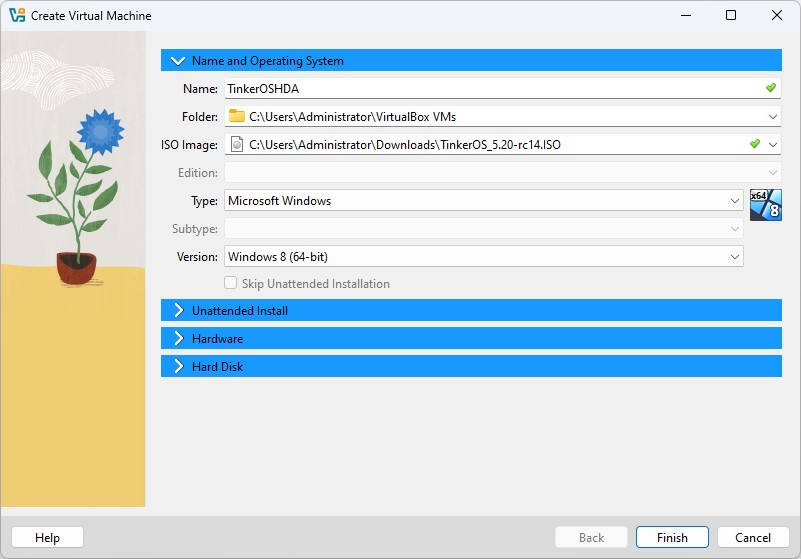
Create a new VM with:
- TinkerOS ISO attached
- Windows 8 64-bit as OS type
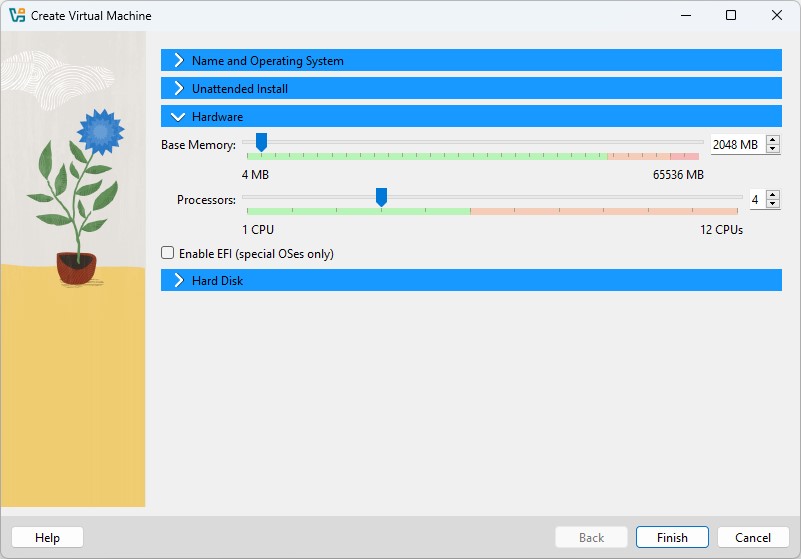
- Click Hardware and set at least:
- 2048 MB RAM
- 4 CPU cores
- Click Finish
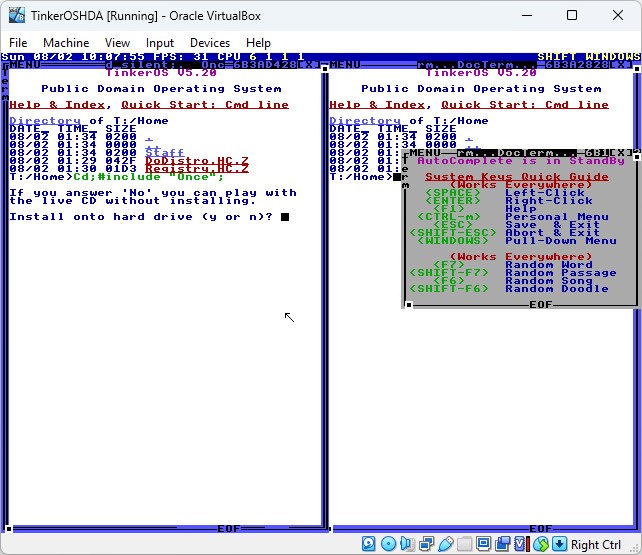
- Start the VM:
- Answer yes (y) to Install onto hard drive
- Press enter to accept the default for all other questions
- Last question asks to reboot, press enter and it should reboot bringing you back to the same screen you started with.
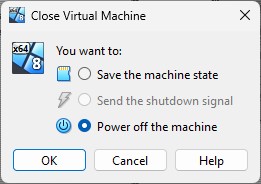
- Stop the VM and select Power off the machine:
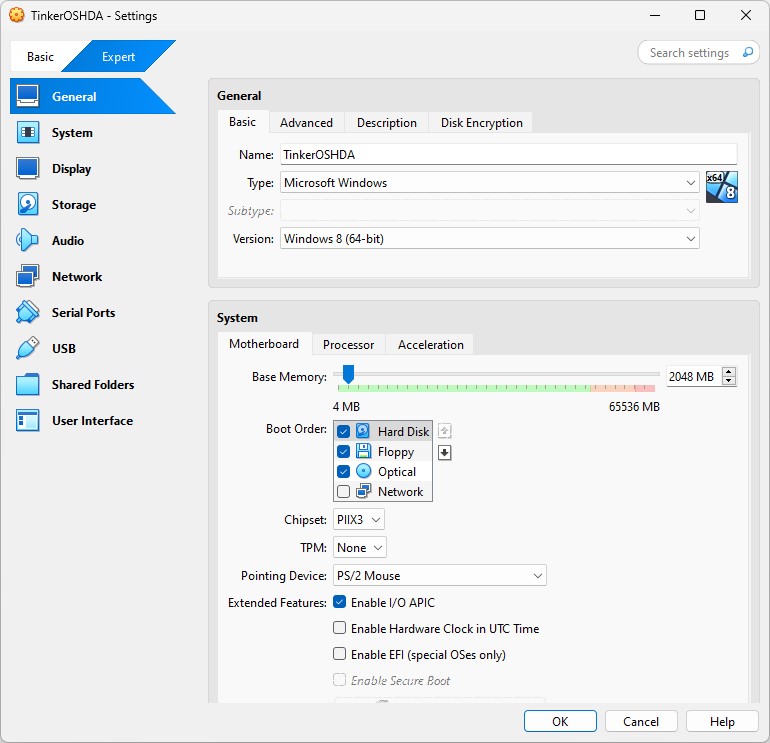
- Click Settings:
- Change Boot Order to have Hard Disk first
- Change Pointing Device to PS/2 Mouse
- Click OK
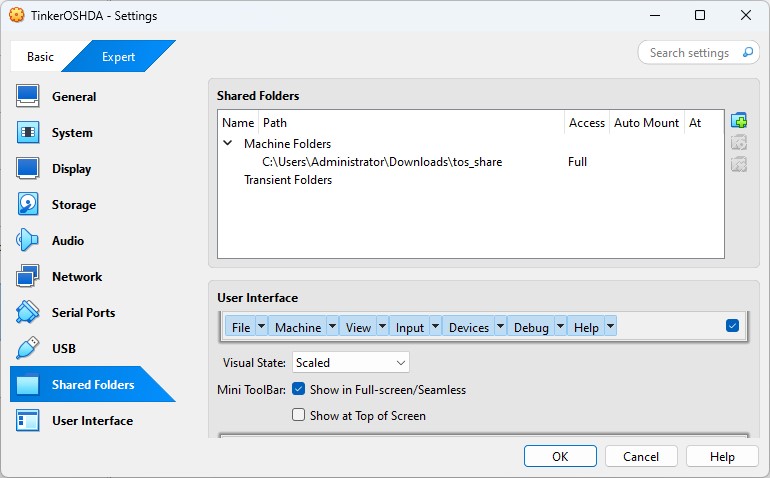
- Setup a shared folder to transfer files in and out of the VM easily (optional):
- Create a folder where ever you want on your system called tos_share
- In VirtualBox click Settings
- Select Shared Folders
- Click + to add a folder
- Make sure folder path and folder name end in tos_share
- Click OK
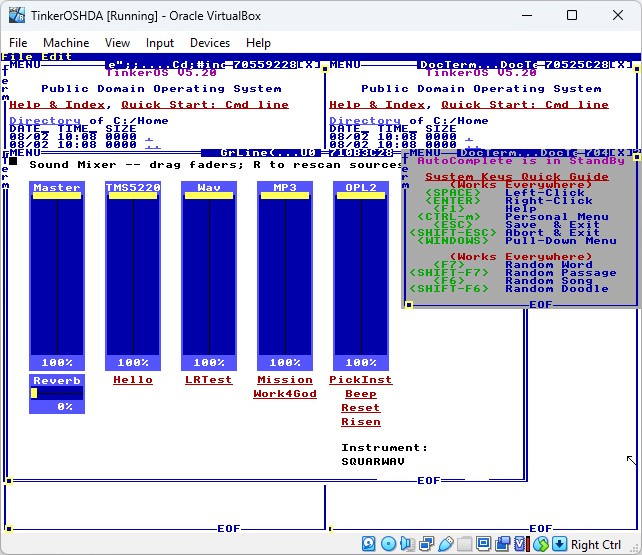
- Start the VM:
- Press 1 to boot drive C at boot menu
- Once booted click inside the VM and press
CTRL-ALT-Mto bring up sound mixer - Test various options
- Slide reverb to 30% and click Risen (because you have to at least once for Terry)
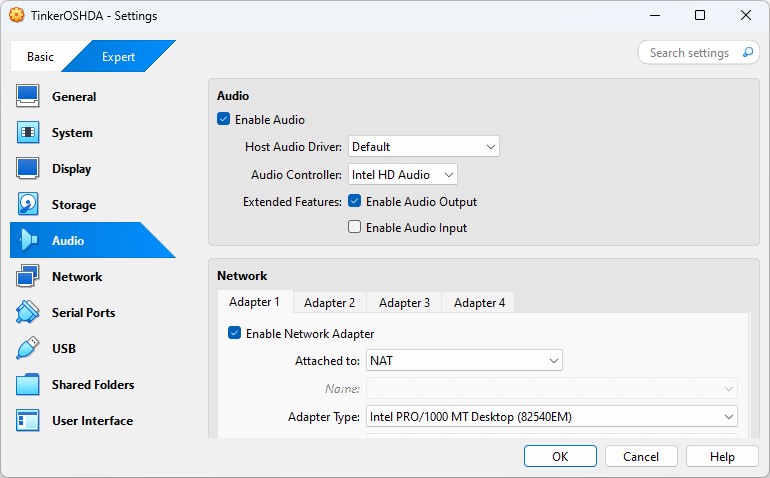
- If you didn't pick the right VM OS type (or VirtualBox changes things), it might not have defaulted to Intel HD Audio
- Check Settings Audio tab, it should look like this: