| title | aws-lambda | ||||
|---|---|---|---|---|---|
| keywords |
|
||||
| description | The aws-lambda Plugin integrates APISIX with AWS Lambda and Amazon API Gateway, supporting authentication via IAM access keys and API keys. |
The aws-lambda Plugin eases the integration of APISIX with AWS Lambda and Amazon API Gateway to proxy for other AWS services.
The Plugin supports authentication and authorization with AWS via IAM user credentials and API Gateway's API key.
| Name | Type | Required | Default | Valid values | Description |
|---|---|---|---|---|---|
| function_uri | string | True | AWS Lambda function URL or Amazon API Gateway endpoint that triggers the Lambda function. | ||
| authorization | object | False | Credentials used in authentication and authorization on AWS to invoke Lambda function. | ||
| authorization.apikey | string | False | API key for the REST API Gateway when API key is selected as the security mechanism. | ||
| authorization.iam | object | False | IAM credentials to be authenticated using AWS Signature Version 4 and authorized. | ||
| authorization.iam.accesskey | string | False | IAM user access key. Required when authorization.iam is configured. |
||
| authorization.iam.secretkey | string | False | IAM user secret access key. Required when authorization.iam is configured. |
||
| authorization.iam.aws_region | string | False | "us-east-1" | AWS region where the request is being sent. | |
| authorization.iam.service | string | False | "execute-api" | Service receiving the request. To integrate with AWS API Gateway, set to execute-api. To integrate with Lambda function directly, set to lambda. |
|
| timeout | integer | False | 3000 | [100,...] | Proxy request timeout in milliseconds. |
| ssl_verify | boolean | False | true | If true, perform SSL verification. | |
| keepalive | boolean | False | true | If true, keep the connection alive for reuse. | |
| keepalive_pool | integer | False | 5 | [1,...] | Maximum number of connections in the keepalive pool. |
| keepalive_timeout | integer | False | 60000 | [1000,...] | Time for connection to remain idle without closing in milliseconds. |
The examples below demonstrate how you can configure aws-lambda for different scenarios.
To follow along the examples, first log into your AWS console and create a Lambda function with any runtime. By default, the function should return Hello from Lambda! when called.
:::note
You can fetch the admin_key from config.yaml and save to an environment variable with the following command:
admin_key=$(yq '.deployment.admin.admin_key[0].key' conf/config.yaml | sed 's/"//g'):::
The following example demonstrates how you can integrate APISIX with the Lambda function and configure IAM access keys for authorization. The aws-lambda Plugin implements AWS Signature Version 4 for IAM access keys.
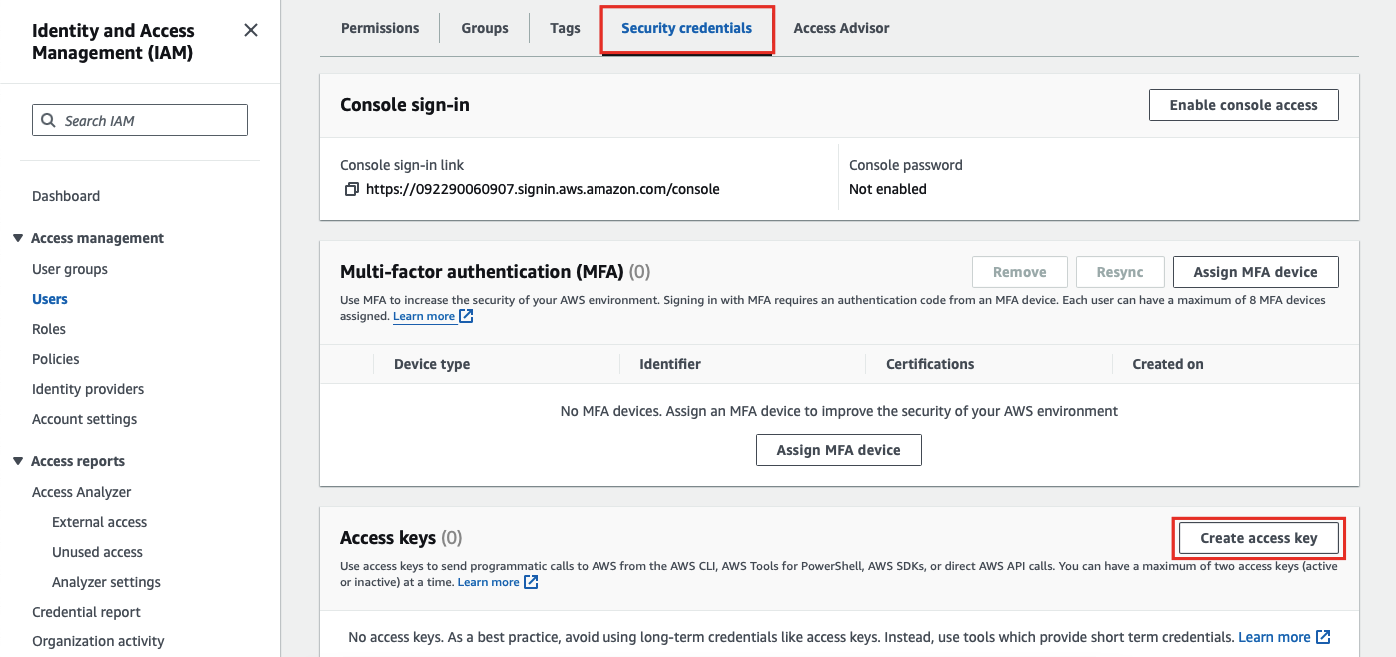
For IAM access keys, go to AWS Identity and Access Management (IAM) and click into the user you would like to use for integration.
Next, in the Security credentials tab, select Create access key:
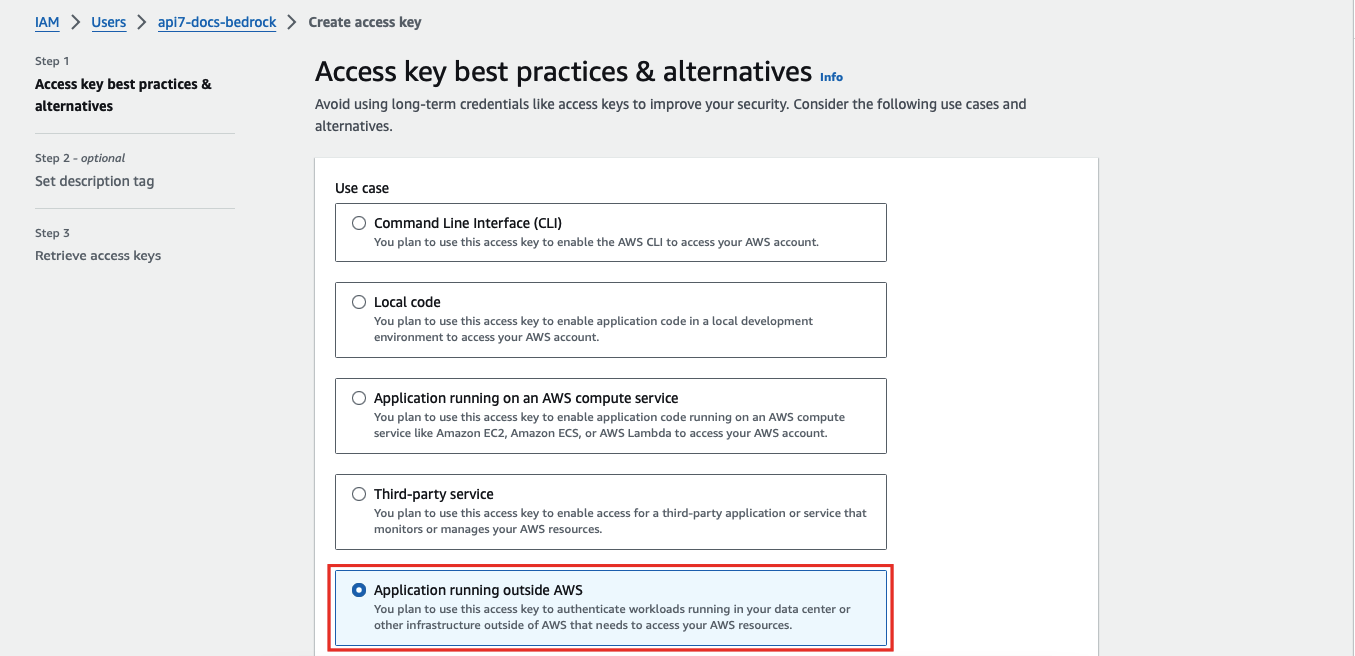
Select Application running outside AWS as the use case:
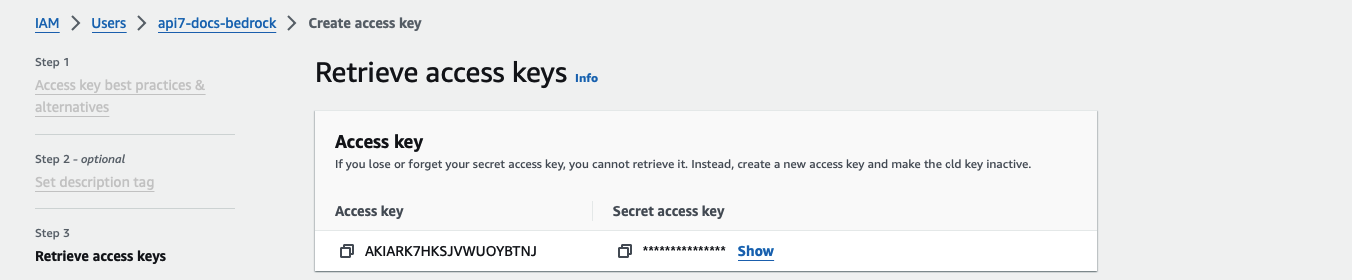
Continue the credential creation and note down the access key and secret access key:
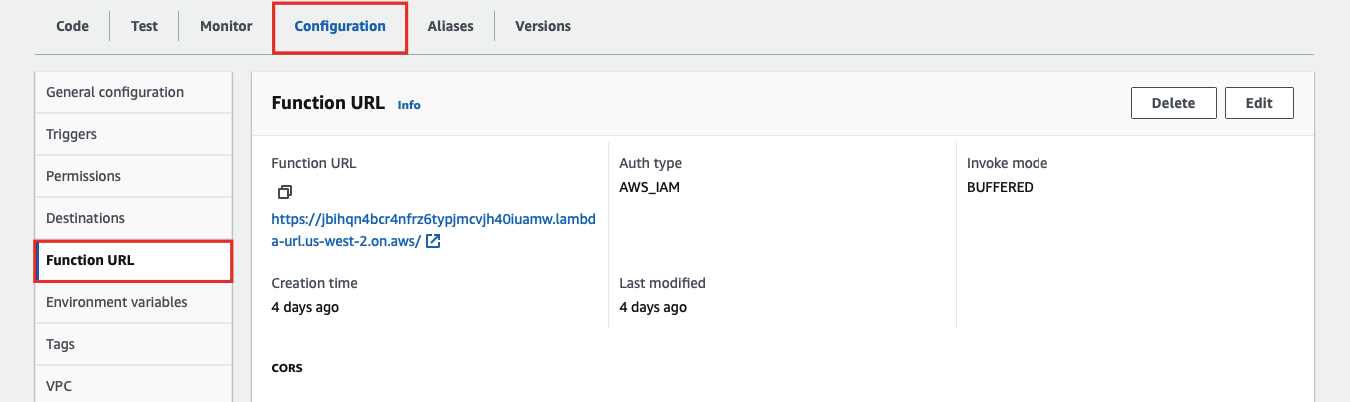
To create the Lambda function URL, go to the Configuration tab of the Lambda function and under Function URL, create a function URL:
Finally, create a Route in APISIX with your function URL and IAM access keys:
curl "http://127.0.0.1:9180/apisix/admin/routes" -X PUT \
  -H "X-API-KEY: ${admin_key}" \
  -d '{
    "id": "aws-lambda-iam-route",
        "authorization": {
          "iam": {
            "accesskey": "<YOUR_ACCESS_KEY>",
            "secretkey": "<YOUR_SECRET_KEY>",
            "aws_region": "<YOUR_AWS_REGION>",
            "service": "lambda"
          }
        },
        "ssl_verify": false
      }
    }
  }'
Replace function_uri, accesskey, secretkey, and aws_region with your actual values. Set service to lambda when integrating with a Lambda function directly.
Send a request to the Route:
curl -i "http://127.0.0.1:9080/aws-lambda"You should receive an HTTP/1.1 200 OK response with the following message:
"Hello from Lambda!"
The following example demonstrates how you can integrate APISIX with Amazon API Gateway and configure the gateway to trigger the execution of Lambda function.
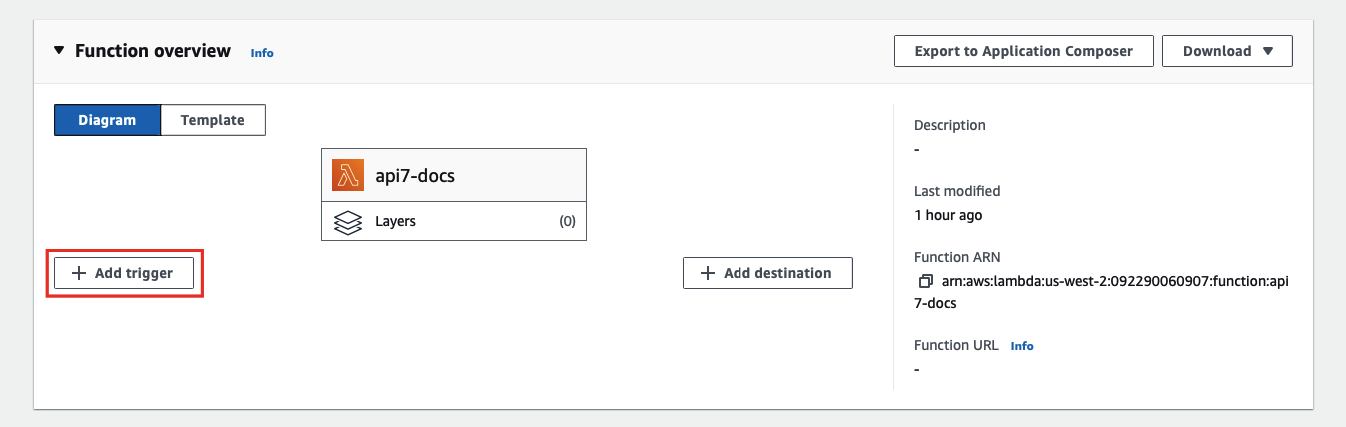
To configure an API Gateway as a Lambda trigger, go to your Lambda function and select Add trigger:
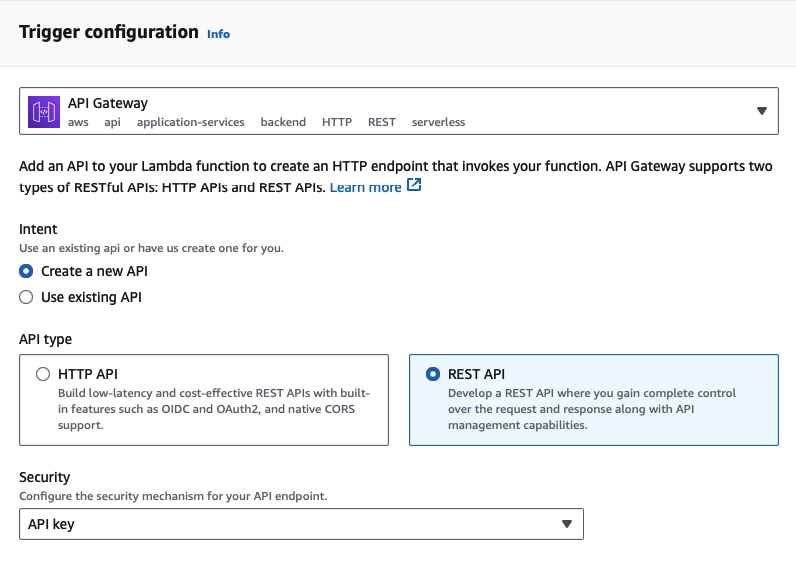
Next, select API Gateway as the trigger and REST API as the API type, and finish adding the trigger:
:::note
Amazon API Gateway supports two types of RESTful APIs: HTTP APIs and REST APIs. Only REST APIs offer API key and IAM as security measures.
:::
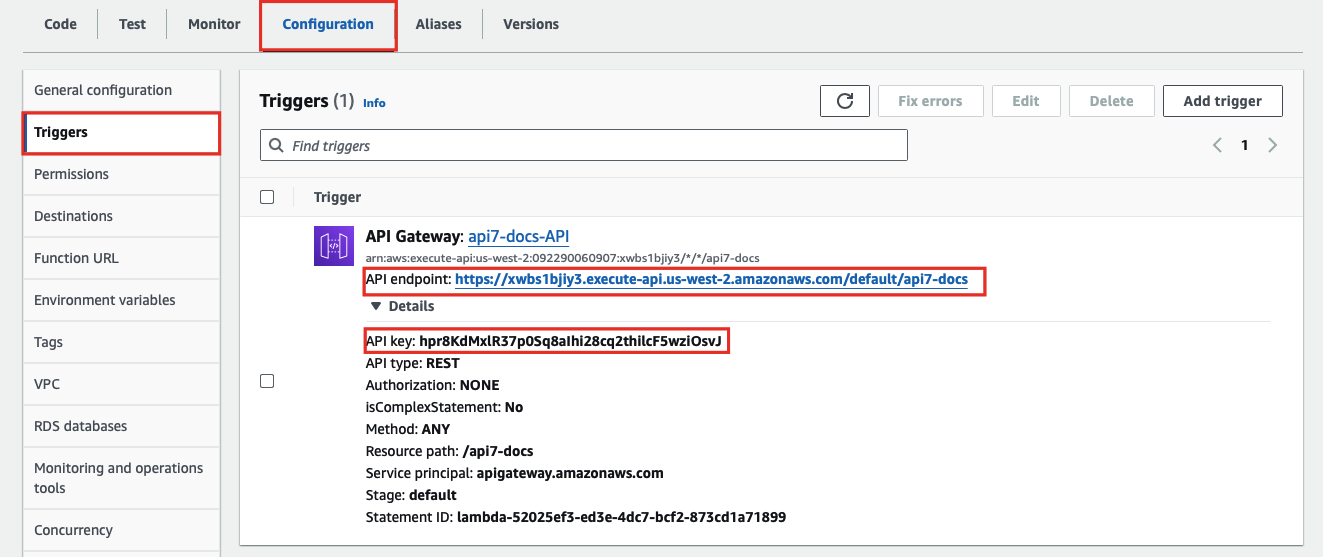
You should now be redirected back to the Lambda interface. To find the API key and gateway API endpoint, go to the Configuration tab of the Lambda function and under Triggers, you can find the details of the API Gateway:
Finally, create a Route in APISIX with your gateway endpoint and API key:
curl "http://127.0.0.1:9180/apisix/admin/routes" -X PUT \
  -H "X-API-KEY: ${admin_key}" \
  -d '{
    "id": "aws-lambda-apikey-route",
    "uri": "/aws-lambda",
    "plugins": {
      "aws-lambda": {
        "function_uri": "https://<YOUR_API_GATEWAY_ENDPOINT>/default/api7-docs",
        "authorization": {
          "apikey": "<YOUR_API_KEY>"
        },
        "ssl_verify": false
      }
    }
  }'
Send a request to the Route:
curl -i "http://127.0.0.1:9080/aws-lambda"You should receive an HTTP/1.1 200 OK response with the following message:
"Hello from Lambda!"
If your API key is invalid, you should receive an HTTP/1.1 403 Forbidden response.
The following example demonstrates how you can forward requests to a sub-path of the Amazon API Gateway and configure the API to trigger the execution of Lambda function.
Please follow the previous example to set up an API Gateway first.
To create a sub-path, go to the Configuration tab of the Lambda function and under Triggers, click into the API Gateway:

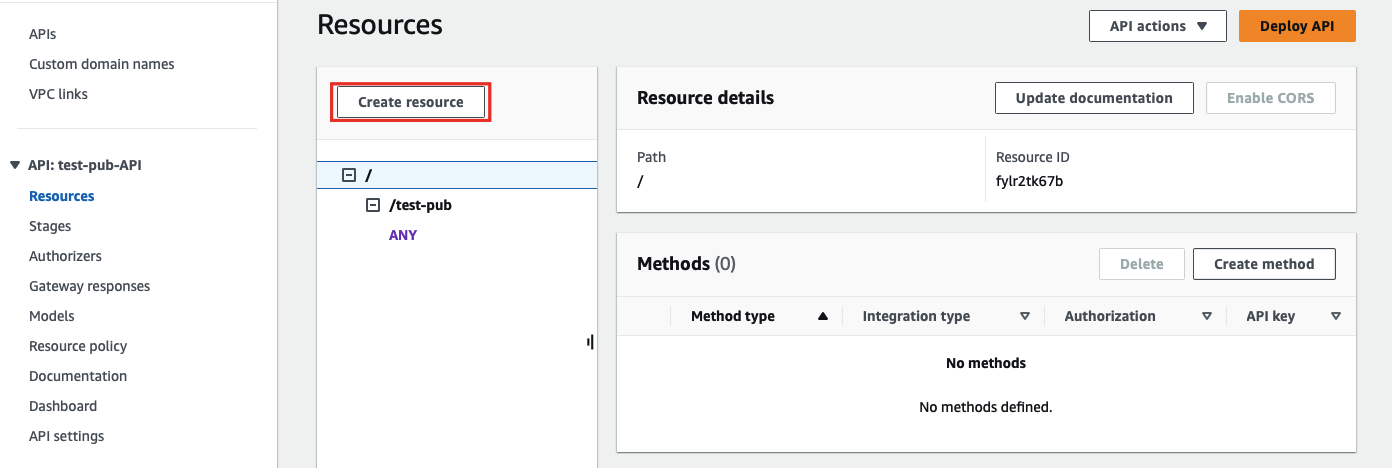
Next, select Create resource to create a sub-path:
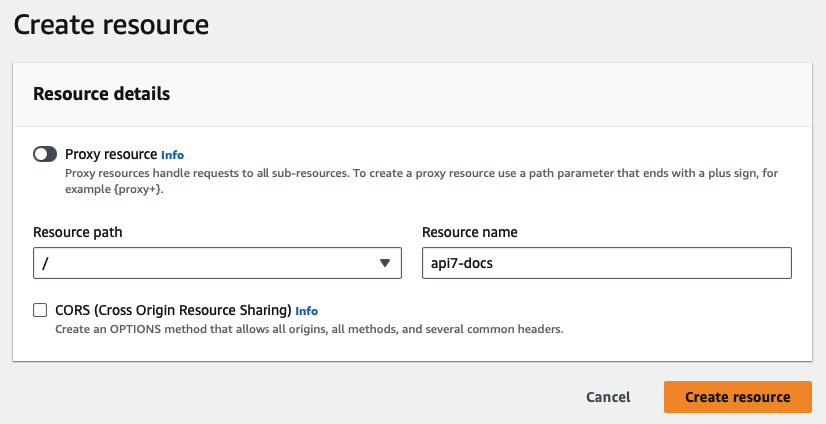
Enter the sub-path information and complete creation:
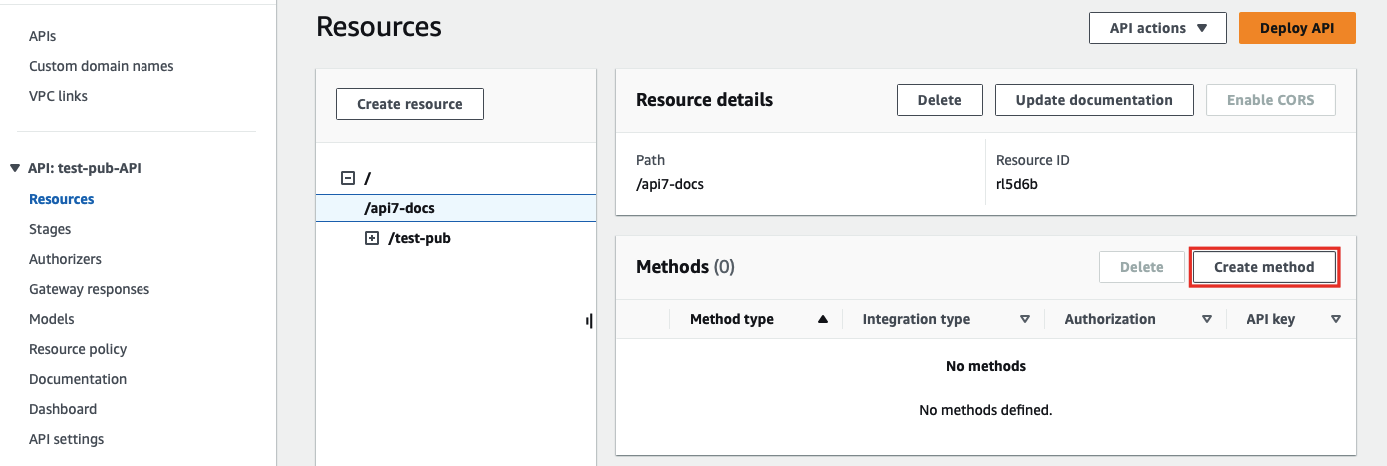
Once redirected back to the main gateway console, you should see the newly created path. Select Create method to configure HTTP methods for the path and the associated action:
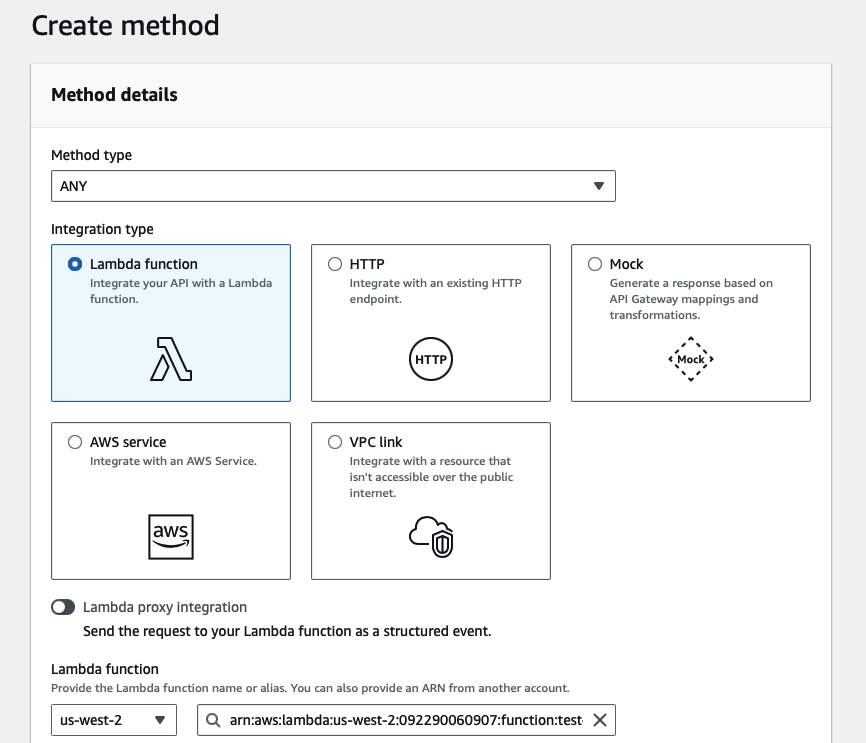
Select the allowed HTTP method in the dropdown. For the purpose of demonstration, this example continues to use the same Lambda function as the triggered action when the path is requested:
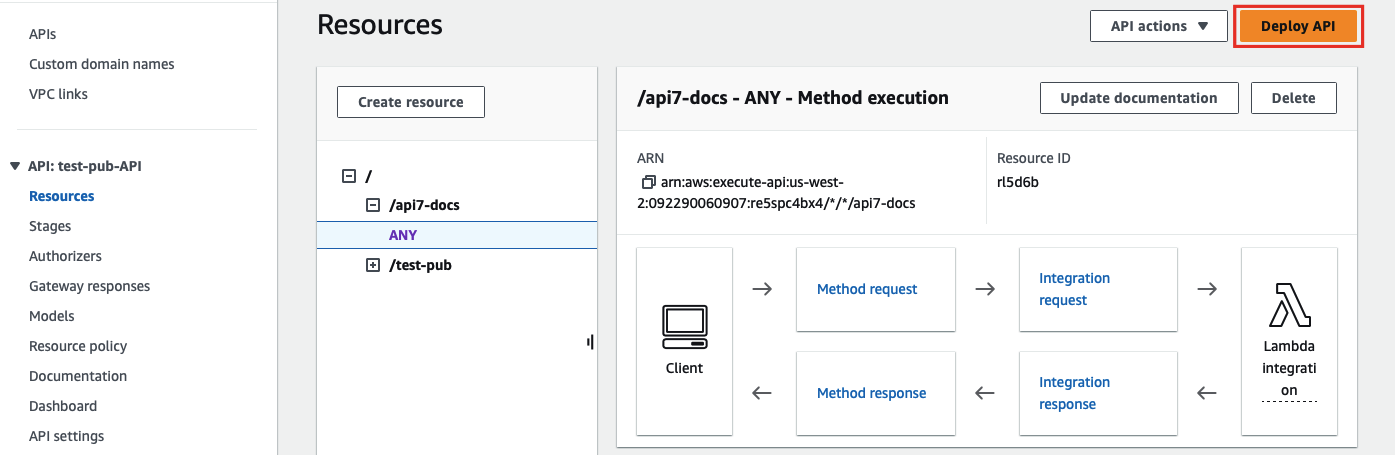
Finish the method creation. Once redirected back to the main gateway console, click on Deploy API to deploy the path and method changes:
Finally, create a Route in APISIX with your gateway endpoint and API key. The uri must end with * so that any sub-path is matched to the same Route, and the matched sub-path will be appended to function_uri:
curl "http://127.0.0.1:9180/apisix/admin/routes" -X PUT \
  -H "X-API-KEY: ${admin_key}" \
  -d '{
    "id": "aws-lambda-subpath-route",
    "plugins": {
      "aws-lambda": {
        "function_uri": "https://<YOUR_API_GATEWAY_ENDPOINT>/default",
        "authorization": {
          "apikey": "<YOUR_API_KEY>"
        },
        "ssl_verify": false
      }
    }
  }'
Send a request to the Route:
curl -i "http://127.0.0.1:9080/aws-lambda/api7-docs"APISIX will forward the request to https://<YOUR_API_GATEWAY_ENDPOINT>/default/api7-docs and you should receive an HTTP/1.1 200 OK response with the following message:
"Hello from Lambda!"
If your API key is invalid or if the requested path is not associated with any method, you should receive an HTTP/1.1 403 Forbidden response.